Gemini API Quota Exceeded in Apps Script: Backoff Plan

Fix gemini app script quota exceeded errors in Apps Script with practical checks for API limits, retries, batching, and the right Gemini project.
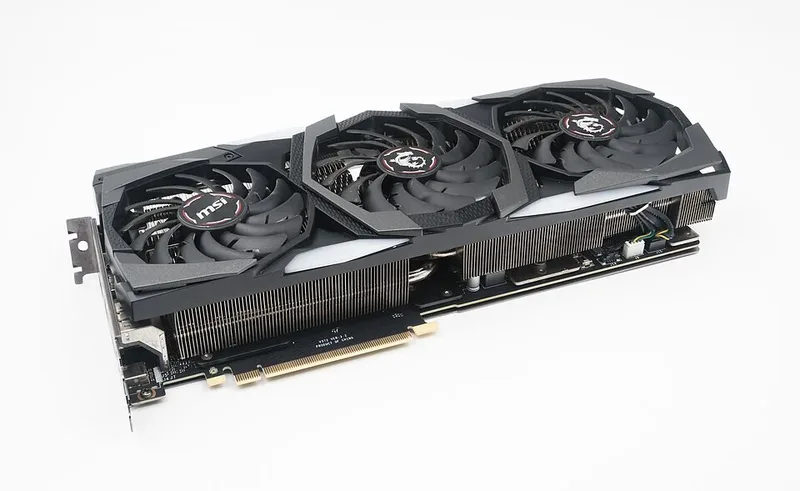
A comfyui cuda error out of memory message means the GPU cannot allocate enough video memory for the current operation. The most common cause is that the loaded checkpoint, workflow, and image settings need more VRAM than is available, often because another app or an earlier model is still using some.
ComfyUI needs VRAM for model weights, intermediate activations, and generated images; memory demand can rise sharply with larger batches, resolutions, or demanding nodes. Available VRAM may also be fragmented or occupied by other GPU processes.
On Windows, open Task Manager with Ctrl+Shift+Esc, select Performance > GPU, then inspect the Processes tab and enable the GPU and Dedicated GPU memory columns if they are hidden. Close only apps you recognize and are not using; save work first. You can also run nvidia-smi in Command Prompt or PowerShell to see NVIDIA GPU processes and memory use. If closing an idle app frees enough memory for the same workflow, contention was the cause.
Save or note your workflow, stop ComfyUI from its console or terminal, then start it again using your usual launch method. This clears allocations that may remain after switching checkpoints, interrupting a run, or encountering an error. Retry the same workflow before changing several settings; if it now runs, a clean restart restored usable VRAM.
In the workflow, lower the width and height values on the Empty Latent Image node, and set its batch size to 1. Run the workflow once. If it succeeds, increase resolution gradually and keep batch size low; this identifies a workload limit without changing model files. High-resolution workflows may need a tiled upscaler or a lower-resolution first pass.
In ComfyUI, use the Unload models or model-unload control if your installed version exposes one; the exact location varies. Otherwise stop and restart the app before switching to a different large checkpoint. Close other local model tools such as Ollama or LM Studio if they are holding the GPU model in memory. Check VRAM use again before rerunning: a drop after unloading confirms those models were occupying memory.
Try a smaller checkpoint or a model format and precision supported by your ComfyUI setup and GPU. Check the model's documentation and your loader's options rather than assuming every quantization or precision is compatible. If the smaller model runs with the same image settings, the original model's memory footprint was the limiting factor.
ComfyUI has low-memory launch options, but available flags and behavior can vary by version and installation. Check the current ComfyUI command-line help or documentation for the supported low-VRAM option, then add it to your existing launch command and restart. Compare the same workflow before and after; success indicates the memory-management mode helped, though it may reduce speed.
Temporarily bypass optional ControlNet, large upscalers, extra conditioning models, or custom nodes that load additional networks. Run the base workflow, then add one component back at a time. The first component that brings the error back points to the extra VRAM demand. Keep only the components needed for the current image.
Read the ComfyUI startup console for the detected device and compare it with the GPU shown in Task Manager or nvidia-smi. If you have multiple GPUs, confirm your launch method selects the intended one; settings depend on the installation. Update the GPU driver through the manufacturer's official software if it is outdated, then restart and check the startup output. A correct device and available memory confirm that ComfyUI is using the expected GPU.
| Likely cause | Typical symptom | Quick test |
|---|---|---|
| Another GPU app | VRAM is already heavily used before generation | Check Task Manager or nvidia-smi; close an idle app |
| Workflow too demanding | Error appears at a larger image size or batch | Set batch size to 1 and lower resolution |
| Model allocation remains | Error follows checkpoint switching or an interrupted run | Restart ComfyUI and retry |
The displayed free amount may not be enough for the next allocation, and memory fragmentation can prevent a large block from being reserved. Other apps may also claim memory between checks. Restart ComfyUI, close idle GPU apps, and retry with a smaller batch or resolution.
Use the model-unload control available in your ComfyUI version, or stop and restart ComfyUI to release its allocations. Close other GPU model apps if they are using memory. Check Task Manager or nvidia-smi to confirm usage has dropped.
No. It can help manage allocations, but it cannot make an oversized model or workflow fit within the GPU's available memory in every case. Reduce resolution or batch size, unload other models, or use a smaller checkpoint if the error continues.
Start with the process check, restart, and a smaller batch; these steps quickly distinguish GPU contention from a workflow that exceeds available VRAM. If nothing works, capture the full ComfyUI console error and startup device information, then compare your model and workflow requirements with your GPU's available memory.
Photo: Jacek Halicki / CC BY-SA 4.0 (Wikimedia Commons)
Fix gemini app script quota exceeded errors in Apps Script with practical checks for API limits, retries, batching, and the right Gemini project.
ChatGPT export conversation missing? Learn what the archive includes, why messages may be absent, and how to check account, chat history, and export settings.
Copilot Excel pivot table help: fix source data, check Copilot access, and build a reliable PivotTable manually when AI can’t create it.
Fix teams transcript not showing issues by checking meeting policy, organizer controls, licensing, transcript access, and where Teams stores completed transcripts.
Fix whisper srt timing off by checking audio alignment, transcript edits, export settings, and manual SRT timestamps so subtitles stay in sync.
Fix chatgpt pdf table extraction wrong results with six practical prompts, source checks, and export steps for cleaner tables in ChatGPT and other AI assistants.
Fix chatgpt canvas not saving by checking save status, connection, browser cache, extensions, and workspace access, then recover or copy your latest edits safely.
Fix gemini deep research not available by checking your account type, plan, region, age eligibility, administrator controls, and temporary usage limits.
Fix gemini in google sheets not showing by checking Workspace eligibility, admin controls, smart features, file format, account selection, and browser issues.
Hit the notebooklm source limit? Learn how to combine files, split notebooks by project, and check current limits so you can use 300+ work documents effectively.








