Gemini API Quota Exceeded in Apps Script: Backoff Plan

Fix gemini app script quota exceeded errors in Apps Script with practical checks for API limits, retries, batching, and the right Gemini project.
If ComfyUI prints “Error running sage attention” and falls back to PyTorch attention, the workflow may continue, but SageAttention did not run for that operation. The most common cause is an incompatible SageAttention install: its wheel does not match the Python, PyTorch or CUDA environment used by the ComfyUI instance you launched.
SageAttention is an optional attention backend, not a universal switch that works with every model and installation. ComfyUI, a custom node or a launch option can request it, but the call can fail if the package, compiled kernel or model operation is unsupported.
Use the message and the point at which it appears to narrow the cause before changing packages:
| Cause | Symptom | Quick test |
|---|---|---|
| Wrong Python environment | Package appears installed, but ComfyUI says it is missing | Run the import check with the Python executable used to launch ComfyUI |
| Incompatible wheel | Import errors, missing DLLs or a kernel failure | Compare Python, PyTorch and CUDA details with the wheel’s compatibility information |
| Unsupported model operation | Error occurs only with one model or workflow | Run the same workflow with SageAttention disabled |
Stop the current queue and inspect the ComfyUI terminal or launcher window. Find the first SageAttention error and the lines immediately before it; a later fallback message alone may hide whether the problem is a missing package, a failed import or a runtime kernel error. If only one model or node triggers the message, note its name and the stage where it occurs. That distinction matters: a package import issue affects the environment, while a model-specific failure can point to unsupported attention shapes or data types.
Install and check SageAttention in the same Python environment that launches ComfyUI. For a Windows portable install, open a terminal in the portable folder and run .\python_embeded\python.exe -m pip show sageattention, then .\python_embeded\python.exe -c "import sageattention; print(sageattention.__file__)". The import command should finish without a traceback and show a path inside that ComfyUI installation. For a virtual environment, use its own Python executable instead; plain pip may point elsewhere.
Check the ComfyUI startup log for its Python and PyTorch versions and the CUDA build reported by PyTorch. You can also run .\python_embeded\python.exe -c "import sys, torch; print(sys.version); print(torch.__version__); print(torch.version.cuda)" from the portable folder. Select a SageAttention wheel whose published compatibility matches those details, including Python ABI, PyTorch and CUDA. Do not infer compatibility from the CUDA Toolkit installed on Windows; ComfyUI’s PyTorch build is the detail the wheel must align with. If no matching build is available, use a supported combination or leave SageAttention disabled.
Close ComfyUI before changing packages. Remove a broken or mismatched package with .\python_embeded\python.exe -m pip uninstall sageattention. Then install the compatible wheel you selected using .\python_embeded\python.exe -m pip install "C:\path\to\matching-wheel.whl", replacing the example path with the actual downloaded file. Avoid upgrading PyTorch or unrelated dependencies as a first step; that can break other nodes. Re-run the import check from step 2 before starting ComfyUI again. A clean import confirms installation, but you still need to test a workflow.
Some SageAttention builds rely on Triton, and Windows support depends on the specific build and supported combination. If the traceback names Triton, a compiler, CUDA headers or a missing DLL, follow the requirements for that wheel or build rather than installing random system packages. Check that the required Triton package is installed in ComfyUI’s Python with .\python_embeded\python.exe -m pip show triton. If the error mentions a missing compiler or build tools, a compatible prebuilt wheel may be simpler than compiling from source. A successful SageAttention import and a workflow run without a Triton traceback are the useful confirmation.
If ComfyUI starts but the error appears only when generating, remove --use-sage-attention from the launch arguments in your start script and restart. If you enabled it through a custom node, bypass that node or set its attention option back to the default; check your model’s menu because labels vary by node and version. Run the same prompt again. If it now completes, the workflow and model load, and the remaining issue is specific to the SageAttention path. Keep the fallback setting for that model while you check compatibility.
Restart ComfyUI after installation, watch the startup log, and queue the workflow that previously failed. Look for a startup line confirming SageAttention is selected if your launch method prints one, then check that the generation completes without the runtime error. Some models or operations may not support this backend even when the package imports correctly; a PyTorch fallback can be expected in those cases. If the image or video output is black, noisy or otherwise corrupted, disable SageAttention for that workflow and compare a fresh run rather than assuming the speed-up worked.
ComfyUI may be using a different Python from the one where you ran pip install. Use the interpreter in the ComfyUI launch environment to check and install the package, then restart ComfyUI.
Not always. ComfyUI may fall back to PyTorch attention and continue, though the run may be slower; check whether the queue completed and inspect the output.
Choose a wheel that matches the Python ABI, PyTorch version and CUDA build used by your ComfyUI environment. These combinations vary, so check the wheel’s compatibility information and your startup log instead of copying a filename from another setup.
The fastest reliable path is to verify ComfyUI’s Python, match a compatible wheel and retest the affected workflow. If nothing worked, keep SageAttention disabled for that workflow and share the full console traceback, PyTorch and CUDA details, Python version, and GPU model when seeking help.
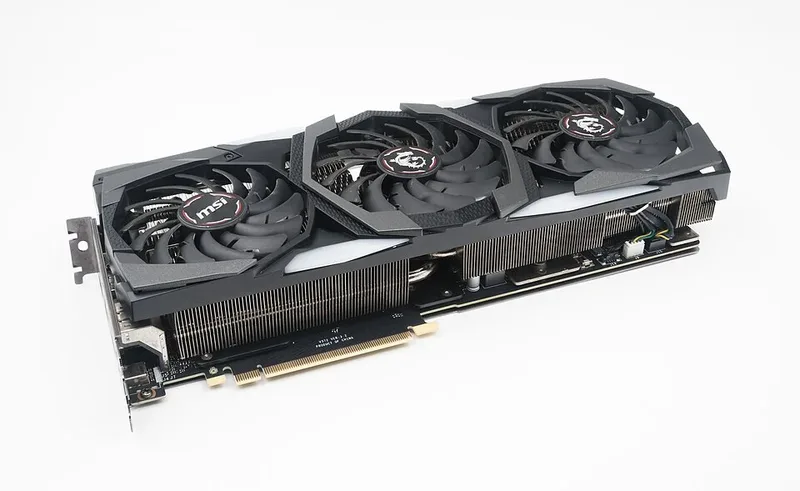
Photo: Jacek Halicki / CC BY-SA 4.0 (Wikimedia Commons)
Fix gemini app script quota exceeded errors in Apps Script with practical checks for API limits, retries, batching, and the right Gemini project.
ChatGPT export conversation missing? Learn what the archive includes, why messages may be absent, and how to check account, chat history, and export settings.
Copilot Excel pivot table help: fix source data, check Copilot access, and build a reliable PivotTable manually when AI can’t create it.
Fix teams transcript not showing issues by checking meeting policy, organizer controls, licensing, transcript access, and where Teams stores completed transcripts.
Fix whisper srt timing off by checking audio alignment, transcript edits, export settings, and manual SRT timestamps so subtitles stay in sync.
Fix chatgpt pdf table extraction wrong results with six practical prompts, source checks, and export steps for cleaner tables in ChatGPT and other AI assistants.
Fix chatgpt canvas not saving by checking save status, connection, browser cache, extensions, and workspace access, then recover or copy your latest edits safely.
Fix gemini deep research not available by checking your account type, plan, region, age eligibility, administrator controls, and temporary usage limits.
Fix gemini in google sheets not showing by checking Workspace eligibility, admin controls, smart features, file format, account selection, and browser issues.
Hit the notebooklm source limit? Learn how to combine files, split notebooks by project, and check current limits so you can use 300+ work documents effectively.








