Gemini API Quota Exceeded in Apps Script: Backoff Plan

Fix gemini app script quota exceeded errors in Apps Script with practical checks for API limits, retries, batching, and the right Gemini project.
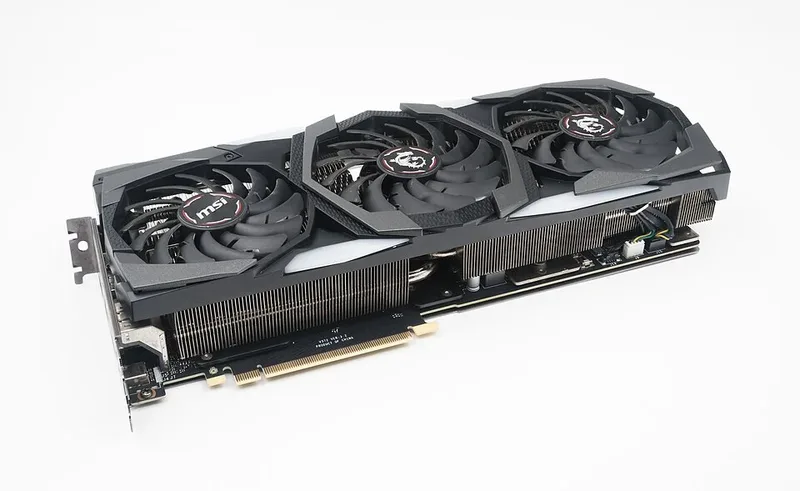
Photo: Jacek Halicki / CC BY-SA 4.0 (Wikimedia Commons)
If ComfyUI is stuck at 0 percent, the queue may be waiting while ComfyUI loads a checkpoint, initializes the GPU, or runs a node that has not reported progress yet. The most common cause is slow or stalled model loading, especially with a large checkpoint, limited memory, or a model stored on a slow drive.
The progress bar reflects workflow execution, not every background task. A job can appear to sit at zero while ComfyUI prepares a model or waits for a node; a genuinely frozen run usually shows no changing activity in the console, GPU, or system resource monitors.
Look at the terminal or command window where you started ComfyUI. Watch for new messages about loading models, nodes, or the device, and check Task Manager on Windows or your system monitor for disk, CPU, and GPU activity. A large checkpoint on an HDD or a first run after adding models can take time; wait while activity continues. If the console stays unchanged and resource use remains idle for several minutes, continue with the next checks.
In the ComfyUI page, inspect the queue controls and queue panel. Make sure the workflow was submitted with Queue Prompt, the queue is not paused, and the prompt appears as running rather than waiting behind another job. Cancel duplicate or stale prompts, then submit one simple workflow. If the simple prompt starts, the issue may be a prior queued workflow or a node in that graph.
Check the checkpoint loader node and confirm its selected file exists in the appropriate ComfyUI model folder, commonly ComfyUI/models/checkpoints. Also verify that any required LoRAs, VAE, ControlNet, or text encoders are present in the folders expected by their loader nodes. Use the node’s model selector to refresh or reselect the file, then queue again. A missing or unreadable file may produce a console message even when the page does not explain the delay.
Close other GPU-heavy applications, including games, video editors, and other local AI tools such as Ollama or LM Studio. In Task Manager, open Performance > GPU and check dedicated GPU memory; on NVIDIA systems, nvidia-smi can show current GPU use. Restart ComfyUI after freeing memory. If it then progresses, memory pressure was likely the cause. If ComfyUI is using the CPU or an unexpected GPU, review the startup output and your installation’s GPU setup before changing launch options.
Create or load a basic text-to-image workflow with a checkpoint loader, text prompts, an empty latent image, a sampler, a VAE decode, and a save image node. Avoid custom nodes, ControlNet, upscaling, and extra models for this test. If this workflow completes, add components back one at a time to identify which node or model causes the stall. If even the minimal graph remains at zero, look for a device or installation issue.
Scroll to the newest output in the terminal running ComfyUI. Look for messages naming a missing file, failed import, unsupported operation, or node that began executing but never finished. Reopen the workflow after noting the node name, then temporarily bypass or remove that node and queue the prompt again. If the error began after installing a custom node, update or disable that node using the method in its documentation; avoid deleting unrelated model files.
Save the workflow, stop ComfyUI from its terminal with Ctrl+C, and start it again using the same launch method. This clears a hung process and reveals startup errors. If the problem persists, check the ComfyUI and custom-node documentation for compatibility guidance, then update the affected component rather than changing several parts at once. Back up your workflows and note your current setup before making changes.
| Possible cause | Typical symptom | Quick test |
|---|---|---|
| Slow model loading | Disk or CPU activity continues | Watch the launch console and resource use |
| GPU memory pressure | Very slow run or memory nearly full | Close other GPU apps and retry |
| Custom node issue | Only one workflow hangs | Run a minimal workflow |
| Missing model file | Console names a file or loader | Check the file and loader selection |
ComfyUI may be loading a model or preparing the workflow before the progress bar advances. Check whether GPU memory use or console output changes over time. If both remain static, test with a minimal workflow and inspect the console for errors.
There is no universal wait time because checkpoint size, storage speed, RAM, and GPU memory vary. Activity in the console, disk, or GPU suggests the process may still be working. If activity stops and no new output appears, investigate the model files, queue, and nodes.
Usually, check the workflow, model paths, GPU memory, and custom nodes first; reinstalling does not fix a missing checkpoint or a node that stalls. If startup errors point to a damaged or incompatible installation, back up your workflows and follow the project’s current reinstall guidance.
When ComfyUI is stuck at 0 percent, use the console and a minimal workflow to distinguish slow loading from a real stall. If none of these checks identifies the cause, save the console output and workflow details, then consult the documentation for the specific node or installation you use.
Fix gemini app script quota exceeded errors in Apps Script with practical checks for API limits, retries, batching, and the right Gemini project.
ChatGPT export conversation missing? Learn what the archive includes, why messages may be absent, and how to check account, chat history, and export settings.
Copilot Excel pivot table help: fix source data, check Copilot access, and build a reliable PivotTable manually when AI can’t create it.
Fix teams transcript not showing issues by checking meeting policy, organizer controls, licensing, transcript access, and where Teams stores completed transcripts.
Fix whisper srt timing off by checking audio alignment, transcript edits, export settings, and manual SRT timestamps so subtitles stay in sync.
Fix chatgpt pdf table extraction wrong results with six practical prompts, source checks, and export steps for cleaner tables in ChatGPT and other AI assistants.
Fix chatgpt canvas not saving by checking save status, connection, browser cache, extensions, and workspace access, then recover or copy your latest edits safely.
Fix gemini deep research not available by checking your account type, plan, region, age eligibility, administrator controls, and temporary usage limits.
Fix gemini in google sheets not showing by checking Workspace eligibility, admin controls, smart features, file format, account selection, and browser issues.
Hit the notebooklm source limit? Learn how to combine files, split notebooks by project, and check current limits so you can use 300+ work documents effectively.








