Gemini API Quota Exceeded in Apps Script: Backoff Plan

Fix gemini app script quota exceeded errors in Apps Script with practical checks for API limits, retries, batching, and the right Gemini project.
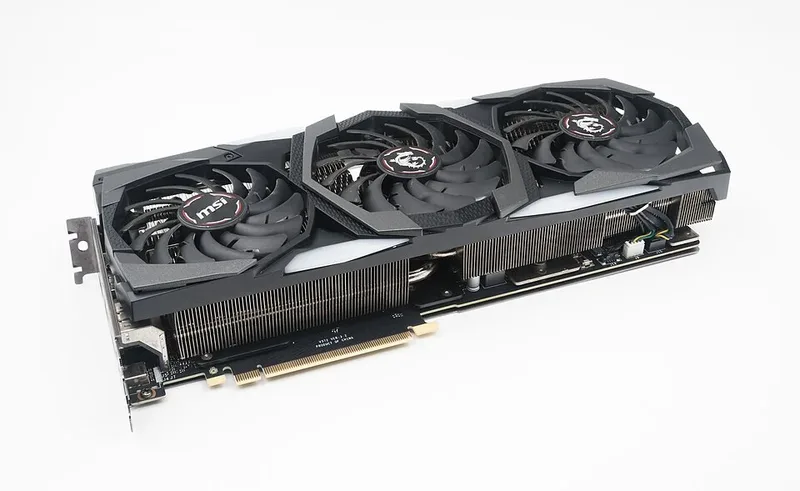
If ComfyUI reaches VAE Decode and then appears frozen, the usual cause is not a stalled prompt: decoding the latent image needs more GPU memory than is available. The keyword comfyui stuck on vae decode often describes a memory bottleneck at the final stage, especially with a large image, a tiled workflow that is not enabled, or other GPU workloads running.
Sampling produces a compact latent representation; VAE Decode turns it into a full pixel image. That step can create a sharp memory spike, so a workflow may finish sampling but fail to decode or save. A slow decode can also look frozen while the GPU is still working.
Open Task Manager with Ctrl+Shift+Esc, choose Performance, and inspect GPU activity and dedicated GPU memory while ComfyUI is at VAE Decode. On other systems, use the GPU monitor supplied with your driver. If utilization or memory use is changing, wait a few minutes before interrupting the run; a large image or slower GPU may take time. If activity stays flat and ComfyUI reports an out-of-memory error in its console, continue with the memory fixes below.
In the workflow, lower the width and height on the node that sets the latent image size, such as Empty Latent Image, and set batch size to one. Use the dimensions appropriate for your model and desired output; avoid jumping to a much larger resolution while troubleshooting. Queue the same prompt again. If it decodes at the smaller size, the original output exceeded available memory.
When available, replace the regular VAE decode node with the tiled decode option supplied by your installed ComfyUI version or node pack. Tiled decoding processes sections of the image to reduce peak VRAM use. Search the node menu for tiled VAE decode and check the node's inputs; names and availability vary by installation. If the output completes, the decode memory peak was the likely cause. Tiling may introduce seams in some workflows, so inspect the result.
Close ComfyUI, then start it using the low-VRAM option supported by your installation. For a standard command-line setup, check the launcher or run python main.py --help and use the listed --lowvram option if available. Packaged builds may have their own launch scripts or options, so check their menu or documentation. This can reduce memory pressure, though it may slow generation; a successful decode after restarting is a useful confirmation.
Close other GPU-heavy applications, including games, video editors, and other local AI tools such as Ollama or LM Studio. If you use a second ComfyUI window, close it too. Check dedicated GPU memory again, then queue the workflow. If it now decodes, another application or loaded model was competing for VRAM.
Confirm that the VAE Decode node receives the intended latent output and a compatible VAE. In common workflows, the VAE comes from a checkpoint loader or a separate VAE loader; reconnecting nodes or changing checkpoints can leave a mismatched selection. Choose the VAE intended for the model, then run a small test image. A clean decode on that test points to the previous VAE selection or workflow setup.
Save the workflow, stop ComfyUI, and restart it to unload models and clear accumulated GPU use. If the same small test still hangs, check the console output and your installed ComfyUI and GPU driver guidance before updating. Use the update method for your installation, then test with a basic workflow. A repeatable failure with a small image and a compatible VAE suggests an installation, driver, or node issue rather than just an oversized output.
| Likely cause | Typical symptom | Quick test |
|---|---|---|
| VRAM limit | Sampling finishes; decode stalls or reports memory exhaustion | Lower dimensions and use batch size one |
| GPU contention | Decode works after closing another application | Check dedicated memory with other tools closed |
| VAE or workflow issue | Small outputs also fail, or the VAE was changed | Try a basic workflow with the model's intended VAE |
The VAE is converting the sampled latent into a full image, which can need a large amount of memory. If GPU memory is tight, this final step may be much slower than sampling or may fail.
It depends on your GPU, image dimensions, VAE, and workflow. Watch GPU activity and memory use before deciding it is frozen; changing activity suggests the decode is still running.
It can help when the problem is a peak memory limit because it decodes image sections. Availability and settings depend on your ComfyUI version and installed nodes, and tiling does not fix every workflow or VAE problem.
For most cases, start by checking GPU activity, lowering the output size, and closing other GPU-heavy applications before trying tiled decode. If a small test still fails, keep the console output and workflow details and use them to investigate a VAE, node, driver, or installation problem.
Photo: Jacek Halicki / CC BY-SA 4.0 (Wikimedia Commons)
Fix gemini app script quota exceeded errors in Apps Script with practical checks for API limits, retries, batching, and the right Gemini project.
ChatGPT export conversation missing? Learn what the archive includes, why messages may be absent, and how to check account, chat history, and export settings.
Copilot Excel pivot table help: fix source data, check Copilot access, and build a reliable PivotTable manually when AI can’t create it.
Fix teams transcript not showing issues by checking meeting policy, organizer controls, licensing, transcript access, and where Teams stores completed transcripts.
Fix whisper srt timing off by checking audio alignment, transcript edits, export settings, and manual SRT timestamps so subtitles stay in sync.
Fix chatgpt pdf table extraction wrong results with six practical prompts, source checks, and export steps for cleaner tables in ChatGPT and other AI assistants.
Fix chatgpt canvas not saving by checking save status, connection, browser cache, extensions, and workspace access, then recover or copy your latest edits safely.
Fix gemini deep research not available by checking your account type, plan, region, age eligibility, administrator controls, and temporary usage limits.
Fix gemini in google sheets not showing by checking Workspace eligibility, admin controls, smart features, file format, account selection, and browser issues.
Hit the notebooklm source limit? Learn how to combine files, split notebooks by project, and check current limits so you can use 300+ work documents effectively.








