Gemini API Quota Exceeded in Apps Script: Backoff Plan

Fix gemini app script quota exceeded errors in Apps Script with practical checks for API limits, retries, batching, and the right Gemini project.
If your ComfyUI workflows disappeared after an update, the most common cause is that you launched a different ComfyUI installation or user folder, so the updated app is looking in a different place. The workflow files may still be on disk; first check the active installation’s user/default/workflows folder and any older ComfyUI folders before recreating anything.
ComfyUI saves workflows as JSON files, either from the UI or within generated images’ metadata. An update can change how you launch ComfyUI or which installation it uses, while portable, desktop, and manually installed setups can each have different user-data locations.
Use these clues to narrow down the cause before making changes:
| Cause | What you may see | Quick test |
|---|---|---|
| Different installation | Empty workflow list, but old folders remain | Compare the launcher path with the folder containing your old workflows |
| Wrong save location | Files exist but not in the expected folder | Search for workflow JSON files across your ComfyUI directories |
| Workflow in image metadata | Images remain, but no separate workflow file | Drag an original ComfyUI output image into the workflow canvas |
| Cloud-synced or moved folder | Files are missing or show sync indicators | Check the recycle bin and your sync service’s deleted files |
Look at the command window or terminal you use to start ComfyUI. Find the launch command or startup script and note the directory it uses. If you use a shortcut, inspect its target; if you use a desktop launcher, check its installation or data-folder settings. Compare that location with the folder you used before the update. A different path is a strong sign that the workflows are still in the older installation.
Search your drives for files ending in .json with names you recognize, and inspect likely ComfyUI folders. Common locations include ComfyUI/user/default/workflows in a manual installation and the equivalent user/default/workflows path under a portable installation. Folder layouts vary, so look in both the old and new installation directories. Finding your workflow files confirms they were moved or the active installation changed; copy them only after you identify the correct destination.
In the ComfyUI interface, open the workflow selection or load workflow control available in your version, then browse to the folder you found. ComfyUI’s UI may differ between versions or launch methods, so use the file picker to navigate directly rather than relying on a remembered menu label. If the files open from that location, the workflows are intact and the issue is where the app was looking.
Stop ComfyUI before copying files. Copy the workflow JSON files from the old installation’s workflow folder into the active installation’s corresponding user/default/workflows folder. Keep the original files as a backup, then restart ComfyUI and try loading one workflow. Seeing it in the picker and on the canvas confirms the recovery; if it does not appear, use the file picker to open it directly and verify that the copy went to the active installation.
If you saved output images but not separate workflow files, try dragging an original ComfyUI-generated PNG into the canvas. ComfyUI can load workflow information embedded in supported output images. If the graph appears, use the UI’s save workflow control to save a standalone JSON file in the active workflow folder. A re-encoded, edited, or metadata-stripped image may no longer contain that information.
Look in your operating system’s recycle bin, any backup drive, and the deleted-files or version-history area of the cloud service that stores your ComfyUI folder. If the folder was synced, check whether the service restored an older state or moved files during a conflict. Restore a copy to a separate location first, then open it in ComfyUI. A workflow that opens successfully can be copied into the active folder without replacing your only backup.
Once a workflow is open, use ComfyUI’s save workflow control and choose a known location in the active installation’s workflow folder. Give the file a clear name, then reload it through the workflow picker to confirm it opens. Keep another copy outside the ComfyUI installation, since updates or reinstallations can replace or bypass installation-specific data.
On many current versions, the default workflow folder is user/default/workflows within the ComfyUI installation or user-data directory. The exact location depends on how ComfyUI was installed and launched, so check the active folder and the file picker.
Often, yes, if it is an original ComfyUI output image that still contains workflow metadata. Drag it onto the canvas and save the recovered graph as a JSON workflow. Images with stripped metadata may not work.
A common reason is that the update or launcher is using a different ComfyUI installation or user-data folder. Search for the old workflow files, compare the launch path, and open a file directly before assuming it was deleted.
Most missing workflows can be recovered by locating the original JSON files or loading a graph from an image, then saving a verified copy in the active folder. If nothing worked, preserve the ComfyUI folders and images you still have, then check backups or ask for help with your installation type and launch path.
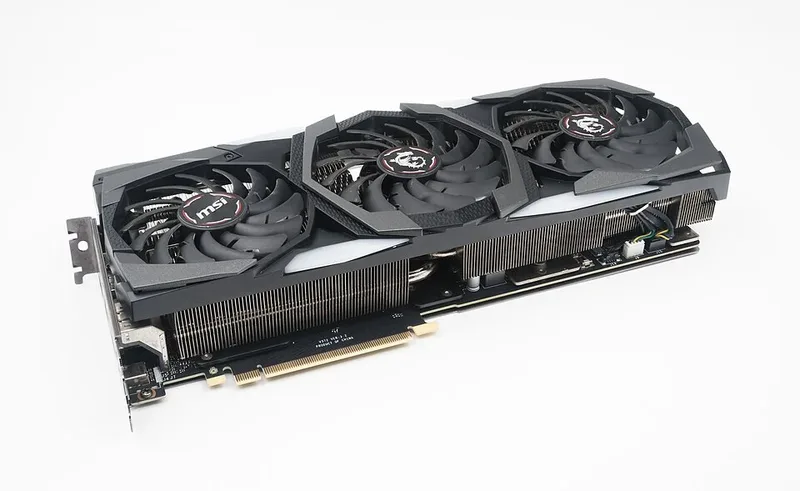
Photo: Jacek Halicki / CC BY-SA 4.0 (Wikimedia Commons)
Fix gemini app script quota exceeded errors in Apps Script with practical checks for API limits, retries, batching, and the right Gemini project.
ChatGPT export conversation missing? Learn what the archive includes, why messages may be absent, and how to check account, chat history, and export settings.
Copilot Excel pivot table help: fix source data, check Copilot access, and build a reliable PivotTable manually when AI can’t create it.
Fix teams transcript not showing issues by checking meeting policy, organizer controls, licensing, transcript access, and where Teams stores completed transcripts.
Fix whisper srt timing off by checking audio alignment, transcript edits, export settings, and manual SRT timestamps so subtitles stay in sync.
Fix chatgpt pdf table extraction wrong results with six practical prompts, source checks, and export steps for cleaner tables in ChatGPT and other AI assistants.
Fix chatgpt canvas not saving by checking save status, connection, browser cache, extensions, and workspace access, then recover or copy your latest edits safely.
Fix gemini deep research not available by checking your account type, plan, region, age eligibility, administrator controls, and temporary usage limits.
Fix gemini in google sheets not showing by checking Workspace eligibility, admin controls, smart features, file format, account selection, and browser issues.
Hit the notebooklm source limit? Learn how to combine files, split notebooks by project, and check current limits so you can use 300+ work documents effectively.








