Gemini API Quota Exceeded in Apps Script: Backoff Plan

Fix gemini app script quota exceeded errors in Apps Script with practical checks for API limits, retries, batching, and the right Gemini project.
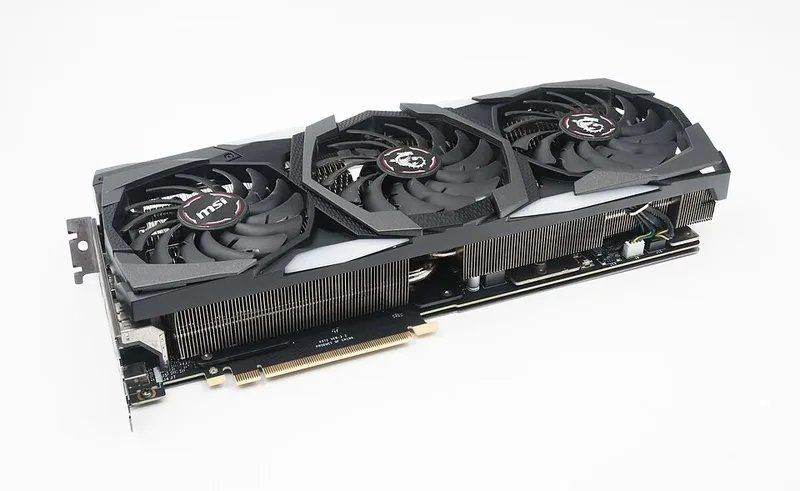
If KoboldCpp runs slowly while your graphics card stays mostly idle, it may be falling back to CPU inference or offloading too few model layers. The most common cause is launching a build or backend that does not match your GPU, such as using a CUDA build without a working NVIDIA setup or selecting the wrong Vulkan device.
KoboldCpp needs a compatible GPU backend and enough available video memory to move model work onto the card. A GPU can be detected without doing much inference if layer offload is set to zero, the chosen device is wrong, or memory limits force more work back to the CPU.
Close KoboldCpp and check which executable or package you downloaded. For NVIDIA, use a CUDA-enabled build that matches the distribution instructions; for AMD or Intel, or when CUDA is not an option, try a Vulkan-enabled build if available for your platform. Start that build explicitly rather than relying on an old shortcut that may point to a different copy.
In KoboldCpp’s launcher, inspect the backend or GPU-related options before starting. The confirming result is that startup output identifies the expected backend and GPU, rather than reporting CPU-only operation. If the GPU is absent from that output, resolve backend or driver detection before changing layer counts.
Install the current stable driver from your GPU vendor, then restart Windows. Check Device Manager under Display adapters to confirm the discrete GPU appears without a warning symbol. A driver update can restore backend detection, but it does not turn a CPU-only KoboldCpp build into a GPU-enabled one.
If the machine has integrated and discrete graphics, open Settings > System > Display > Graphics, add the KoboldCpp executable, choose Options, and select High performance where that choice is available. Relaunch and check whether startup now names the intended card.
In the launcher or command-line options, look for the device or GPU selection control; labels can vary by build. On systems with multiple adapters, select the discrete GPU rather than assuming the first listed device is the right one. Start the model and check the startup log for the selected device.
To check Windows activity, open Task Manager > Performance, select the GPU, and watch its dedicated memory and compute graphs while generating text. A rise during generation supports that the GPU is working; utilization may vary by model, prompt, and backend, so do not use a single percentage as the only test.
Find the GPU layer offload setting in the launcher or model options. If it is zero, increase it; if the interface offers an automatic value, try that first. Otherwise, raise the layer count in small steps, restarting the model after each change. The right value depends on the model, quantization, context size, and available VRAM.
A successful setting lets the model load and improves generation speed while GPU memory or compute activity rises. If loading fails or the system runs out of video memory, reduce the layer count and close other GPU-heavy applications such as games, Stable Diffusion, ComfyUI, or another local model server.
Confirm that the model file is supported by the KoboldCpp build you are using, and select the model through its file picker or the documented launch option. Large models and longer context settings need more memory. Try a smaller supported model or lower the context setting in the model’s menu, then test whether more layers can be offloaded.
The useful confirmation is a successful load with the intended model and nonzero offload, followed by GPU activity during generation. If the smaller model works but the larger one does not, memory capacity is likely the constraint rather than basic GPU detection.
Keep the console or launcher output visible when starting KoboldCpp. Look for lines describing the backend, detected device, and number of layers placed on the GPU. Exact wording varies by version. If output indicates no compatible device or zero layers, revisit the build, driver, selection, and offload settings in that order.
For a clean comparison, close other KoboldCpp windows and GPU-heavy apps, then start the intended executable with a small model and conservative context. If this works, add your usual model and settings back one at a time. This isolates whether the problem is a stale shortcut, competing VRAM use, or a particular model configuration.
| Likely cause | Typical symptom | Quick test |
|---|---|---|
| CPU-only or mismatched build | Startup does not identify a GPU backend | Launch the matching CUDA or Vulkan build |
| Zero or low layer offload | Model loads, but GPU activity stays low | Raise offload gradually and relaunch |
| VRAM pressure | Load fails or only a few layers fit | Close GPU apps or test a smaller model |
| Wrong adapter selected | Integrated GPU is active instead | Choose the discrete GPU in launcher or Windows Graphics settings |
Detection only confirms the backend can see a device; it does not confirm that model layers are offloaded. Check the layer setting and startup log, then watch GPU memory or compute activity during generation.
Use a compatible CUDA build for a supported NVIDIA setup, or try a Vulkan-enabled build when CUDA does not fit your hardware or setup. Availability and performance depend on the build, drivers, and GPU, so confirm the backend in startup output.
There is no single value that fits every model and graphics card. Start with automatic offload if available, or increase the setting gradually until the model loads reliably; back off if you run out of VRAM.
When KoboldCpp is not using your GPU, verify the backend first, then check device selection, offload layers, and available VRAM in that order. If it still runs on the CPU, capture the startup log and share it with your GPU model, driver, KoboldCpp build, and model details when seeking support.
Photo: Jacek Halicki / CC BY-SA 4.0 (Wikimedia Commons)
Fix gemini app script quota exceeded errors in Apps Script with practical checks for API limits, retries, batching, and the right Gemini project.
ChatGPT export conversation missing? Learn what the archive includes, why messages may be absent, and how to check account, chat history, and export settings.
Copilot Excel pivot table help: fix source data, check Copilot access, and build a reliable PivotTable manually when AI can’t create it.
Fix teams transcript not showing issues by checking meeting policy, organizer controls, licensing, transcript access, and where Teams stores completed transcripts.
Fix whisper srt timing off by checking audio alignment, transcript edits, export settings, and manual SRT timestamps so subtitles stay in sync.
Fix chatgpt pdf table extraction wrong results with six practical prompts, source checks, and export steps for cleaner tables in ChatGPT and other AI assistants.
Fix chatgpt canvas not saving by checking save status, connection, browser cache, extensions, and workspace access, then recover or copy your latest edits safely.
Fix gemini deep research not available by checking your account type, plan, region, age eligibility, administrator controls, and temporary usage limits.
Fix gemini in google sheets not showing by checking Workspace eligibility, admin controls, smart features, file format, account selection, and browser issues.
Hit the notebooklm source limit? Learn how to combine files, split notebooks by project, and check current limits so you can use 300+ work documents effectively.








