Gemini API Quota Exceeded in Apps Script: Backoff Plan

Fix gemini app script quota exceeded errors in Apps Script with practical checks for API limits, retries, batching, and the right Gemini project.
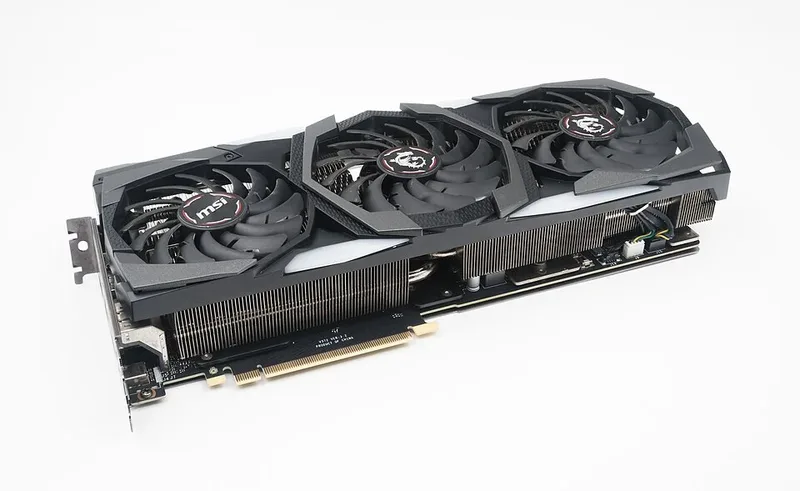
If llama.cpp is not using GPU, the most common cause is that the program you launched was built without a working GPU backend. A compatible graphics card alone is not enough: the backend must be enabled, its runtime and drivers must work, and the model must have layers assigned to it.
llama.cpp can run on the CPU even when a GPU is installed. GPU use depends on the build, the backend selected, and the offload setting in the application or command you use.
Use this quick check to narrow down the cause:
| Cause | Symptom | Quick test |
|---|---|---|
| CPU-only build | No GPU backend appears at startup | Check the build information or startup log for the backend |
| Offload disabled | GPU is detected, but memory use stays flat | Increase the GPU layer setting and reload the model |
| Driver or runtime issue | Backend fails to initialize | Check whether the GPU vendor’s system utility can see the card |
| Wrong app runtime | One app uses GPU and another does not | Check the runtime and model settings in the app that fails |
Ollama, LM Studio, ComfyUI extensions, and a separately installed llama.cpp build may use different runtimes and settings. In the failing app, check its model details, runtime or backend selection, and startup log. Confirm the app is actually using llama.cpp if you are following llama.cpp command-line instructions; a setting in one runner does not configure another.
With a llama.cpp command-line build, run llama-cli --list-devices if your build supports it. The output should list the usable GPU device; if it lists only CPU or reports no devices, check the build and driver before changing offload settings. In LM Studio, check the model load configuration or runtime logs for a selected GPU backend. In Ollama, inspect the server log while loading a model for GPU detection and allocation messages.
Use a build that supports your hardware: CUDA for supported NVIDIA setups, Metal on supported Apple systems, or Vulkan where supported by your GPU and build. If compiling llama.cpp, enable the corresponding CMake option, such as -DGGML_CUDA=ON for CUDA, then build and run the executable from that build. Backend options can change, so check the current llama.cpp build instructions for your platform. A successful device listing or backend initialization in the log confirms the build is usable.
Install the current driver from your GPU vendor, then restart the application or service. On Windows, open Device Manager, expand Display adapters, and confirm the intended GPU appears without a warning icon. For NVIDIA, nvidia-smi can confirm that the driver sees the GPU and show processes using it; it does not prove that a particular model runner has enabled offload. Recheck the app log for backend initialization after the restart.
In llama.cpp, set -ngl to a positive number of layers, or use --n-gpu-layers if that is the option shown by your build. For example, try llama-cli -m model.gguf -ngl 20, adjusting the value to suit the model and available VRAM. In LM Studio, open the model’s load settings and raise the GPU offload setting; in other apps, check the model’s menu for an equivalent option. A successful fix shows GPU memory use rising and the runner reporting offloaded layers. If loading fails, lower the value.
GPU memory must hold the offloaded model data and may also be used by the context cache and other applications. Close GPU-heavy programs, reduce the offload amount, or reduce the context length in the model’s settings, then load again. The confirmation is that the model loads without an out-of-memory message and the runner reports some layers on the GPU. The best setting varies by model, quantization, context length, and available VRAM.
While generating a response, open Task Manager in Windows and check the GPU graphs, choosing a compute graph if available; on Linux, use the relevant vendor monitoring utility. Verify the process belongs to the app serving the model, not just the launcher. Some workloads show limited utilization between tokens, so pair the graph with the runner’s log or reported offload count. If the log reports GPU layers but utilization is low, the GPU may be working while CPU-side work or memory transfer limits throughput.
Device detection only confirms the backend can see a GPU. Set a positive GPU layer count and check the load log for layers actually offloaded. Some work, including parts of prompt processing or sampling, can still use the CPU.
Use a build with a backend supported by your GPU and install the matching driver. Then select the GPU in your runner and enable layer offload; confirm the log reports GPU layers after loading.
These apps manage their own runtimes and settings, so a separate llama.cpp build may not affect them. Check the app’s model load settings and logs, verify driver detection, and ensure the model fits within available GPU memory.
To fix llama cpp not using gpu, verify the backend, driver, and offload count in the same application that loads the model. If it still runs on the CPU, save that app’s startup log, device listing, model format, and GPU memory details, then use them to identify a backend or compatibility issue.
Photo: Jacek Halicki / CC BY-SA 4.0 (Wikimedia Commons)
Fix gemini app script quota exceeded errors in Apps Script with practical checks for API limits, retries, batching, and the right Gemini project.
ChatGPT export conversation missing? Learn what the archive includes, why messages may be absent, and how to check account, chat history, and export settings.
Copilot Excel pivot table help: fix source data, check Copilot access, and build a reliable PivotTable manually when AI can’t create it.
Fix teams transcript not showing issues by checking meeting policy, organizer controls, licensing, transcript access, and where Teams stores completed transcripts.
Fix whisper srt timing off by checking audio alignment, transcript edits, export settings, and manual SRT timestamps so subtitles stay in sync.
Fix chatgpt pdf table extraction wrong results with six practical prompts, source checks, and export steps for cleaner tables in ChatGPT and other AI assistants.
Fix chatgpt canvas not saving by checking save status, connection, browser cache, extensions, and workspace access, then recover or copy your latest edits safely.
Fix gemini deep research not available by checking your account type, plan, region, age eligibility, administrator controls, and temporary usage limits.
Fix gemini in google sheets not showing by checking Workspace eligibility, admin controls, smart features, file format, account selection, and browser issues.
Hit the notebooklm source limit? Learn how to combine files, split notebooks by project, and check current limits so you can use 300+ work documents effectively.








