Gemini API Quota Exceeded in Apps Script: Backoff Plan

Fix gemini app script quota exceeded errors in Apps Script with practical checks for API limits, retries, batching, and the right Gemini project.
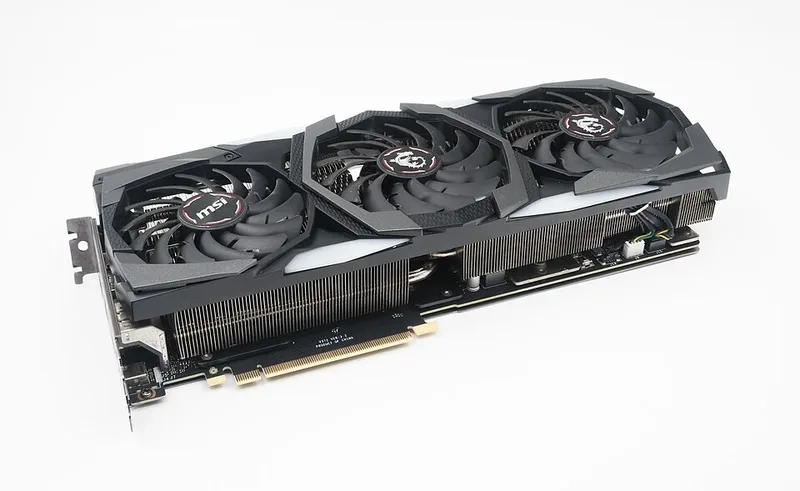
If LM Studio stops generating and reports “Error Device Lost,” the GPU compute device likely became unavailable during inference. The most common cause is a graphics driver reset after the GPU hangs under heavy load, often because the model or workload exceeds available GPU memory or stresses an unstable GPU.
LM Studio uses GPU backends to accelerate local inference. When the graphics driver resets, the application can lose its connection to the compute device; the same underlying issue can affect Ollama, ComfyUI, or Stable Diffusion. A driver reset is a likely explanation, but memory exhaustion, unstable overclocks, and backend compatibility can produce similar symptoms.
On Windows, open Event Viewer from the Start menu, then go to Windows Logs > System. Check the time of the failure for display-driver recovery or device-reset events. Also check Reliability Monitor by searching Start for “View reliability history.” A reset recorded at the same time supports the driver-reset diagnosis; if there is no matching event, continue with the memory and stability checks below.
Unload other models and close GPU-heavy apps, including games, browsers using hardware acceleration, ComfyUI, and Stable Diffusion. In LM Studio, open the model’s load or runtime settings and reduce GPU offload, if that control is available; on current versions, the exact labels can vary, so check your model’s menu. Try a smaller context length as well. If generation completes after reducing offload or context, VRAM pressure was likely contributing.
Load a smaller quantization or a smaller model, then run a short prompt with a modest context. Keep other inference apps closed during the test. If the smaller workload runs reliably while the original fails, the issue is likely tied to resource demand or a model-specific backend path rather than a general LM Studio failure.
Disable GPU overclocking or undervolting in tools such as MSI Afterburner, and restore default clock and power settings in the GPU vendor’s software. Restart the PC and repeat the same short generation. If the error disappears at stock settings, the previous tuning was unstable for sustained compute, even if games seemed fine.
Use your GPU vendor’s monitoring tool or a trusted hardware monitor while running a short test. Watch for unusually high temperatures, power-limit behavior, or a sudden drop in utilization at the moment generation stops. Confirm that the GPU’s fans and power connections are functioning normally, and avoid running multiple GPU workloads together. A stable run after cooling the system or removing concurrent load points to a thermal, power, or contention problem.
Install a current driver for your exact GPU from NVIDIA, AMD, or Intel. If the error began immediately after a driver update, test the previous stable driver version instead. Follow the vendor’s installation options, restart, and check whether the same workload still causes a reset. A successful run after changing driver versions suggests a driver regression or damaged installation; avoid changing several variables at once.
Check LM Studio’s model or runtime settings for available GPU backend choices; names and options depend on your hardware and current version. If another supported backend is offered, try it with the same small test. You can also test CPU-only inference if available. CPU success alongside GPU failure narrows the problem to the GPU path, driver, or device stability, though it does not identify which one by itself.
| Possible cause | Typical symptom | Quick test |
|---|---|---|
| Driver reset | Generation stops; system log shows a display recovery near that time | Check Event Viewer and Reliability Monitor |
| VRAM pressure | Larger models or contexts fail more often | Close other GPU apps and lower offload or context |
| Unstable tuning or heat | Failure appears under sustained load or after tuning | Return clocks to stock and monitor temperatures |
LM Studio lost access to its GPU compute device while a task was running. A graphics driver reset is a common cause, but VRAM pressure, unstable GPU settings, or backend compatibility can look similar.
It can contribute, especially when a large model, long context, or another GPU application uses memory at the same time. Close other GPU workloads and reduce offload or context to see whether the same prompt completes.
Inference can keep the GPU under sustained compute load in ways that differ from everyday desktop use or gaming. Heat, power behavior, driver stability, and marginal overclocks may only become apparent during that workload.
Start with the system logs, then reduce GPU memory use and test at stock settings to isolate the cause. If the error persists across a smaller workload, current driver, and stock clocks, save the LM Studio logs and GPU details and report the issue to LM Studio or your GPU vendor.
Photo: Jacek Halicki / CC BY-SA 4.0 (Wikimedia Commons)
Fix gemini app script quota exceeded errors in Apps Script with practical checks for API limits, retries, batching, and the right Gemini project.
ChatGPT export conversation missing? Learn what the archive includes, why messages may be absent, and how to check account, chat history, and export settings.
Copilot Excel pivot table help: fix source data, check Copilot access, and build a reliable PivotTable manually when AI can’t create it.
Fix teams transcript not showing issues by checking meeting policy, organizer controls, licensing, transcript access, and where Teams stores completed transcripts.
Fix whisper srt timing off by checking audio alignment, transcript edits, export settings, and manual SRT timestamps so subtitles stay in sync.
Fix chatgpt pdf table extraction wrong results with six practical prompts, source checks, and export steps for cleaner tables in ChatGPT and other AI assistants.
Fix chatgpt canvas not saving by checking save status, connection, browser cache, extensions, and workspace access, then recover or copy your latest edits safely.
Fix gemini deep research not available by checking your account type, plan, region, age eligibility, administrator controls, and temporary usage limits.
Fix gemini in google sheets not showing by checking Workspace eligibility, admin controls, smart features, file format, account selection, and browser issues.
Hit the notebooklm source limit? Learn how to combine files, split notebooks by project, and check current limits so you can use 300+ work documents effectively.








