Gemini API Quota Exceeded in Apps Script: Backoff Plan

Fix gemini app script quota exceeded errors in Apps Script with practical checks for API limits, retries, batching, and the right Gemini project.
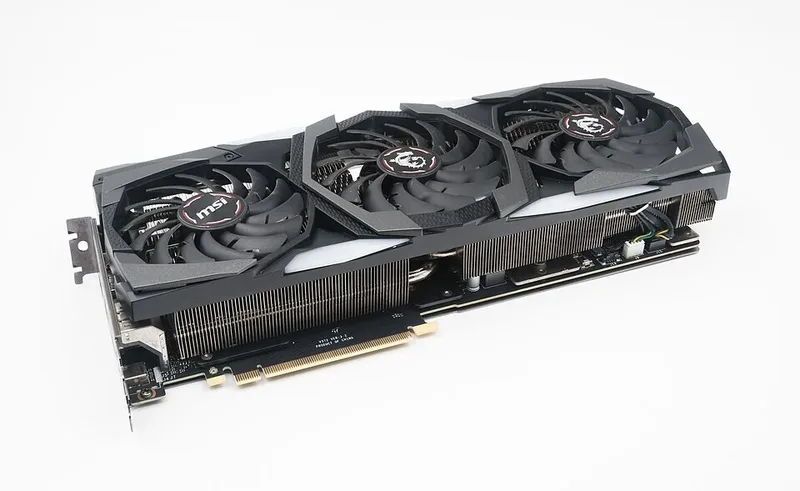
If LM Studio is not detecting your AMD GPU, the model may be loading on the CPU or the GPU option may be missing. The most common cause is that your GPU, operating system, or installed runtime does not match the backend and hardware support available in your LM Studio version.
LM Studio needs a supported compute path to use an AMD card; installing a graphics driver alone does not guarantee that a model can run on the GPU.
In Windows, open Device Manager > Display adapters and note the exact AMD GPU name. On Linux, use lspci | grep -i -E 'vga|display'. Then check LM Studio’s current system requirements and AMD backend guidance for that exact GPU and OS. Integrated Radeon graphics and older cards may have different support from newer discrete GPUs. If the card is not supported by the backend available to your setup, changing model settings will not make it appear.
Install the current stable driver for your GPU from AMD’s official support channel, then restart the computer. On Windows, confirm the card appears without a warning symbol in Device Manager; on Linux, confirm the system loads the expected AMD kernel driver. Avoid mixing several driver packages or assuming that a gaming driver automatically installs every compute component. Reopen LM Studio after the restart and check whether GPU options appear.
Vulkan is a common path for GPU compute when it is supported by the card and LM Studio build. Use a trusted Vulkan information utility or diagnostic available for your operating system to confirm that the AMD device is listed as a Vulkan device. If it is absent, repair or update the graphics driver first. If Vulkan sees the GPU but LM Studio does not, update LM Studio and inspect its model load settings; device visibility alone does not guarantee that the selected model runtime can use it.
On Linux, ROCm support depends on the GPU, distribution, kernel, and software versions. Follow AMD’s current ROCm compatibility documentation for your exact combination, and use the documented device query tool, such as rocminfo when included in your installation, to see whether the GPU is visible. If the command is missing or reports no agent, ROCm may not be installed correctly or the hardware may not be supported. Do not copy commands intended for a different distribution or GPU generation.
In LM Studio, open the model’s load controls and inspect the available runtime or inference options. Menu labels and choices can change between versions, so use the model’s menu rather than relying on a fixed path. Select a runtime that offers GPU support for your system, if available, and reload the model. If no GPU-capable choice appears, update LM Studio and recheck its compatibility guidance before troubleshooting offload values.
Open the model load settings and find the GPU offload control, often expressed as layers to offload. Set it above zero or use the available automatic option, then load the model again. A successful fix is indicated by GPU activity during generation and lower CPU-only behavior; the precise utilization display depends on your operating system and monitoring tool. If loading fails after increasing offload, reduce it: model size, context length, and available video memory affect how much fits.
Close other GPU-heavy applications, fully quit LM Studio, reopen it, and load a smaller compatible model. This helps distinguish a detection issue from a memory limit or model-specific problem. If the smaller model uses the GPU but the larger one does not, lower its offload amount or context length, or choose a smaller quantization. If neither model exposes GPU options, return to the hardware and backend checks.
| Cause | Symptom | Quick test |
|---|---|---|
| Unsupported GPU/backend combination | No GPU runtime or device option | Check current compatibility guidance for exact GPU and OS |
| Driver or Vulkan issue | AMD card absent from Vulkan device list | Update driver, restart, query Vulkan devices |
| ROCm setup issue | Linux ROCm query cannot see the GPU | Check AMD’s supported OS, kernel, and GPU matrix |
| Offload or memory limit | GPU option exists, but model stays on CPU or fails to load | Try a smaller model with modest offload |
First confirm the exact card appears correctly in Device Manager and that its driver is current. Then check whether your LM Studio version and selected model runtime support that card through an available backend such as Vulkan.
The available path depends on your operating system, GPU, and LM Studio version. Check the current compatibility information and the runtime choices shown in your model’s load menu rather than assuming ROCm or Vulkan is available for every setup.
Device visibility does not mean the model is offloaded. Check the model’s GPU offload setting, reload it, and try a smaller model if memory limits prevent the chosen configuration from fitting.
To fix lm studio not detecting amd gpu, verify compatibility first, then work through drivers, backend visibility, runtime selection, and offload settings. If nothing worked, record your GPU model, operating system, LM Studio version, and any diagnostic output, then compare them with the current official compatibility guidance or seek support with those details.
Photo: Jacek Halicki / CC BY-SA 4.0 (Wikimedia Commons)
Fix gemini app script quota exceeded errors in Apps Script with practical checks for API limits, retries, batching, and the right Gemini project.
ChatGPT export conversation missing? Learn what the archive includes, why messages may be absent, and how to check account, chat history, and export settings.
Copilot Excel pivot table help: fix source data, check Copilot access, and build a reliable PivotTable manually when AI can’t create it.
Fix teams transcript not showing issues by checking meeting policy, organizer controls, licensing, transcript access, and where Teams stores completed transcripts.
Fix whisper srt timing off by checking audio alignment, transcript edits, export settings, and manual SRT timestamps so subtitles stay in sync.
Fix chatgpt pdf table extraction wrong results with six practical prompts, source checks, and export steps for cleaner tables in ChatGPT and other AI assistants.
Fix chatgpt canvas not saving by checking save status, connection, browser cache, extensions, and workspace access, then recover or copy your latest edits safely.
Fix gemini deep research not available by checking your account type, plan, region, age eligibility, administrator controls, and temporary usage limits.
Fix gemini in google sheets not showing by checking Workspace eligibility, admin controls, smart features, file format, account selection, and browser issues.
Hit the notebooklm source limit? Learn how to combine files, split notebooks by project, and check current limits so you can use 300+ work documents effectively.








