Gemini API Quota Exceeded in Apps Script: Backoff Plan

Fix gemini app script quota exceeded errors in Apps Script with practical checks for API limits, retries, batching, and the right Gemini project.
An ollama error 500 internal server error usually means Ollama received your request but failed while loading or running the model. The most common cause is that the model or its prompt exceeds available system memory, especially when other AI apps are using the GPU or RAM.
HTTP 500 is a general server response, not a diagnosis by itself. Ollama’s server may return it when a model cannot load, inference fails, or a connected app sends a request the server cannot process. Check the server output or logs to find the underlying message.
This quick check can help narrow down the cause before changing settings:
| Possible cause | Typical symptom | Quick test |
|---|---|---|
| Memory limit | Failure during model loading or a long prompt | Close other AI apps and retry a short prompt |
| Model issue | One model fails while another works | Run a different installed model |
| Client or endpoint | Terminal works but an app fails | Call the local API directly |
| Container access | Ollama works on the host but not in Docker | Check the container’s configured host URL |
Reproduce the failure while watching the server output. On Windows, open the Ollama tray menu and choose View logs if available; otherwise, quit Ollama and start ollama serve from PowerShell to see errors in that window. On Linux, check journalctl -u ollama --since "10 minutes ago" when Ollama runs as a system service, or inspect the terminal that started ollama serve. Look for messages about loading, memory allocation, missing files, or permissions. A specific log message is more useful than the 500 response alone.
In a terminal, run ollama run MODEL_NAME, replacing the placeholder with a model you have installed, and send a short prompt such as “Reply with OK.” If this succeeds, the server and model can run at least a basic request; the failing app may be sending a much larger prompt, requesting too many output tokens, or using incompatible options. If the command fails too, continue with the model and resource checks.
Close other model servers and GPU-heavy applications such as LM Studio, ComfyUI, or Stable Diffusion, then retry. On Windows, inspect Task Manager > Performance; on Linux, use free -h for system memory and nvidia-smi if you have an NVIDIA GPU and its tools installed. Watch memory while Ollama loads the model. If the request works after closing another app, reduce concurrent workloads or choose a smaller model. A longer context can also increase memory needs, so test with a shorter conversation.
Run ollama list and confirm the requested model name matches an installed entry. Then try another model that is already installed. If only one model fails consistently, remove and download that model again using ollama rm MODEL_NAME and ollama pull MODEL_NAME. This replaces the local copy, so confirm the model name before removing it. A successful test with another model points toward an issue with the original model or its local files.
For a client on the same machine, Ollama’s local API commonly listens at http://localhost:11434. Confirm the client is configured for the correct host and port, and that its model field matches ollama list. Test the API from the same machine with curl http://localhost:11434/api/tags; a JSON response listing models confirms the local endpoint is reachable. If a direct Ollama prompt works but the app fails, simplify the app’s request, reduce its context or output limit, and check its own logs for the request it sends.
When the client runs in a container, localhost refers to that container, not automatically to the host running Ollama. Configure the client to use an address reachable from inside the container; the correct host address depends on your Docker setup and operating system. If Ollama itself runs in Docker, check that the container is running and that the model storage is mounted where expected. GPU access also requires compatible host drivers and a correctly configured container runtime. Test connectivity from inside the container before changing model settings; a reachable API that still returns an error points to a model or resource problem.
Save any work, quit Ollama from its tray menu on Windows, then reopen it. On Linux systems using systemd, run sudo systemctl restart ollama. For a Docker deployment, restart the Ollama container using the management method you normally use. Retry the short terminal prompt first, then the original app request. If the short test works after restarting, the server may have been stuck after an earlier failed load; if it fails again, use the new server log output to choose the next step.
The model may not fit in available memory, its local files may be damaged, or the server may have failed for another runtime reason. Check the Ollama logs and try a smaller installed model with a short prompt. If that works, reduce other GPU or memory use before retrying the original model.
The app may use a different endpoint, model name, or request format, or may send a much larger prompt than your terminal test. Verify the app’s base URL and model, then test http://localhost:11434 from the same machine. When the app runs in Docker, check which host address the container can reach.
First determine whether Ollama or its client runs in the container. Check that the client can reach the Ollama API from inside its own container, and confirm model storage and GPU access if Ollama itself is containerized. Use container logs to identify whether the failure is a connection problem, model-loading failure, or resource limit.
The quickest path is to compare a short terminal prompt with the failing app request, then use the server logs to identify where they differ. If none of these steps resolves the issue, save the relevant Ollama and client logs, note the model and container setup, and use that evidence to seek help in the appropriate project support channel.
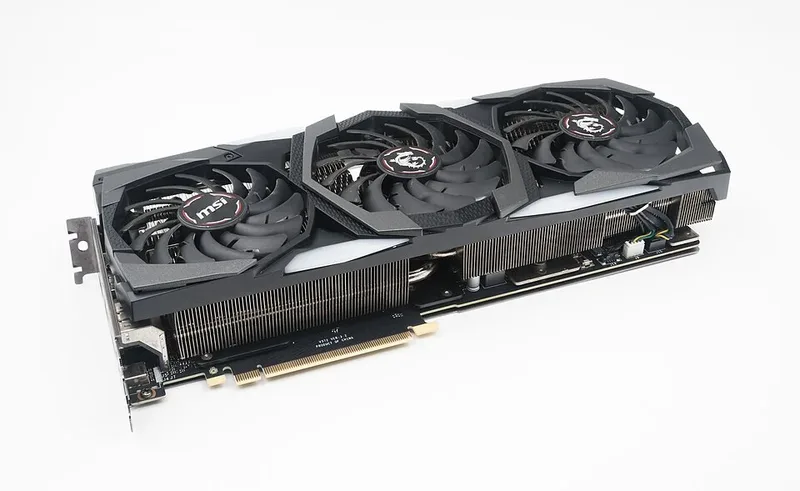
Photo: Jacek Halicki / CC BY-SA 4.0 (Wikimedia Commons)
Fix gemini app script quota exceeded errors in Apps Script with practical checks for API limits, retries, batching, and the right Gemini project.
ChatGPT export conversation missing? Learn what the archive includes, why messages may be absent, and how to check account, chat history, and export settings.
Copilot Excel pivot table help: fix source data, check Copilot access, and build a reliable PivotTable manually when AI can’t create it.
Fix teams transcript not showing issues by checking meeting policy, organizer controls, licensing, transcript access, and where Teams stores completed transcripts.
Fix whisper srt timing off by checking audio alignment, transcript edits, export settings, and manual SRT timestamps so subtitles stay in sync.
Fix chatgpt pdf table extraction wrong results with six practical prompts, source checks, and export steps for cleaner tables in ChatGPT and other AI assistants.
Fix chatgpt canvas not saving by checking save status, connection, browser cache, extensions, and workspace access, then recover or copy your latest edits safely.
Fix gemini deep research not available by checking your account type, plan, region, age eligibility, administrator controls, and temporary usage limits.
Fix gemini in google sheets not showing by checking Workspace eligibility, admin controls, smart features, file format, account selection, and browser issues.
Hit the notebooklm source limit? Learn how to combine files, split notebooks by project, and check current limits so you can use 300+ work documents effectively.








