Gemini API Quota Exceeded in Apps Script: Backoff Plan

Fix gemini app script quota exceeded errors in Apps Script with practical checks for API limits, retries, batching, and the right Gemini project.
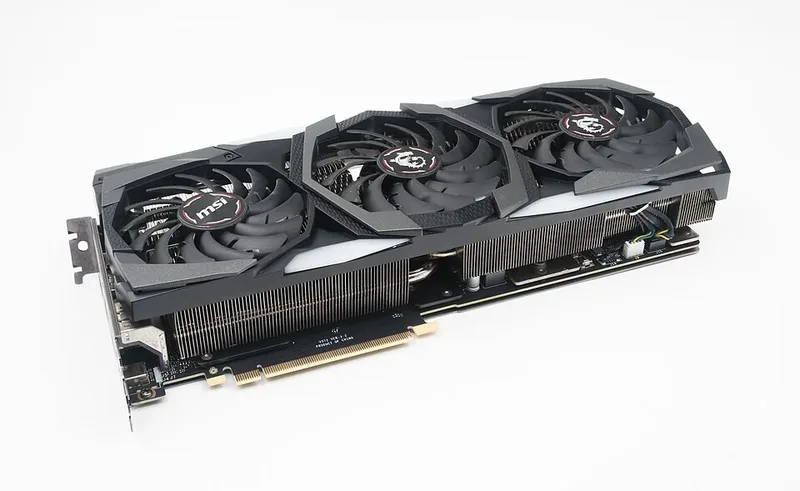
If Ollama not using shared GPU memory is what you see in Task Manager, the most common cause is that the model is using a discrete GPU’s dedicated VRAM, or the GPU is not supported by Ollama’s active backend. Windows shared GPU memory is system RAM available to graphics workloads; it is not a setting that forces Ollama to move model data there.
Ollama chooses an available supported GPU and places as much of the model as it can in GPU memory, with some layers potentially remaining in system RAM. The result depends on the model, available memory, GPU support, and the Ollama build. Shared-memory figures in Windows are a limit or usage estimate, not proof that Ollama should use that memory.
In PowerShell, run ollama ps while a model is loaded. Check the processor column: it indicates whether processing is on the GPU, CPU, or split between them. You can also start Ollama from a terminal with ollama serve and inspect startup messages for GPU detection or fallback details. If the command says the port is already in use, Ollama is already running; quit it from the notification area before starting it in the terminal.
Start a prompt so the model is actively generating, then open Task Manager with Ctrl+Shift+Esc. Under Performance, select each GPU and inspect its dedicated and shared GPU memory graphs. Under Details, right-click a column heading, choose Select columns, and enable GPU and GPU engine if available. The engine can show activity even when shared memory remains low. Confirm offload with ollama ps, rather than expecting the shared-memory graph to rise.
Install the current driver for your GPU from its manufacturer, then restart Windows and Ollama. For NVIDIA, use the NVIDIA driver installer; for AMD or Intel, use the respective official driver utility or support page. Windows Update may not provide the newest suitable driver. After restarting, load the model again and check ollama ps and Ollama’s startup output. A detected GPU with GPU or split processing confirms the backend is available.
Ollama’s GPU support depends on the hardware, operating system, driver, and current Ollama release. Check Ollama’s current hardware requirements for your GPU vendor, and make sure you are running the current Windows release of Ollama. Integrated graphics support can differ by vendor and model; having shared GPU memory in Task Manager does not mean Ollama can use that GPU. If Ollama reports no supported GPU, updating the driver or changing a Windows memory setting will not add backend support.
Close other GPU-heavy apps, then run a smaller or more quantized model from the Ollama library. Model size, context length, and concurrent workloads affect memory needs. Keep the prompt short for this comparison, because a long context also uses memory. If the smaller model shows more GPU processing in ollama ps while the larger one is split or CPU-heavy, the limit is likely available GPU memory rather than a missing shared-memory option.
On laptops with integrated and discrete GPUs, open Settings > System > Display > Graphics, add or select Ollama if it appears, choose Options, and try High performance. Restart Ollama after changing the preference. The listed GPU name should match the intended discrete adapter. This can help Windows select the right GPU, but it cannot make unsupported hardware usable or convert system RAM into dedicated VRAM.
To determine whether GPU selection is the issue, stop Ollama, set the environment variable CUDA_VISIBLE_DEVICES=-1 in the shell where you launch ollama serve, and restart the server. This is a temporary diagnostic for CUDA-based setups, not a shared-memory fix; support and behavior can vary by backend. If the model runs on CPU but GPU detection still fails after driver and support checks, save the server startup output and your GPU model for troubleshooting.
| Likely cause | What you see | Quick test |
|---|---|---|
| Model fits in dedicated VRAM | Dedicated memory rises; shared stays low | Check ollama ps during generation |
| Model exceeds available GPU memory | GPU and CPU processing, or slow generation | Try a smaller model and shorter prompt |
| GPU unsupported or not detected | CPU processing and no GPU detection at startup | Check current Ollama support and driver |
| Hybrid GPU chose another adapter | Activity appears on the integrated GPU | Set High performance in Windows Graphics settings |
Ollama can use supported GPUs, but Windows does not provide a general switch that makes it allocate shared memory. Whether graphics memory is shared depends on the GPU and backend. Confirm the active processor in ollama ps.
Task Manager reports memory Windows makes available to graphics workloads, not memory Ollama must allocate. Ollama may use dedicated VRAM, partially offload, or use CPU processing depending on hardware support and model needs. Check GPU activity while generating and compare it with ollama ps.
Update the driver, confirm the GPU is supported, close competing workloads, and test with a smaller model. On laptops, try the High performance graphics preference and restart Ollama. There is no universal setting that guarantees a model will fit in GPU memory.
Ollama not using shared GPU memory often reflects normal memory reporting or a hardware, driver, or model limit; use processor status and startup output to identify which one applies. If nothing worked, record your GPU model, driver, Ollama startup messages, and ollama ps output, then use those details to investigate the support issue.
Photo: Jacek Halicki / CC BY-SA 4.0 (Wikimedia Commons)
Fix gemini app script quota exceeded errors in Apps Script with practical checks for API limits, retries, batching, and the right Gemini project.
ChatGPT export conversation missing? Learn what the archive includes, why messages may be absent, and how to check account, chat history, and export settings.
Copilot Excel pivot table help: fix source data, check Copilot access, and build a reliable PivotTable manually when AI can’t create it.
Fix teams transcript not showing issues by checking meeting policy, organizer controls, licensing, transcript access, and where Teams stores completed transcripts.
Fix whisper srt timing off by checking audio alignment, transcript edits, export settings, and manual SRT timestamps so subtitles stay in sync.
Fix chatgpt pdf table extraction wrong results with six practical prompts, source checks, and export steps for cleaner tables in ChatGPT and other AI assistants.
Fix chatgpt canvas not saving by checking save status, connection, browser cache, extensions, and workspace access, then recover or copy your latest edits safely.
Fix gemini deep research not available by checking your account type, plan, region, age eligibility, administrator controls, and temporary usage limits.
Fix gemini in google sheets not showing by checking Workspace eligibility, admin controls, smart features, file format, account selection, and browser issues.
Hit the notebooklm source limit? Learn how to combine files, split notebooks by project, and check current limits so you can use 300+ work documents effectively.








