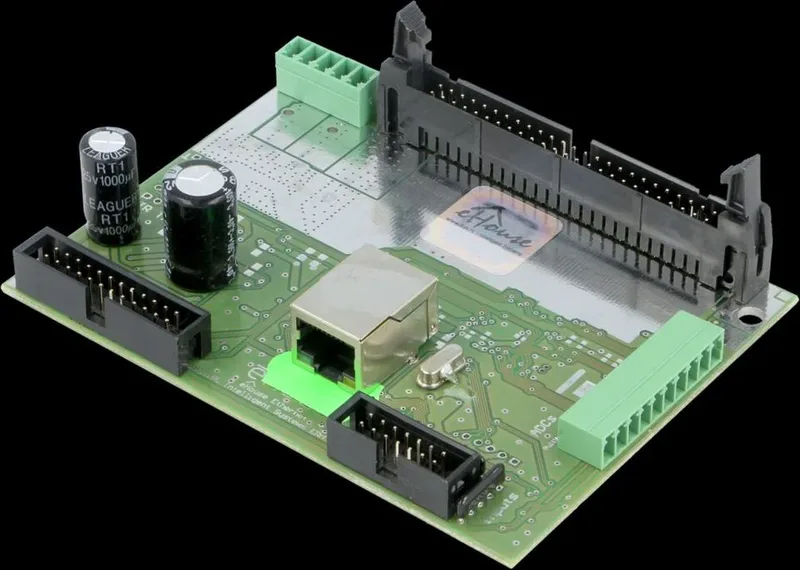
If an ESPHome Bluetooth proxy appears online but Home Assistant cannot find nearby Bluetooth devices, the most common cause is that the proxy is passive while the device requires active connections. The reverse can also happen: active proxy mode is enabled, but another Bluetooth integration or proxy is already managing the device.
Why this happens
ESPHome forwards Bluetooth traffic to Home Assistant, but active and passive modes handle different device behaviors. A proxy can be connected to Wi-Fi and still be unusable for a particular integration.
- Passive mode forwards Bluetooth advertisements; it cannot connect to devices that need a GATT connection.
- Active mode allows connection-based integrations to use the proxy, but can contend with another client trying to connect to the same device.
- Discovery and reach depend on the ESPHome device being adopted by Home Assistant and receiving a usable Bluetooth signal.
Use this quick comparison to narrow down the fault:
| Cause | Symptom | Quick test |
|---|
| Passive-only proxy | Advertisements appear, but setup or controls fail | Check whether the integration requires a connection |
| Proxy not adopted | ESP device is online, but absent from Bluetooth proxies | Check Home Assistant device and integration status |
| Weak or blocked signal | Device appears intermittently or only nearby | Move the proxy closer for a test |
| Competing connection | Device drops or fails when another client connects | Temporarily stop the other Bluetooth client |
1. Confirm whether the device needs active mode
In Home Assistant, open Settings > Devices & services and select the integration for the Bluetooth device. Check its documentation or setup behavior: integrations that only read advertisements may work through passive mode, while those that connect to configure, control, or read data need active proxy support.
In ESPHome, open the node configuration and inspect the bluetooth_proxy component. Set active: true when the integration needs connections, then install the updated configuration and restart the node. The confirming result is that the integration can complete setup or connect to the device through the proxy.
2. Verify the ESPHome node is available to Home Assistant
Go to Settings > Devices & services > Integrations and confirm the ESPHome integration is loaded and the proxy node appears as a device. Open the node and check that it is available. If it is missing, confirm the ESP device and Home Assistant are on reachable networks, then reload the ESPHome integration or restart the node.
A visible, available node confirms Home Assistant has discovered the ESPHome device; it does not by itself confirm that the Bluetooth proxy component is configured correctly.
3. Check the proxy configuration and logs
In ESPHome Device Builder, open the node’s YAML and verify that bluetooth_proxy: is present. Use the component’s supported options for your ESPHome version; do not copy settings intended for a different board or release. Install the configuration, then open the node’s logs and look for the proxy component starting without configuration errors.
If logs show repeated restarts or Wi-Fi disconnections, fix those first. A proxy needs a stable connection to Home Assistant to forward Bluetooth traffic.
4. Test signal strength and placement
Move the ESPHome device within a few feet of the Bluetooth device for a short test, keeping it away from metal enclosures and other sources of radio interference. In Home Assistant, check whether the device becomes discoverable or its signal readings become more consistent. If the test works nearby, reposition the proxy or add another supported proxy closer to the device.
For multi-room or multi-proxy setups, check which proxy is actually hearing the device. Do not assume the nearest-looking node is the one forwarding its advertisements.
5. Remove competing Bluetooth connections
Some Bluetooth devices allow only one connection at a time. Temporarily disable the phone app, another Home Assistant adapter, or another proxy integration that may be connecting to the same device. Retry setup through Home Assistant.
If the device works after the other client is disconnected, the issue is connection contention. Keep only the connection path needed for normal operation, or configure the device and integration according to their documented sharing behavior.
6. Check Home Assistant Bluetooth and integration status
Go to Settings > Devices & services and inspect the Bluetooth integration, if present, along with the integration for the target device. Resolve any repair prompts or setup failures shown there. Restart Home Assistant after configuration changes if the integration does not refresh its available Bluetooth sources.
Success means the target integration lists the proxy as an available source or completes its setup without repeated connection failures.
7. Separate Bluetooth proxy issues from Zigbee or Matter issues
An ESPHome Bluetooth proxy carries Bluetooth traffic; it is not a Zigbee coordinator and does not replace a Matter controller or Thread border router. For Zigbee2MQTT, verify the coordinator, serial connection, and MQTT connection in the Zigbee2MQTT interface. For Matter, check the Matter integration and the required controller or Thread network separately.
If the Bluetooth device works but Zigbee or Matter devices do not, the proxy is likely not the cause. Confirming each radio path independently prevents changing a working Bluetooth configuration to fix an unrelated network.
FAQ
Why does my ESPHome Bluetooth proxy show online but find no devices?
Online status confirms the ESPHome node can communicate over the network, but not that it is receiving the target device’s Bluetooth signal. Check placement, confirm the proxy component is configured, and verify the device is advertising.
Should ESPHome Bluetooth proxy be active or passive?
Use passive behavior for integrations that only need Bluetooth advertisements. Enable active mode when the device integration needs to connect, such as for setup or data exchange, and check the integration’s requirements.
Can an ESPHome Bluetooth proxy fix Zigbee2MQTT or Matter?
No. The ESPHome Bluetooth proxy forwards Bluetooth traffic. Zigbee2MQTT requires a Zigbee coordinator, while Matter needs its own controller and, for Thread devices, a Thread border router.
For esphome bluetooth proxy not working, first match active or passive mode to the device integration, then verify discovery, signal, and connection availability. If it still fails, collect the ESPHome node logs and the target integration’s setup details, then troubleshoot that device’s requirements separately.
Photo: iSys.PL / Attribution (Wikimedia Commons)