How to Create a Poll in Microsoft Teams

Learn how to create a poll in Microsoft Teams chats, channels, and meetings, choose response settings, review results, and close voting.
If Microsoft Teams is not syncing, refresh or fully restart the app, confirm that your devices use the same account and organization, and compare the affected conversation with Teams on the web. This helps identify whether the problem affects one app, your connection, or the service. Start with these checks before deleting app data or reinstalling anything.

Open Teams on the web and compare an affected chat with your desktop or mobile app. Select your profile picture and check the account and organization on each device. A personal account, work account, and guest organization can show different conversations. Microsoft explains how to switch accounts and organizations.
| What you observe | What to investigate next |
|---|---|
| The web version is current; one app is behind. | Focus on that app and its connection. |
| The same messages are missing everywhere. | Check the selected account, conversation, and service health with IT. |
| Messages appear when you open Teams, but alerts are missing. | Check notification settings separately. |
These comparisons narrow the investigation; they do not prove a cause. Presence colors and taskbar badges are not reliable sync tests. For example, Microsoft's green presence indicator means someone is available, not that every message or file has synchronized.
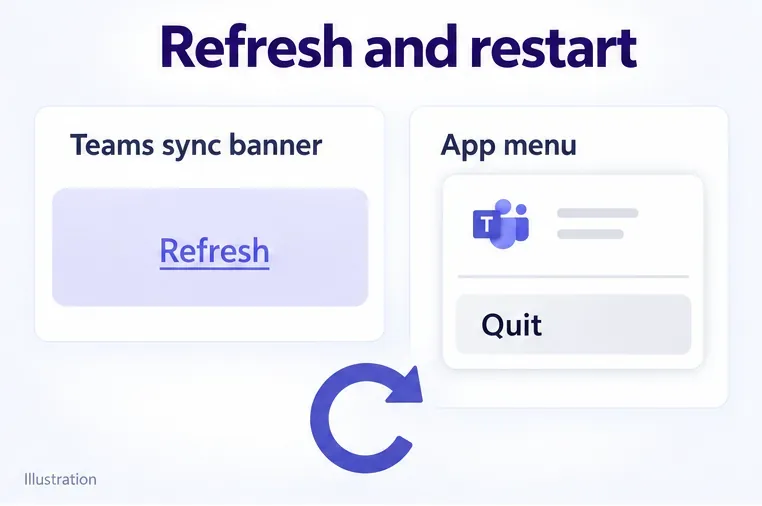
These actions follow Microsoft's sync instructions and update guidance. If the chat remains outdated, select your profile picture > Sign out, reopen Teams, and sign in again. Have your password and multifactor authentication method ready.
Microsoft says Teams mobile synchronizes when you open or use it. Pull down on the message list to refresh, then reopen the affected conversation. If it remains behind:
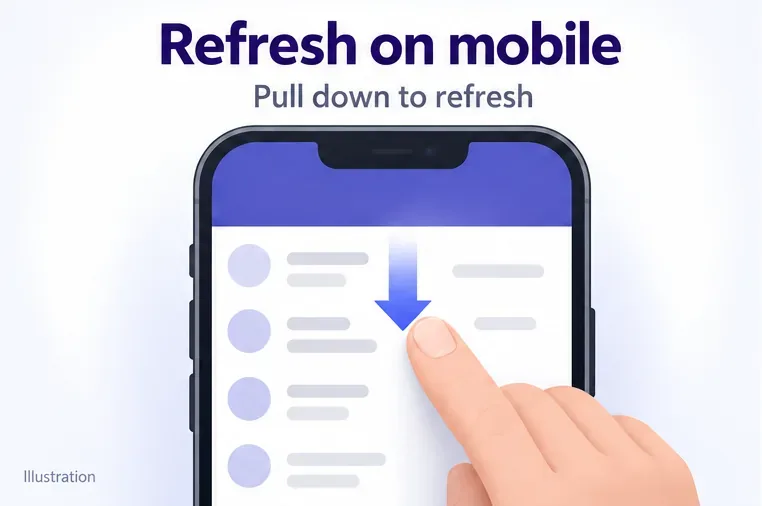
Microsoft documents the mobile sign-out steps. You do not need to sign out of every device or start a call to test syncing. After each change, compare the same recent message across devices.
Not as a general fix for missing chats or incorrect unread counts. Microsoft's current cache guidance explicitly advises against clearing it for missing messages, chat history that will not load, missing teams or channels, and incorrect notifications. It can delete diagnostic logs needed to investigate. Reserve cache clearing or app resets for a specifically identified client problem with support guidance.
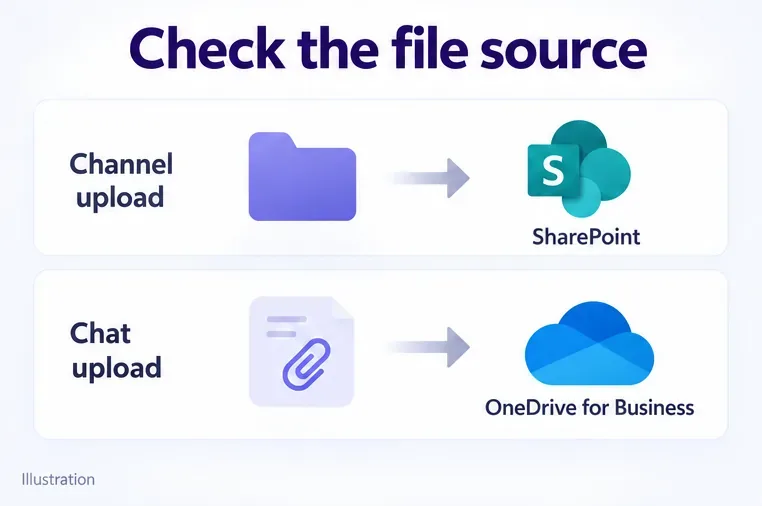
For work or school accounts, channel uploads are stored in SharePoint, while chat uploads are stored in the sender's OneDrive for Business. Open the affected file in its browser-based source and check whether the latest edit is there. If it is missing there too, investigate the upload, document save, or permissions rather than repeatedly restarting Teams.
If messages load but phone alerts do not, review Teams notifications and phone notification permissions. Under your profile picture > Notifications, check whether alerts are blocked When active on other devices. See Microsoft's mobile notification troubleshooting.
For persistent or widespread problems, give IT the affected account, device, Teams version, error text, approximate start time with time zone, and web-versus-app results. Ask an administrator to check Health > Service health in the Microsoft 365 admin center using Microsoft's service-health instructions.
Learn how to create a poll in Microsoft Teams chats, channels, and meetings, choose response settings, review results, and close voting.
Learn how to mute channel and message notifications in Microsoft Teams, unfollow noisy threads, and control banners while understanding mention alerts.
Learn how to transfer a Microsoft Teams meeting between your computer and phone, use both devices together, and fix missing transfer options or audio issues.
Learn how to snooze a message in Microsoft Teams with Snooze Bot, return to it later, and use saved messages or mute controls when you need another option.
Learn how to create a team in Microsoft Teams, add members, choose channel types, manage permissions, and use the Teams admin center.
Learn how to download a Microsoft Teams recording from Teams, OneDrive, or SharePoint, and fix missing download options, access issues, and expired recordings.
Fix echo during Microsoft Teams meetings by removing duplicate audio connections, selecting the right headset and microphone, and checking audio settings.
Set up Microsoft Teams–Slack integration to launch Teams meetings from Slack. Learn account requirements, app permissions, setup steps, and quick fixes.
Unable to connect to Microsoft Teams meetings? Check the meeting link, account, network, and app, then learn when to contact the organizer or IT.
Microsoft Teams not syncing? Refresh messages across desktop, web, iPhone, and Android, identify account or file issues, and avoid unnecessary cache resets.







