How to Create a Poll in Microsoft Teams

Learn how to create a poll in Microsoft Teams chats, channels, and meetings, choose response settings, review results, and close voting.
To fix the Microsoft Teams “We’re having trouble finding your notebook” error, first open the actual OneNote notebook in a browser using the account that has access. If it opens there, reconnect its Teams tab or troubleshoot the Teams app. If it does not, check permissions, its storage location, and possible deletion before changing anything in Teams.
The message alone does not prove that your notes are gone. The checks below also help with the similar “trouble getting your notebook” message.
Ask the notebook owner for its current sharing link, then open it directly in a browser. A Copy link to tab link points to a Teams tab; it is not the best way to test whether the underlying notebook is available.
Alternatively, open the OneNote app inside Teams, find the notebook, and use More options > Open to launch OneNote for the web. Microsoft documents this in its OneNote-in-Teams instructions.
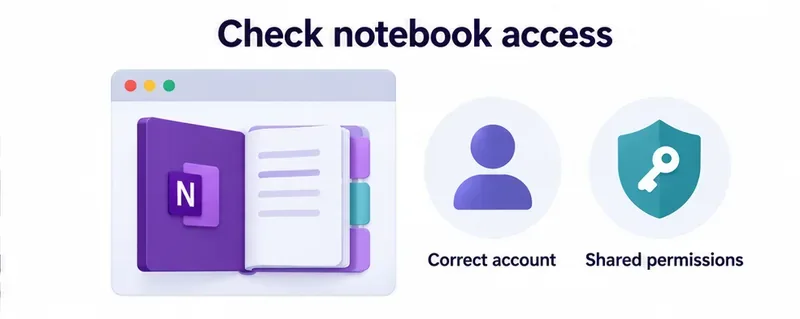
Adding a OneNote tab does not grant access to its notebook. Ask the owner to check the notebook’s sharing settings and grant the intended people viewing or editing access. If offered, use Request access. Microsoft also explains that a disabled sharing link can produce an expired-link or permission message in its notebook permissions guide.
For channel content, open Shared > More commands > Open in SharePoint; some Teams layouts still label the tab Files. Have the owner locate the notebook in its actual library. Do not assume every notebook belongs in the channel’s Documents folder. See Microsoft’s channel file instructions.
Private and shared channels have separate SharePoint sites. Ask the channel owner to verify membership in Teams, where those site permissions are managed, as described in Microsoft’s Teams and SharePoint permissions guidance.
Teams supports notebooks stored in SharePoint or OneDrive for Business, according to Microsoft’s OneNote channel documentation. A notebook stored only on a computer is not ready to use as a shared Teams notebook.
If deletion is confirmed, have someone with appropriate permissions check the SharePoint Recycle bin, select the notebook, and choose Restore. Ask a site administrator about the second-stage recycle bin if necessary. SharePoint in Microsoft 365 normally retains deleted items for 93 days from their original deletion; recovery is not guaranteed. Follow Microsoft’s SharePoint recovery instructions.
Once the notebook opens directly, replace a broken tab connection with the current notebook link. Save that link before removing anything.
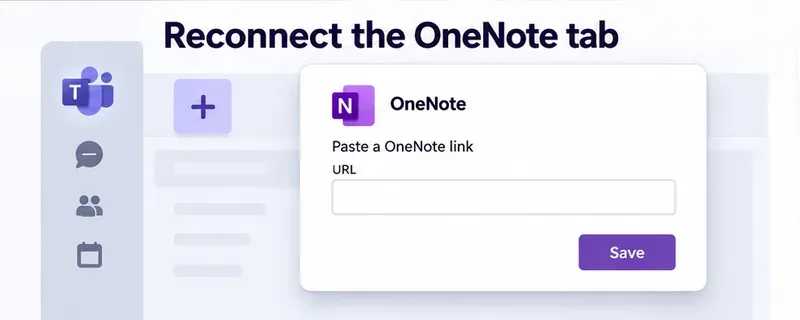
These controls are covered in Microsoft’s tab removal instructions and OneNote tab setup guide.
Remove only the tab connection. Do not delete the notebook in SharePoint or OneDrive, or create an empty replacement that leaves the original notes behind.
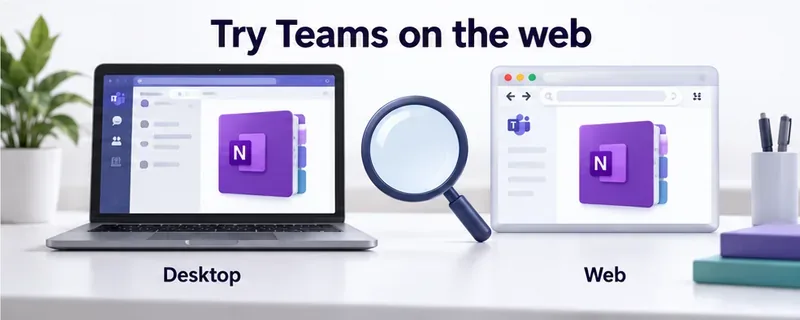
Open Teams on the web with the same account and organization, then test the same tab. If it works there, use the web version temporarily while you fully quit and reopen desktop Teams.
Install any offered desktop update. Microsoft’s current instructions use Update > Update and restart Teams when an update is available; see Update Microsoft Teams. Then sign out and back in if the account session still appears incorrect.
If several people suddenly lose access, ask your Microsoft 365 administrator to check Health > Service health for relevant Teams, SharePoint, OneDrive, or Office web incidents using Microsoft’s service health guide. An error message by itself does not confirm an outage.
If the problem persists, send IT the exact error, affected notebook link, account and organization, Teams version, and whether direct browser access works. Those details help distinguish a tab problem from an access or service issue.
Learn how to create a poll in Microsoft Teams chats, channels, and meetings, choose response settings, review results, and close voting.
Learn how to mute channel and message notifications in Microsoft Teams, unfollow noisy threads, and control banners while understanding mention alerts.
Learn how to transfer a Microsoft Teams meeting between your computer and phone, use both devices together, and fix missing transfer options or audio issues.
Learn how to snooze a message in Microsoft Teams with Snooze Bot, return to it later, and use saved messages or mute controls when you need another option.
Learn how to create a team in Microsoft Teams, add members, choose channel types, manage permissions, and use the Teams admin center.
Learn how to download a Microsoft Teams recording from Teams, OneDrive, or SharePoint, and fix missing download options, access issues, and expired recordings.
Fix echo during Microsoft Teams meetings by removing duplicate audio connections, selecting the right headset and microphone, and checking audio settings.
Set up Microsoft Teams–Slack integration to launch Teams meetings from Slack. Learn account requirements, app permissions, setup steps, and quick fixes.
Unable to connect to Microsoft Teams meetings? Check the meeting link, account, network, and app, then learn when to contact the organizer or IT.
Microsoft Teams not syncing? Refresh messages across desktop, web, iPhone, and Android, identify account or file issues, and avoid unnecessary cache resets.








