How to Create a Poll in Microsoft Teams

Learn how to create a poll in Microsoft Teams chats, channels, and meetings, choose response settings, review results, and close voting.
To fix echo during Microsoft Teams meetings, start by using a headset and keeping only one microphone-and-speaker system active in each room. Then check which speaker and microphone Teams is actually using. If you hear your own voice coming back, ask other participants to check their setups too: the sound may be returning through someone else's microphone.

An echo is a delayed repetition of speech. It can happen when a microphone picks up meeting audio from nearby speakers, or when multiple devices join with audio enabled. Hardware placement and audio routing matter; this is not necessarily an internet connection problem.
Before changing settings on every computer, narrow down where the repeated sound enters the meeting:
This identifies a likely audio path, rather than proving that a microphone is defective. Ask whether anyone joined from a laptop and phone, dialed in separately, or opened the meeting in both the desktop app and a browser.
Leave the extra audio connection or disable both its microphone and meeting playback. Muting only the extra microphone can leave its speakers audible to another microphone nearby.
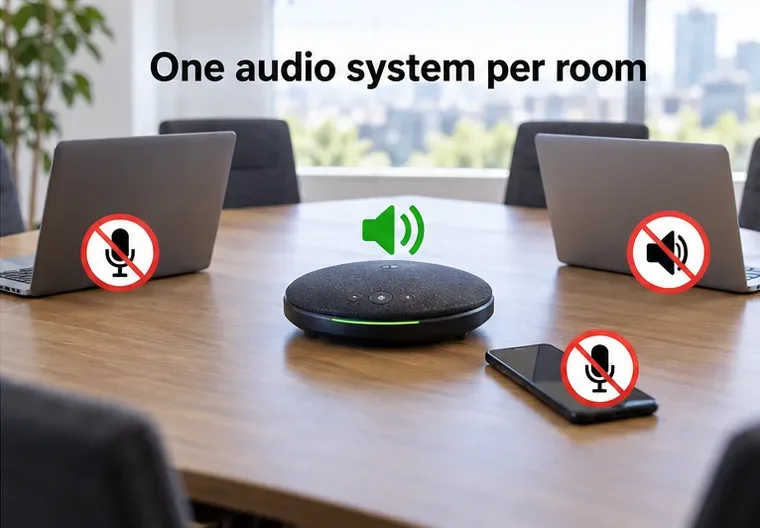
In a conference room, use the room system for sound and join additional devices without audio. Microsoft's guidance for sharing sound in Teams specifically recommends keeping only one device's microphone and speaker on in a room.
At the suspected source, connect headphones or a headset. This keeps meeting playback out of the room and reduces the sound that can reach the microphone. If your colleague's setup is returning your voice, changing only your own headphones may not solve it.

If speakers are necessary, lower their volume and move the microphone farther away from them. Avoid placing a separate microphone directly in front of a loud speaker. Mute when you are not speaking, but treat that as a temporary workaround while you correct the setup.
Plugging in a headset does not guarantee that Teams switched to it. In the desktop app:
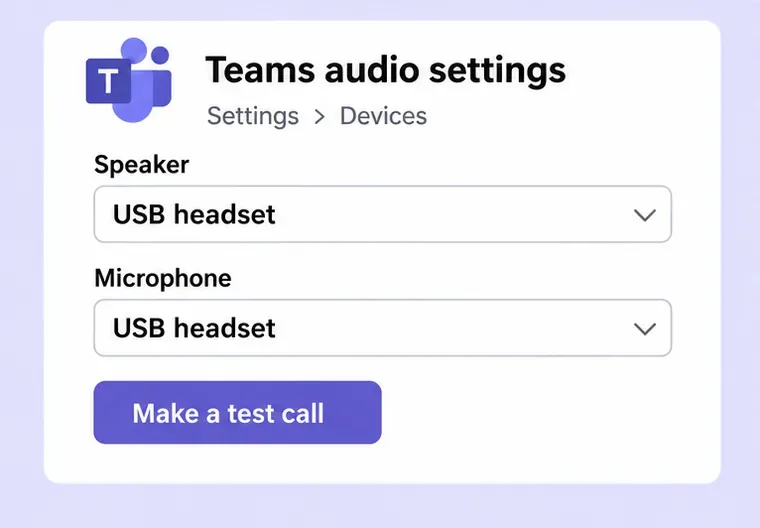
During a meeting, open the arrow next to Mic and select More audio settings to check the devices without leaving. These controls are documented in Microsoft's Teams audio settings guide; some options depend on organizational policies.
For background sounds, review Noise suppression. If available, Voice isolation can also filter other voices and speaker sound. Follow Microsoft's voice isolation setup instructions for profile requirements. These features supplement a clean audio setup; remove duplicate connections first.
If the correct device is missing or sounds wrong, unplug and reconnect it. For Bluetooth equipment, check its charge and connections to other devices. Select Leave, then rejoin the meeting; do not choose an option that ends the meeting for everyone.
In the Teams desktop app, return to Settings > Devices and select Make a test call, if available. Record a short message and listen to the playback. Microsoft's microphone troubleshooting guide notes that the test-call feature is unavailable in Teams for the web. A clear test recording checks your local setup, but does not rule out another participant's audio loop.
On Windows 11, an additional troubleshooting option is Settings > System > Sound. Select your output device and, if shown, set Audio enhancements to Off. Retest and restore the setting if it makes no difference. Microsoft lists this in its Windows audio troubleshooting guide; availability varies by device and driver.
If echo persists, try another headset and a short meeting with one colleague. Tell IT which participant's unmuting brings it back, which devices are selected, and whether the problem occurs in other calling apps. Those details help distinguish a device issue from a room setup or Teams-specific problem.
Learn how to create a poll in Microsoft Teams chats, channels, and meetings, choose response settings, review results, and close voting.
Learn how to mute channel and message notifications in Microsoft Teams, unfollow noisy threads, and control banners while understanding mention alerts.
Learn how to transfer a Microsoft Teams meeting between your computer and phone, use both devices together, and fix missing transfer options or audio issues.
Learn how to snooze a message in Microsoft Teams with Snooze Bot, return to it later, and use saved messages or mute controls when you need another option.
Learn how to create a team in Microsoft Teams, add members, choose channel types, manage permissions, and use the Teams admin center.
Learn how to download a Microsoft Teams recording from Teams, OneDrive, or SharePoint, and fix missing download options, access issues, and expired recordings.
Fix echo during Microsoft Teams meetings by removing duplicate audio connections, selecting the right headset and microphone, and checking audio settings.
Set up Microsoft Teams–Slack integration to launch Teams meetings from Slack. Learn account requirements, app permissions, setup steps, and quick fixes.
Unable to connect to Microsoft Teams meetings? Check the meeting link, account, network, and app, then learn when to contact the organizer or IT.
Microsoft Teams not syncing? Refresh messages across desktop, web, iPhone, and Android, identify account or file issues, and avoid unnecessary cache resets.







