How to Create a Poll in Microsoft Teams

Learn how to create a poll in Microsoft Teams chats, channels, and meetings, choose response settings, review results, and close voting.
To create a poll in Microsoft Teams, open a chat or channel, choose Polls from the message composer’s apps menu, enter your question and choices, then preview and send it. For scheduled meetings, add the Polls app to the meeting chat and prepare a poll to launch when needed.
These instructions cover Teams for work or school with the relevant apps enabled. Microsoft lists polls among discontinued features in Teams for personal use, so do not assume the same feature is available in a personal account.
Polls is powered by Microsoft Forms. Older tutorials may show Forms for meeting polling; current instructions use Polls. See Microsoft’s Polls app guide. The illustrations below show example interfaces; layouts can vary by Teams version.
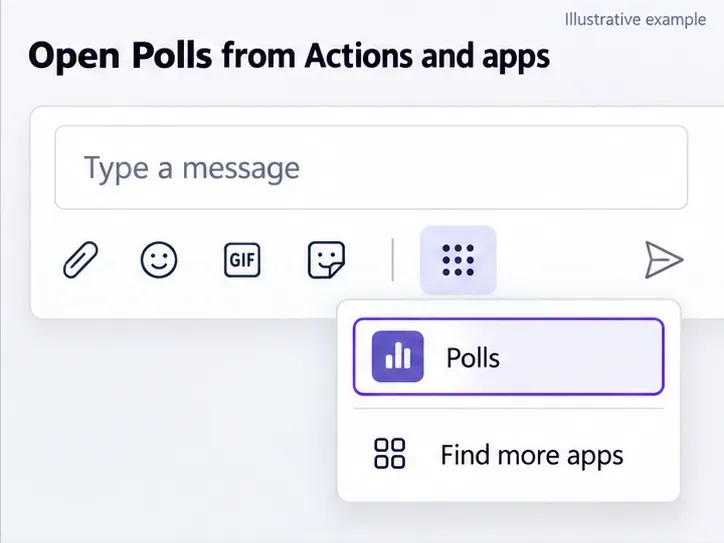
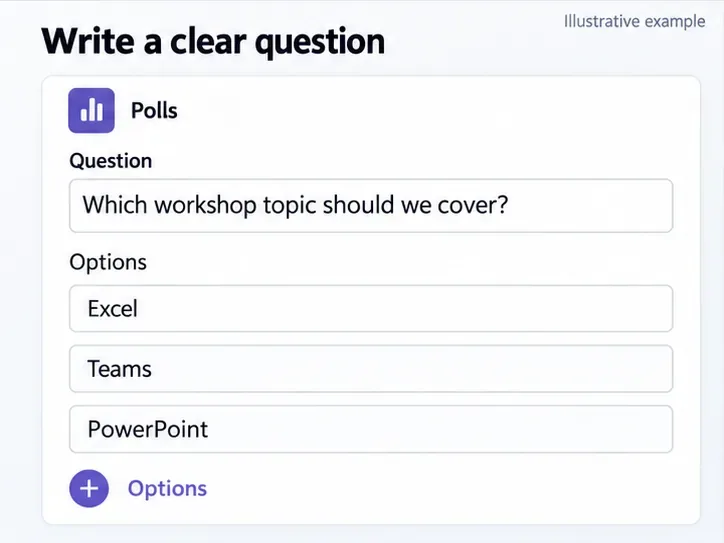
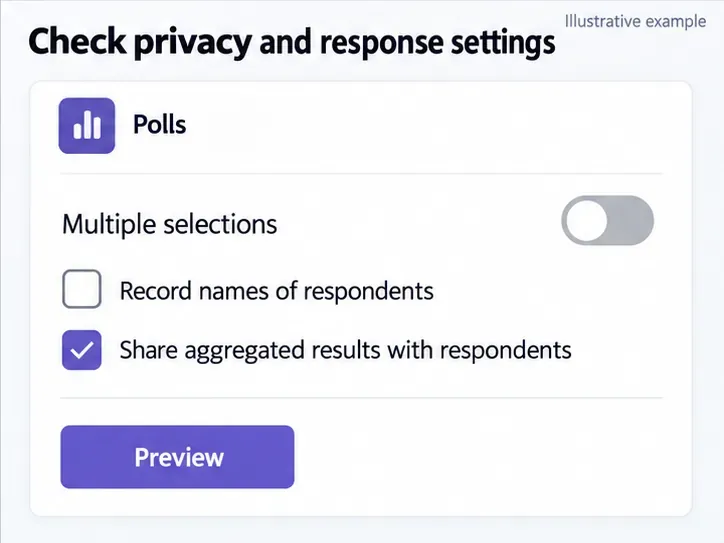
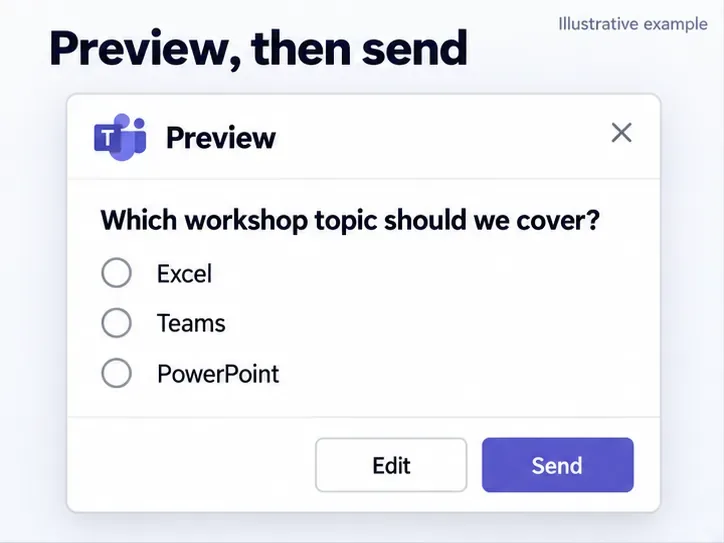
People choose an answer and select Submit Vote. The response summary updates as votes arrive. See Microsoft’s chat and channel polling instructions.
Use the organizer or presenter role for this prepared-poll workflow. For a workshop, draft the question beforehand so you can launch it without interrupting the discussion.
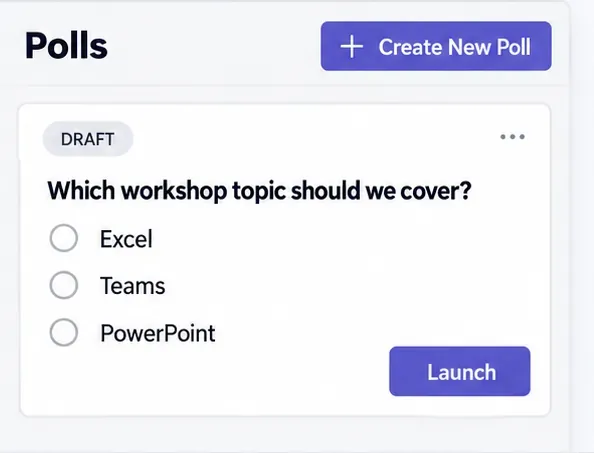
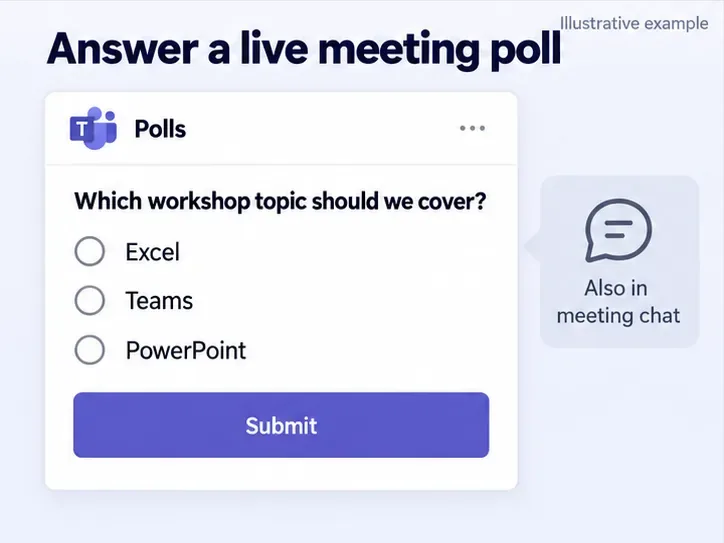
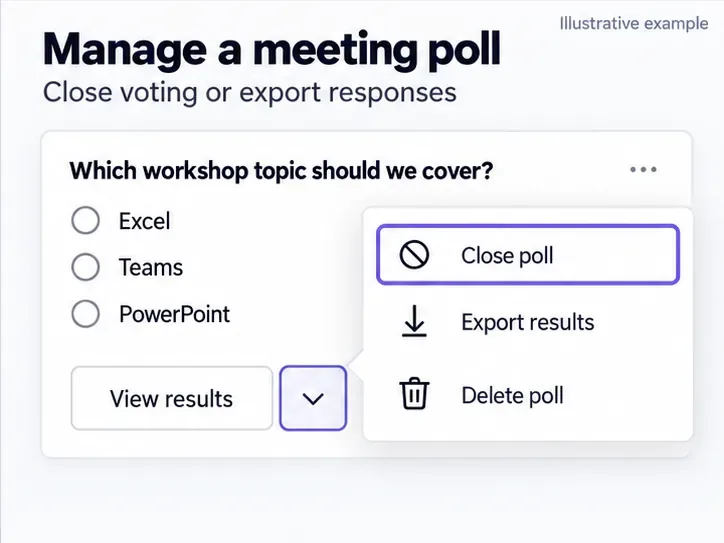
Meeting polls can be launched before, during, or after the meeting. Available question types include multiple choice, quizzes, ratings, ranking, and word clouds, with restrictions in some government environments. Consult Microsoft’s meeting polling guide for availability.
For a chat or channel poll, select More on its card to open the results in Forms. In Forms, use the response overview to review answers and open results in Excel for analysis. Anonymous responses do not display names or email addresses.
Be careful with summary links: anyone who obtains one can view its response summary. Share only with the intended audience, and remove an existing summary link if access should end. See Microsoft’s results and sharing guidance.
Use a Forms tab for a fuller survey. In the channel, select Add a tab > Forms. Create a shared form, or add an existing form and choose Collect responses for participants. Choose Collaborate only when teammates should help edit the form. Review Microsoft’s Forms tab instructions for setup details.
You can limit response collection. In Microsoft Forms settings, use Start date and End date to define an opening and closing time, or clear Accept responses to stop submissions. A response window is different from a timer that limits how long each person has to complete a form.
Learn how to create a poll in Microsoft Teams chats, channels, and meetings, choose response settings, review results, and close voting.
Learn how to mute channel and message notifications in Microsoft Teams, unfollow noisy threads, and control banners while understanding mention alerts.
Learn how to transfer a Microsoft Teams meeting between your computer and phone, use both devices together, and fix missing transfer options or audio issues.
Learn how to snooze a message in Microsoft Teams with Snooze Bot, return to it later, and use saved messages or mute controls when you need another option.
Learn how to create a team in Microsoft Teams, add members, choose channel types, manage permissions, and use the Teams admin center.
Learn how to download a Microsoft Teams recording from Teams, OneDrive, or SharePoint, and fix missing download options, access issues, and expired recordings.
Fix echo during Microsoft Teams meetings by removing duplicate audio connections, selecting the right headset and microphone, and checking audio settings.
Set up Microsoft Teams–Slack integration to launch Teams meetings from Slack. Learn account requirements, app permissions, setup steps, and quick fixes.
Unable to connect to Microsoft Teams meetings? Check the meeting link, account, network, and app, then learn when to contact the organizer or IT.
Microsoft Teams not syncing? Refresh messages across desktop, web, iPhone, and Android, identify account or file issues, and avoid unnecessary cache resets.








