How to Create a Poll in Microsoft Teams

Learn how to create a poll in Microsoft Teams chats, channels, and meetings, choose response settings, review results, and close voting.
To create a team in Microsoft Teams, open Chat > New items > New team, enter the team details, name its first channel, and select Create. You can then add people, organize channels, and adjust permissions as a team owner.
These instructions cover Teams for work or school on desktop and web. Teams for personal use has a different Communities experience. Your organization can restrict team creation.
In the combined chat-and-channels view, select Chat. If your app uses separate navigation, select Teams instead. Above the list, choose New items > New team, following Microsoft's current creation workflow.

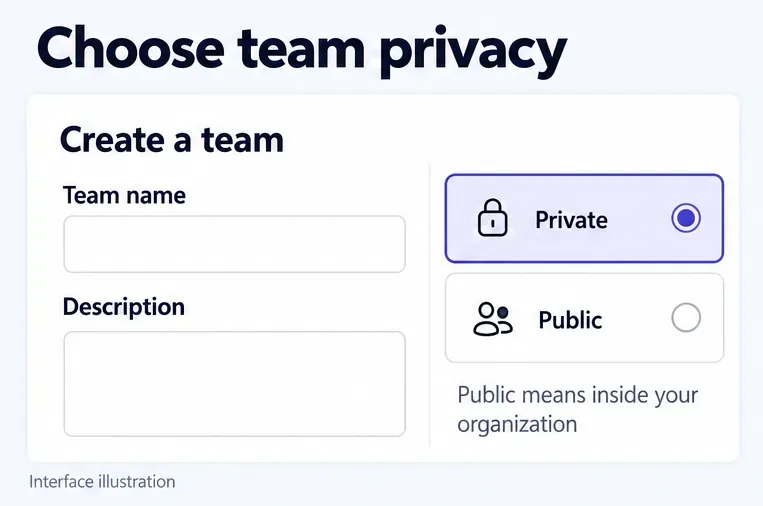
Give the team a recognizable name and an optional description explaining its purpose. Choose Private for controlled membership or Public so people in your organization can join. Public does not mean open to the internet. Apply a sensitivity label if your organization requires one.
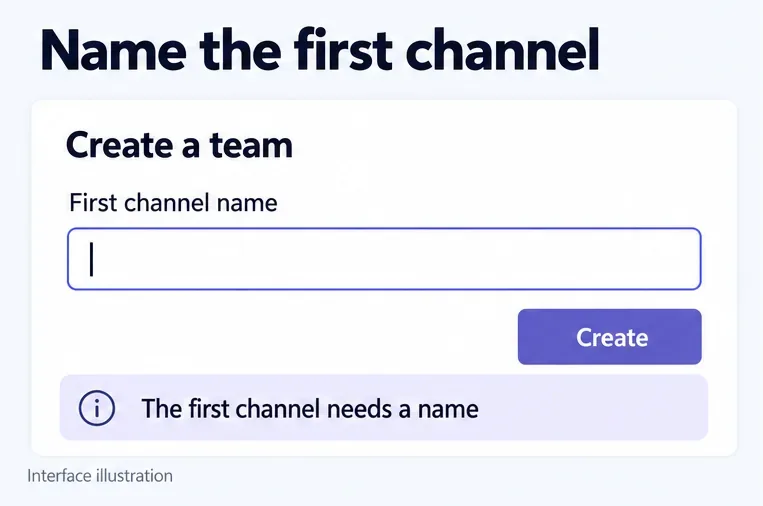
Enter a first-channel name, such as Announcements, then select Create. The first channel no longer has to be called General. It cannot be deleted or archived. Creating the team makes you its owner.
Already have a suitable group or team? Under More create team options, you can reuse an existing team or eligible Microsoft 365 group. Group-based creation carries over the group's membership; copying a team lets you choose what to copy. If a group does not appear, check that you own it and that it does not already have a connected team.
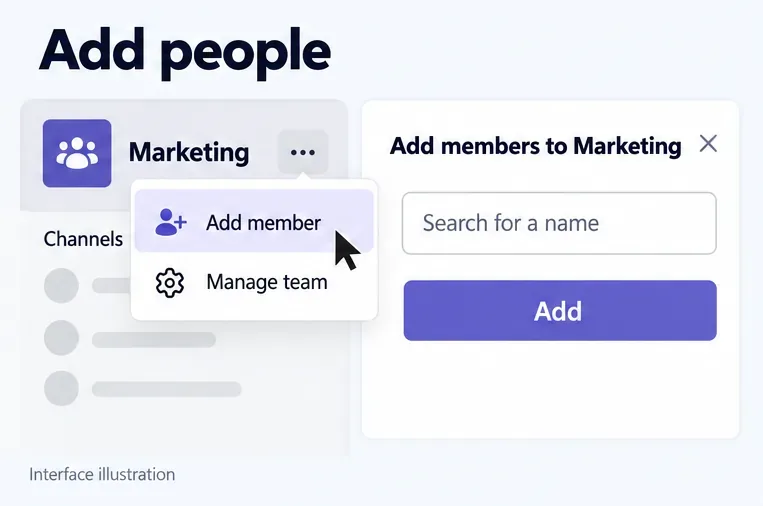
Beside the team name, select More options (...) > Add member. Search for coworkers, select the correct people, and choose Add. For outside collaborators, enter their email addresses; guest access must be allowed by your organization. Guests must accept their invitation, and access can take a few hours to become available.
To appoint a backup owner, open Manage team > Members, expand Members and guests, and change the person's team role to Owner. Only an owner can promote another member. Review this list when people change roles or leave.
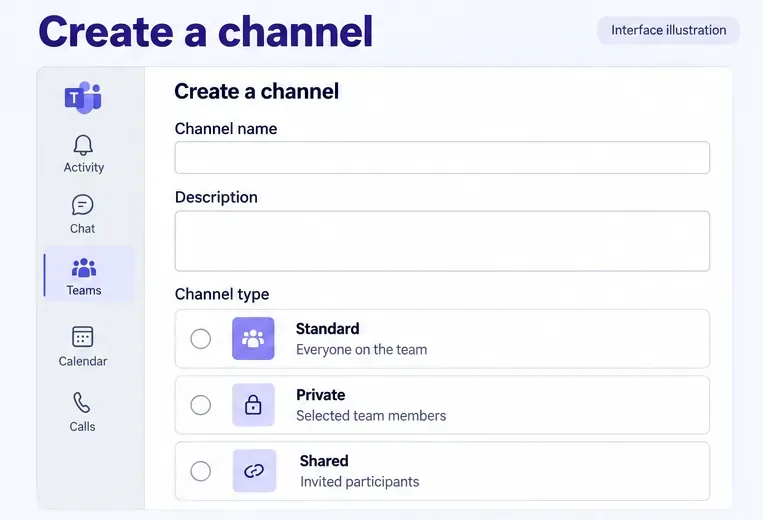
Open the team's More options > Add channel. Enter a name, optional description, and channel type, then complete creation. Microsoft's channel types serve different audiences:
| Type | Who can access it? |
|---|---|
| Standard | Everyone on the team. |
| Private | Selected people who already belong to the team. |
| Shared | Invited participants, potentially outside the team or organization. |
Choose carefully: channel types cannot be converted afterward. Only team owners can create shared channels. External shared-channel collaboration also requires administrators to configure B2B direct connect. A private channel needs its own member list.
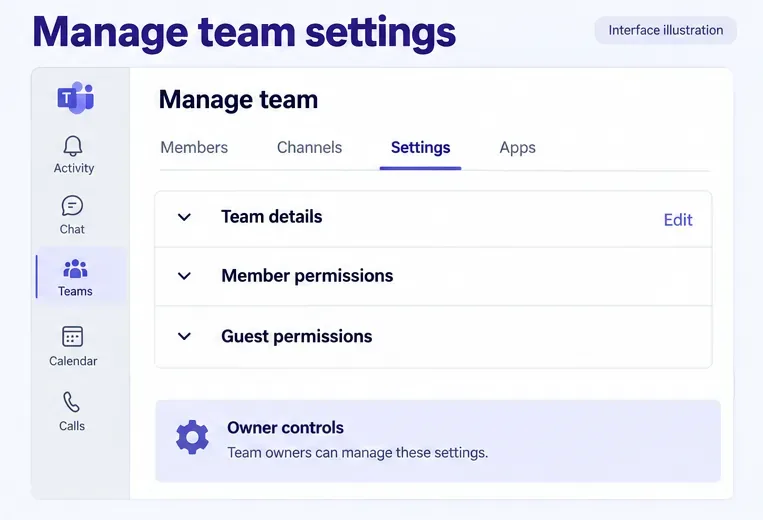
Open More options > Manage team > Settings. Under Team details > Edit, owners can change the name, description, or privacy where permitted. Review Member permissions to control channel and app changes. These team settings remain subject to organization policies.
A Teams license alone does not grant administrative rights. Use an authorized account, such as a Teams Administrator. The Teams Reader role is read-only.
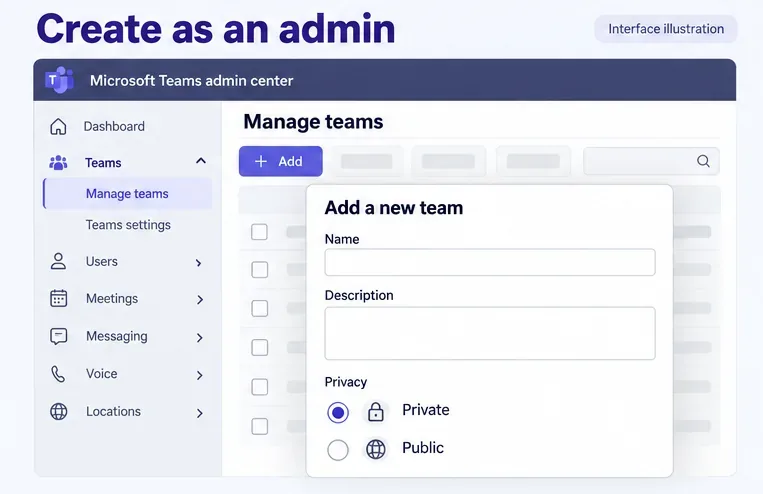
Open the Teams admin center, select Teams > Manage teams > Add, and enter the name, description, privacy, and any required sensitivity label. Complete the pane to create the team.
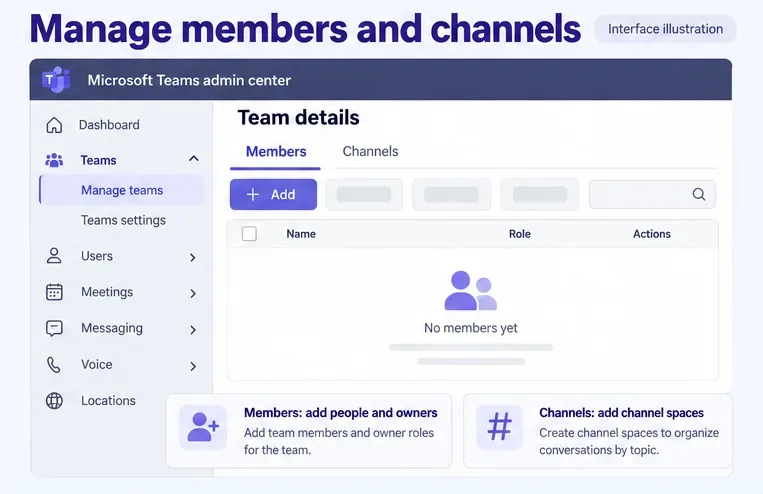
In Teams > Manage teams, select the team name to open its details. In Members, use Add to add people and review owner roles. In Channels, use Add to create a channel with a name, description, and appropriate type. Standard channels inherit team membership. Microsoft's admin-center guide covers these management tools.
Learn how to create a poll in Microsoft Teams chats, channels, and meetings, choose response settings, review results, and close voting.
Learn how to mute channel and message notifications in Microsoft Teams, unfollow noisy threads, and control banners while understanding mention alerts.
Learn how to transfer a Microsoft Teams meeting between your computer and phone, use both devices together, and fix missing transfer options or audio issues.
Learn how to snooze a message in Microsoft Teams with Snooze Bot, return to it later, and use saved messages or mute controls when you need another option.
Learn how to create a team in Microsoft Teams, add members, choose channel types, manage permissions, and use the Teams admin center.
Learn how to download a Microsoft Teams recording from Teams, OneDrive, or SharePoint, and fix missing download options, access issues, and expired recordings.
Fix echo during Microsoft Teams meetings by removing duplicate audio connections, selecting the right headset and microphone, and checking audio settings.
Set up Microsoft Teams–Slack integration to launch Teams meetings from Slack. Learn account requirements, app permissions, setup steps, and quick fixes.
Unable to connect to Microsoft Teams meetings? Check the meeting link, account, network, and app, then learn when to contact the organizer or IT.
Microsoft Teams not syncing? Refresh messages across desktop, web, iPhone, and Android, identify account or file issues, and avoid unnecessary cache resets.







