How to Create a Poll in Microsoft Teams

Learn how to create a poll in Microsoft Teams chats, channels, and meetings, choose response settings, review results, and close voting.
To download a Microsoft Teams recording, open the meeting chat, select Shared, choose the recording, and select More options (...) > Download. If that command is unavailable, open the recording through OneDrive or SharePoint and check your download permissions.

This guide covers Teams work or school meeting recordings. Recording availability depends on your license and organization settings; recording is not included universally with every Teams account.
According to Microsoft’s recording storage documentation, non-channel meetings normally save to the organizer’s OneDrive > Recordings folder. Channel meetings save to the channel’s SharePoint site. One-to-one and group call recordings normally go to the OneDrive of whoever started recording.
The organizer owns a normal meeting recording, and co-organizers generally have editing rights. Permission to watch does not always include permission to download. Attendees may need the owner to enable downloads; channel access also depends on SharePoint permissions and organizational policies.
Start here if you organized the meeting and still have its chat.
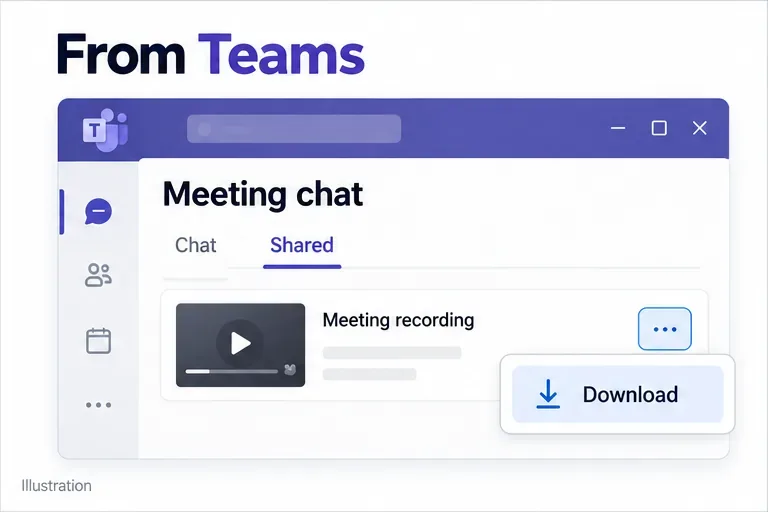
You can also find the video through Calendar > past meeting > Recap. Microsoft’s Teams playback and download guide documents these entry points. If the video opens in a browser player, use the file’s available download command or continue with its storage location below.
This route is useful when you can access the original file but the Teams recording card is difficult to find.
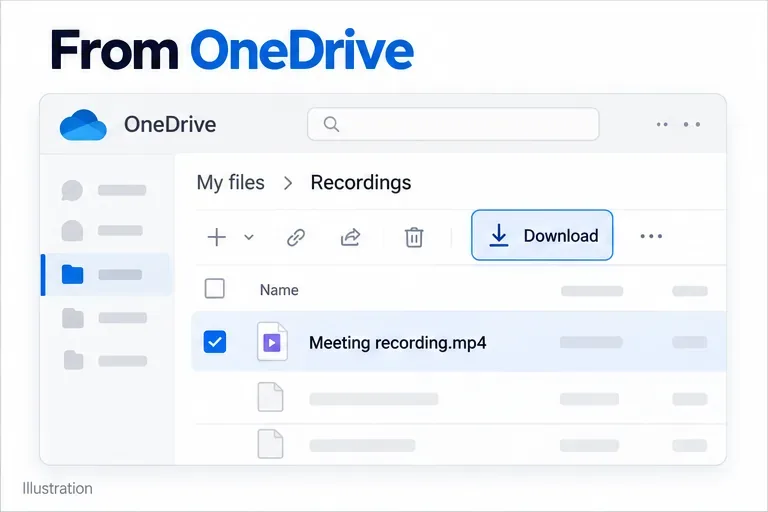
Microsoft’s OneDrive and SharePoint download instructions note that the toolbar command appears after you select a file. Check your browser’s Downloads list when the transfer finishes, and open the saved video to confirm it plays.
For a channel meeting, use the channel’s files rather than the organizer’s personal recording folder.
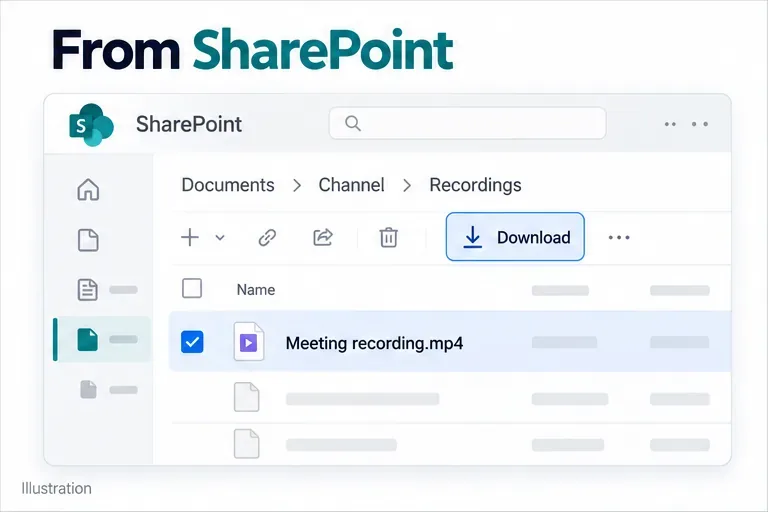
If the file is missing, ask the organizer or channel owner whether it was moved or renamed. Changing apps will not grant access to a restricted recording.
Ask the owner to review Share > Link settings. Microsoft distinguishes Can view, which allows viewing and downloading through that link, from Can’t download. See Microsoft’s recording access troubleshooting.
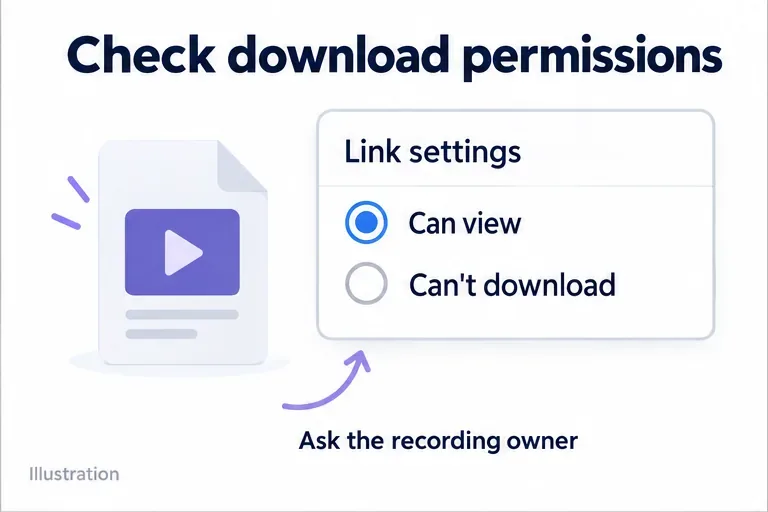
An organization-wide download restriction can still prevent local copies. Ask IT whether an approved exception is available; another download route does not override that policy.
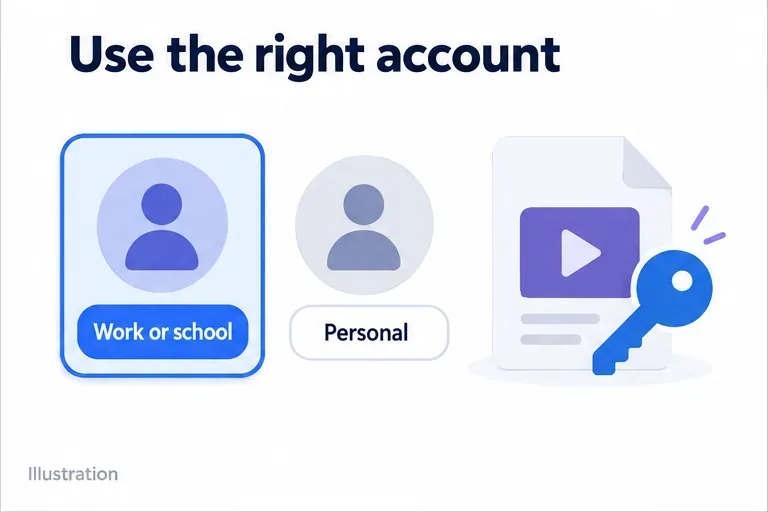
Open the recording with the account the owner shared it with. If you switch between personal and work accounts, check the signed-in profile. External attendees need the recording explicitly shared with them.
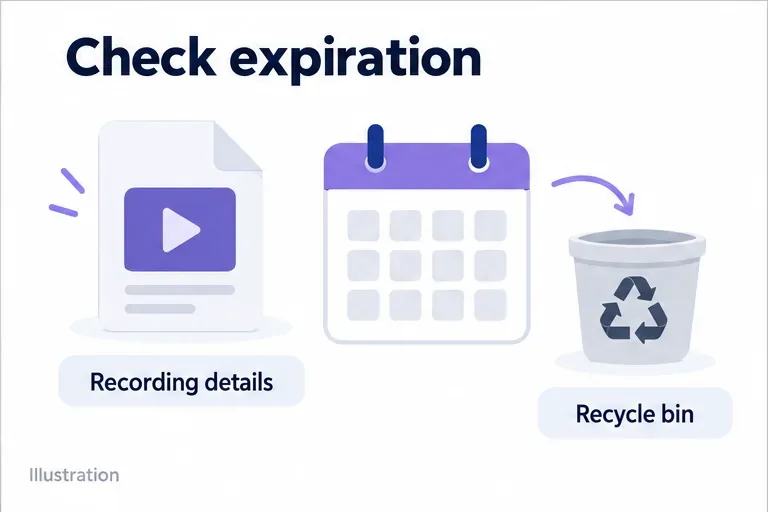
There is no universal 20-day lifespan for these recordings. Your administrator sets normal expiration behavior. Check the recording’s expiration countdown; users with editing permission can adjust it where allowed. Microsoft explains this under managing recording expiration. Expired files move to the storage location’s recycle bin, where recovery is time-sensitive.
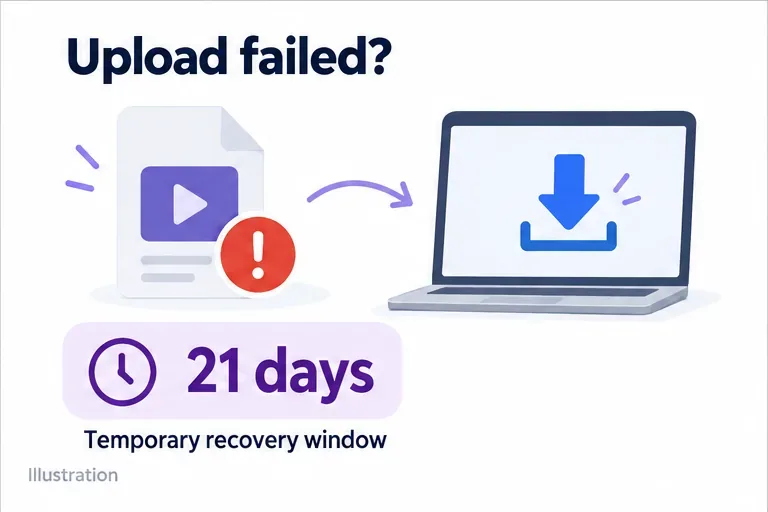
A failed upload is different: Microsoft documents a 21-day temporary storage window. If the chat shows an upload failure, the organizer should download the available recording promptly and ask IT to resolve the storage problem. That window is not the normal retention period.
If no recording was ever started, there is no video to download. Also, a downloaded recording does not include the player’s captions; keep using the online recording when you need those playback features.
Learn how to create a poll in Microsoft Teams chats, channels, and meetings, choose response settings, review results, and close voting.
Learn how to mute channel and message notifications in Microsoft Teams, unfollow noisy threads, and control banners while understanding mention alerts.
Learn how to transfer a Microsoft Teams meeting between your computer and phone, use both devices together, and fix missing transfer options or audio issues.
Learn how to snooze a message in Microsoft Teams with Snooze Bot, return to it later, and use saved messages or mute controls when you need another option.
Learn how to create a team in Microsoft Teams, add members, choose channel types, manage permissions, and use the Teams admin center.
Learn how to download a Microsoft Teams recording from Teams, OneDrive, or SharePoint, and fix missing download options, access issues, and expired recordings.
Fix echo during Microsoft Teams meetings by removing duplicate audio connections, selecting the right headset and microphone, and checking audio settings.
Set up Microsoft Teams–Slack integration to launch Teams meetings from Slack. Learn account requirements, app permissions, setup steps, and quick fixes.
Unable to connect to Microsoft Teams meetings? Check the meeting link, account, network, and app, then learn when to contact the organizer or IT.
Microsoft Teams not syncing? Refresh messages across desktop, web, iPhone, and Android, identify account or file issues, and avoid unnecessary cache resets.







