How to Create a Poll in Microsoft Teams

Learn how to create a poll in Microsoft Teams chats, channels, and meetings, choose response settings, review results, and close voting.
To fix Microsoft Teams images not loading, restart Teams, open the same conversation on the web, and check whether the original image opens. Then update the app and refresh your sign-in. Reserve an app reset for problems isolated to the desktop client; it cannot repair a damaged image, restore file access, or resolve a service outage.
On Windows, right-click the Teams icon in the taskbar notification area and choose Quit, then reopen it. On a Mac, quit Teams with Command-Q and reopen it. Closing the window alone may leave the app running.
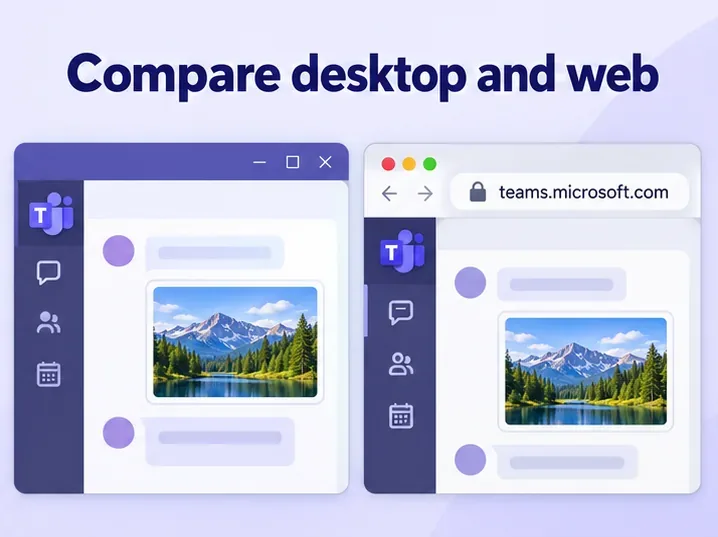
Visit Teams on the web using the same account and organization, then open the same message. Use an updated desktop browser such as Edge or Chrome; Teams for Web does not support mobile browsers. See Microsoft's chat-loading advice and browser requirements.
Check that other websites load. If permitted, compare another trusted network. A different result gives IT a clue about connectivity or filtering; it does not establish the cause.
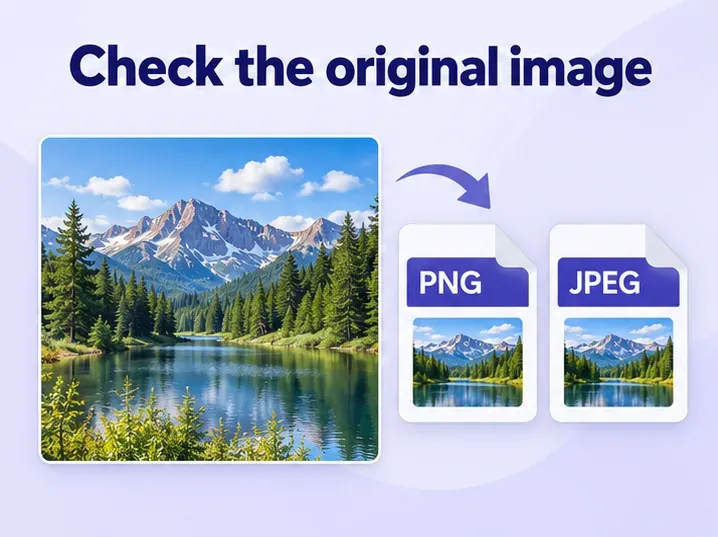
If a download or file-opening option is available, try opening the original outside Teams. Ask the sender whether it opens on their device. Request a fresh copy if it is damaged. If it opens but previews fail, try exporting it as PNG or JPEG with an image editor. Changing the filename extension does not convert an image.
Test a fresh upload by dragging the saved image into the message box, or selecting Actions and apps > Attach file, then sending it. This comparison can help when pasted images fail; it does not guarantee a preview.
For images shared as files, look in the conversation's Shared tab. An access-denied message needs the owner or administrator to check permissions. Microsoft's file-sharing instructions explain access prompts. Resetting the viewer's app cannot grant access.
Teams normally updates automatically while idle. If an update appears at the top of the desktop window, select Update > Update and restart Teams. Reopen it if necessary. The web app stays updated automatically, according to Microsoft's update guidance.
If images still fail, select your profile picture, choose Sign out, and sign back in. Confirm the correct account and organization before retesting. Have your password and usual multifactor authentication method available.
Try another supported browser first. If that works, clear Teams-specific site data in the affected browser. In Chrome, open Settings > Privacy and security > Third-party cookies > See all site data and permissions. Find the Teams site shown in your address bar, delete its stored data, reload, and sign in again. This can remove site preferences; Google's cookie-management guide documents the controls.
Microsoft advises against routine cache clearing for missing messages, chat history, or incorrect unread counts because it removes diagnostic logs. If those symptoms accompany the missing images, contact IT before resetting.
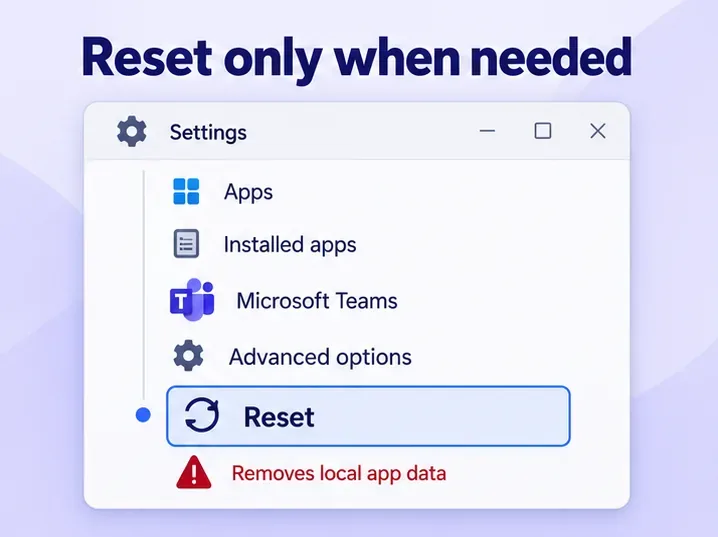
For an isolated desktop image problem after the earlier checks, quit Teams. In Windows Settings, open Apps > Installed apps, find Microsoft Teams, open its three-dot menu, and select Advanced options. Choose Reset in the reset section, then reopen Teams.
Reset removes local app data, including personalization settings. The first launch may take longer. For a Mac, follow the matching new Teams procedure in Microsoft's cache-clearing documentation. Classic Teams folder instructions target a different client.
For widespread failures, ask an administrator to check Health > Service health in the Microsoft 365 admin center using Microsoft's service-health instructions. Symptoms alone do not confirm an outage.
Provide the message time and time zone, Teams version, exact error, whether others can open the image, and your desktop-versus-web results. These details help IT distinguish app problems from permissions, network restrictions, or service incidents.
Learn how to create a poll in Microsoft Teams chats, channels, and meetings, choose response settings, review results, and close voting.
Learn how to mute channel and message notifications in Microsoft Teams, unfollow noisy threads, and control banners while understanding mention alerts.
Learn how to transfer a Microsoft Teams meeting between your computer and phone, use both devices together, and fix missing transfer options or audio issues.
Learn how to snooze a message in Microsoft Teams with Snooze Bot, return to it later, and use saved messages or mute controls when you need another option.
Learn how to create a team in Microsoft Teams, add members, choose channel types, manage permissions, and use the Teams admin center.
Learn how to download a Microsoft Teams recording from Teams, OneDrive, or SharePoint, and fix missing download options, access issues, and expired recordings.
Fix echo during Microsoft Teams meetings by removing duplicate audio connections, selecting the right headset and microphone, and checking audio settings.
Set up Microsoft Teams–Slack integration to launch Teams meetings from Slack. Learn account requirements, app permissions, setup steps, and quick fixes.
Unable to connect to Microsoft Teams meetings? Check the meeting link, account, network, and app, then learn when to contact the organizer or IT.
Microsoft Teams not syncing? Refresh messages across desktop, web, iPhone, and Android, identify account or file issues, and avoid unnecessary cache resets.








