How to Create a Poll in Microsoft Teams

Learn how to create a poll in Microsoft Teams chats, channels, and meetings, choose response settings, review results, and close voting.
To fix the Microsoft Teams “Mailbox does not exist” error, first check that you are using the correct work or school account. Then have your administrator confirm that the required Exchange mailbox exists and that Teams can access it. If a mailbox is missing or access has been removed, reinstalling Teams will not repair the underlying problem.
Do not assume this message refers to a shared inbox. Teams calendar features depend on Exchange, while an Exchange shared mailbox and a Microsoft 365 group mailbox are different resources. Microsoft's Teams and Exchange integration guide explains how mailbox location affects available features. The steps below focus on work or school accounts.
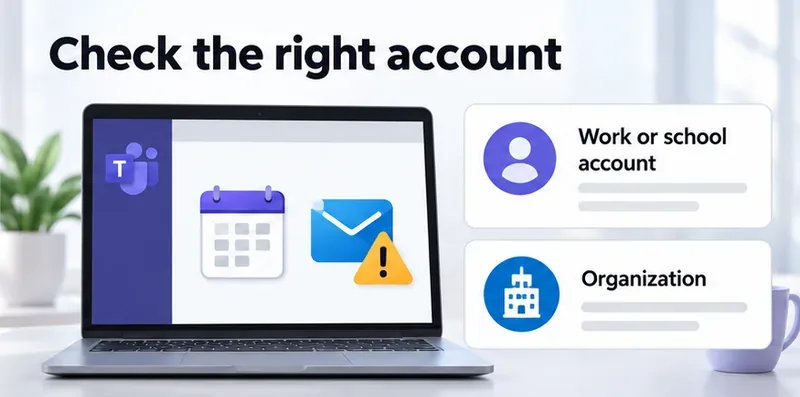
Note where the error appears: your personal Teams calendar, a shared calendar, or an app added to a channel. That distinction determines which mailbox your administrator needs to investigate.
If web access works but the Teams desktop app fails, select your profile picture, choose Sign out, quit Teams, and sign in again. These are Microsoft's current Teams sign-out instructions.
If Outlook also reports a missing mailbox, prioritize the mailbox checks below. If Outlook works but Teams fails in both clients, ask IT to investigate Teams-to-Exchange connectivity. These comparisons narrow the investigation; they do not establish the cause by themselves.
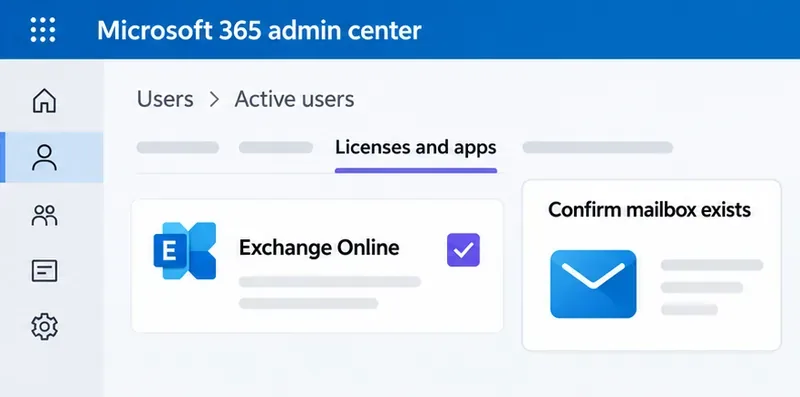
For an account intended to use Exchange Online, an administrator should open the Microsoft 365 admin center, go to Users > Active users, select the affected user, and review Licenses and apps. Confirm that an appropriate license is assigned and its Exchange Online service is enabled. See Microsoft's license assignment instructions.
Next, confirm that the user's mailbox actually exists in Exchange. A Teams entitlement alone does not establish that an Exchange mailbox has been provisioned.
Microsoft says provisioning or synchronization typically takes less than 30 minutes, but can take up to 24 hours. For a newly licensed account, run the EXO Recipient Object Failures diagnostic linked in Microsoft's mailbox provisioning guidance, resolve validation errors, and check service health. Contact Microsoft Support if provisioning remains unresolved after 24 hours.
If the mailbox is hosted on-premises, have the Exchange administrator verify that deployment instead of creating a second cloud mailbox as a workaround.
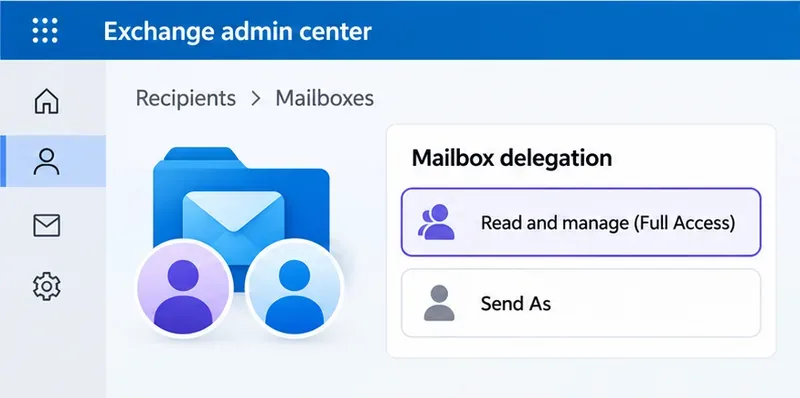
Use this step only when the failure concerns a specific shared mailbox. In the Exchange admin center, an authorized administrator should:
Send As and Send on Behalf govern sending, not permission to open the mailbox. Microsoft's shared mailbox documentation covers delegation. In hybrid environments, manage shared mailboxes through the appropriate on-premises Exchange tools.
Adding someone to a team is not a substitute for mailbox delegation. Likewise, changing shared mailbox permissions will not create a missing personal mailbox.
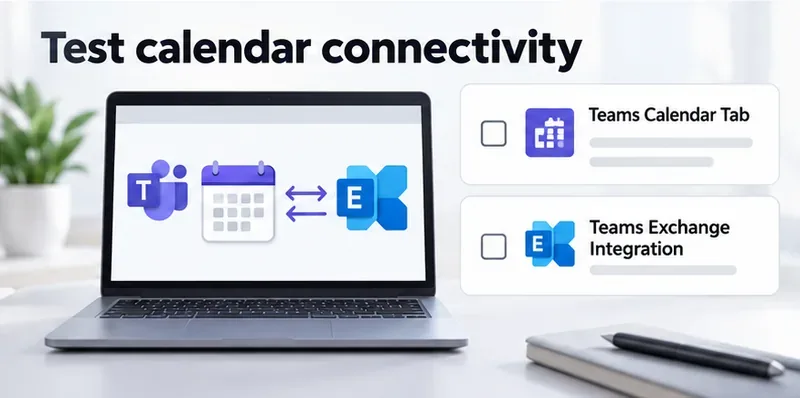
If the mailbox exists but Teams still cannot use it, follow Microsoft's Remote Connectivity Analyzer guidance. The Teams Calendar Tab test checks whether the Teams backend can connect to an Exchange mailbox. Administrators can use Teams Exchange Integration for broader integration checks. These tests are unavailable in GCC and GCC High environments.
For on-premises or hybrid mailboxes, IT should verify mailbox discovery, externally accessible Autodiscover and Exchange Web Services endpoints, OAuth configuration, and relevant access policies using Microsoft's Teams–Exchange troubleshooting guide. A local administrator PowerShell window alone does not provide Exchange administrative access.
Send IT the exact error, affected account, mailbox address, desktop/web comparison, and reproduction time with its time zone or UTC offset. After the identified issue is corrected, reopen the affected calendar or mailbox and confirm that the original action works.
Learn how to create a poll in Microsoft Teams chats, channels, and meetings, choose response settings, review results, and close voting.
Learn how to mute channel and message notifications in Microsoft Teams, unfollow noisy threads, and control banners while understanding mention alerts.
Learn how to transfer a Microsoft Teams meeting between your computer and phone, use both devices together, and fix missing transfer options or audio issues.
Learn how to snooze a message in Microsoft Teams with Snooze Bot, return to it later, and use saved messages or mute controls when you need another option.
Learn how to create a team in Microsoft Teams, add members, choose channel types, manage permissions, and use the Teams admin center.
Learn how to download a Microsoft Teams recording from Teams, OneDrive, or SharePoint, and fix missing download options, access issues, and expired recordings.
Fix echo during Microsoft Teams meetings by removing duplicate audio connections, selecting the right headset and microphone, and checking audio settings.
Set up Microsoft Teams–Slack integration to launch Teams meetings from Slack. Learn account requirements, app permissions, setup steps, and quick fixes.
Unable to connect to Microsoft Teams meetings? Check the meeting link, account, network, and app, then learn when to contact the organizer or IT.
Microsoft Teams not syncing? Refresh messages across desktop, web, iPhone, and Android, identify account or file issues, and avoid unnecessary cache resets.








