How to Create a Poll in Microsoft Teams

Learn how to create a poll in Microsoft Teams chats, channels, and meetings, choose response settings, review results, and close voting.
If Microsoft Teams notifications are not going away, check unread items in Activity and Chat first, then dismiss any separate Windows alert. If the badge or banner remains, restart Teams, install an available update, and compare the same account in the web app.
A Teams unread indicator and a Windows notification are different things. Treat dismissing a pop-up and marking its message as read as separate checks. These instructions focus on current Teams for Windows; menu placement can vary by account and rollout.
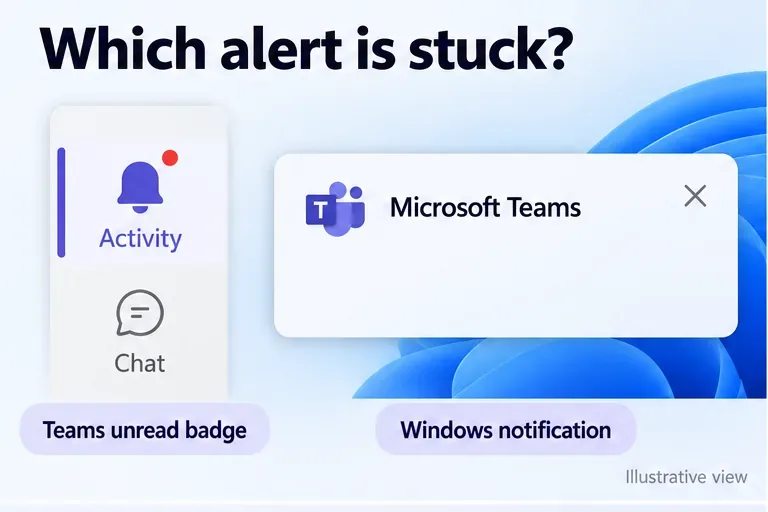
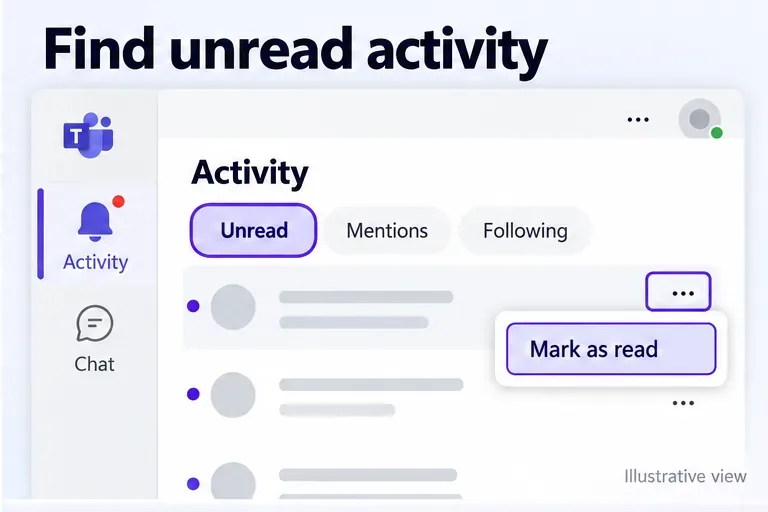
Reading your recent chats may leave other activity unchecked, including channel mentions, replies, and meeting updates. Start with the Teams Activity feed:
If you use multiple accounts or organizations, check the relevant account before deciding the badge is incorrect. On mobile, Activity also offers More options > Mark all as read; use it after reviewing anything you need to act on.
If the problem is a notification card rather than an unread indicator inside Teams, select its close button. For an alert stored in Windows notification center:
Return to Teams to check its unread status independently. Alt + Tab switches between app windows; it is not the standard way to clear Windows notifications.
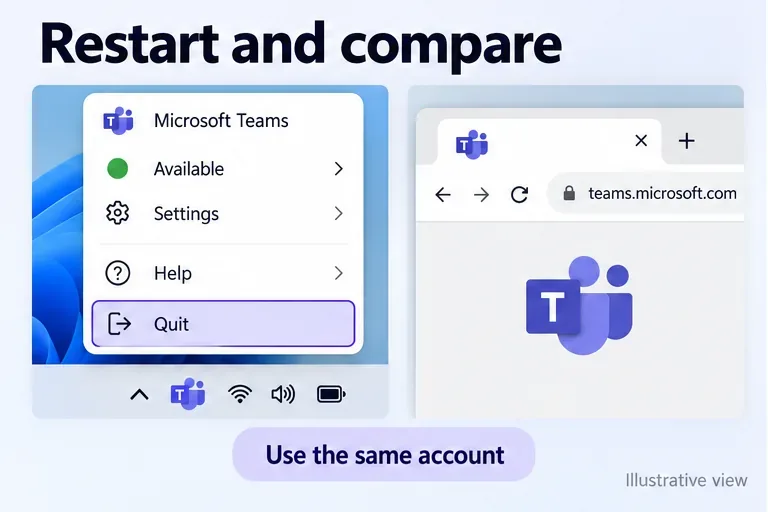
Save unfinished work and finish any active call. Right-click the Teams icon in the Windows system tray, which may be under the hidden-icons arrow, and select Quit. Open Teams again. Closing its main window alone may leave it running.
If an update is offered at the top of Teams, select Update > Update and restart Teams. Microsoft explains that Teams normally updates automatically when idle.
Next, open Teams on the web with the same account and organization. Review the same Activity items and chats.
You can also try signing out and back in through your profile menu. Keep your sign-in method available. Opening the browser version is a comparison step, not a guaranteed synchronization fix.
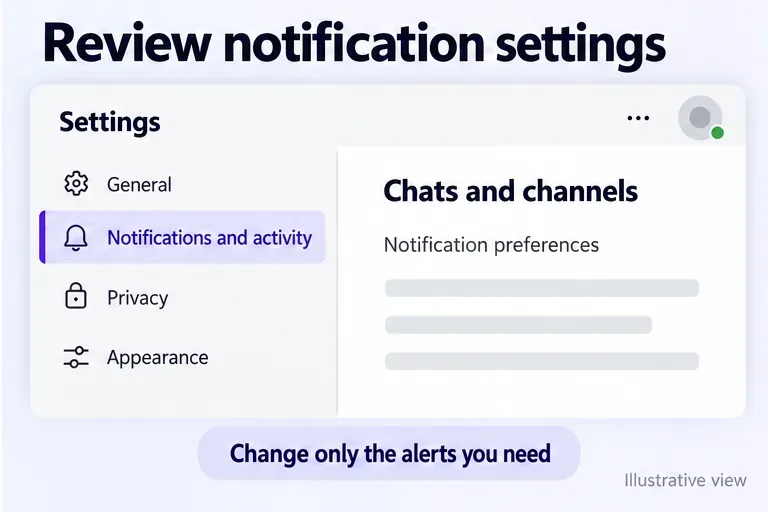
If alerts keep arriving from an active conversation, open Settings and more > Settings > Notifications and activity. Under Chats and channels, change the notification types that are distracting you. Available choices depend on the notification type.
For one noisy channel, open its More channel options > Manage notifications. Microsoft's notification settings guide explains the controls. Reducing future alerts is useful, but turning every notification off does not resolve an incorrect unread count.
Do not clear the Teams cache as a routine fix for this symptom. Microsoft's current cache troubleshooting guidance specifically advises against it for incorrect notifications and unread counts: it does not fix those issues and removes diagnostic logs.
Capture the badge, your empty unread view, and whether the web app behaves differently. Record the time and time zone. In Teams for Windows, press Ctrl + Alt + Shift + 1 to collect support files; they normally save to Downloads. Share them through your organization's approved support channel.
Ask your IT administrator or Microsoft Support to investigate before resetting or reinstalling Teams. This preserves evidence and avoids repeating changes that may not address the cause.
Learn how to create a poll in Microsoft Teams chats, channels, and meetings, choose response settings, review results, and close voting.
Learn how to mute channel and message notifications in Microsoft Teams, unfollow noisy threads, and control banners while understanding mention alerts.
Learn how to transfer a Microsoft Teams meeting between your computer and phone, use both devices together, and fix missing transfer options or audio issues.
Learn how to snooze a message in Microsoft Teams with Snooze Bot, return to it later, and use saved messages or mute controls when you need another option.
Learn how to create a team in Microsoft Teams, add members, choose channel types, manage permissions, and use the Teams admin center.
Learn how to download a Microsoft Teams recording from Teams, OneDrive, or SharePoint, and fix missing download options, access issues, and expired recordings.
Fix echo during Microsoft Teams meetings by removing duplicate audio connections, selecting the right headset and microphone, and checking audio settings.
Set up Microsoft Teams–Slack integration to launch Teams meetings from Slack. Learn account requirements, app permissions, setup steps, and quick fixes.
Unable to connect to Microsoft Teams meetings? Check the meeting link, account, network, and app, then learn when to contact the organizer or IT.
Microsoft Teams not syncing? Refresh messages across desktop, web, iPhone, and Android, identify account or file issues, and avoid unnecessary cache resets.








