How to Create a Poll in Microsoft Teams

Learn how to create a poll in Microsoft Teams chats, channels, and meetings, choose response settings, review results, and close voting.
To mute channel notifications in Microsoft Teams, open the channel’s three-dot menu, select Channel notifications, and turn off alerts for new messages or posts. To quiet one discussion, unfollow its thread. For a one-on-one or group chat, use Mute. These controls have different effects, and muting a chat still allows @mention notifications.
The instructions below focus on Teams for work or school on a computer. Channel controls differ between the Posts and Threads layouts, so some labels may vary.

If you still want updates without pop-up banners, choose the option that sends them only to Activity. In a Threads-layout channel, also review Include thread replies and Follow all new threads. Following determines what appears in Followed threads; that setting alone does not create Activity-feed alerts.
To restore channel alerts, reopen the same controls and enable the messages you want. See Microsoft’s channel notification instructions.
If just one discussion is noisy, change its follow status before turning off alerts for the entire channel.
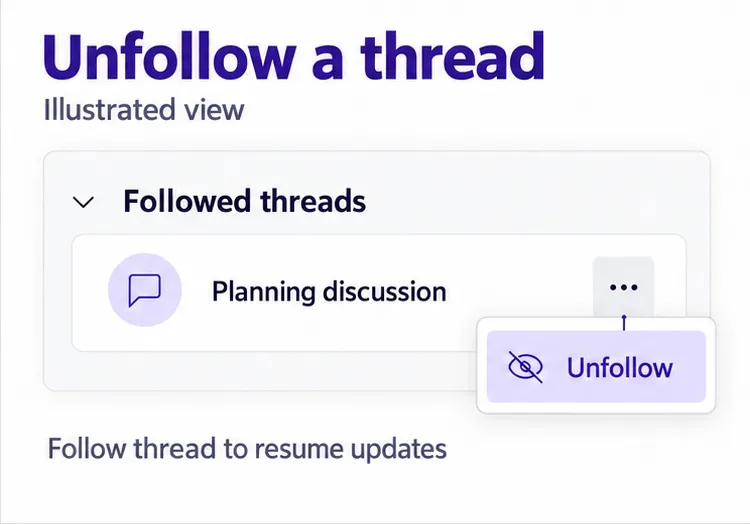
Teams can automatically follow discussions you start, reply to, or are @mentioned in. Review automatic-follow preferences under Settings > Chats and channels if unwanted discussions keep appearing. If you enabled Follow all new threads for a channel, review that channel option as well.
Unfollowing is not a blanket mute. Channel-wide notification settings and mentions are separate, so check those if alerts continue. If an older guide’s “Turn off notifications” command is missing, use the current follow controls described in Microsoft’s thread management guide.
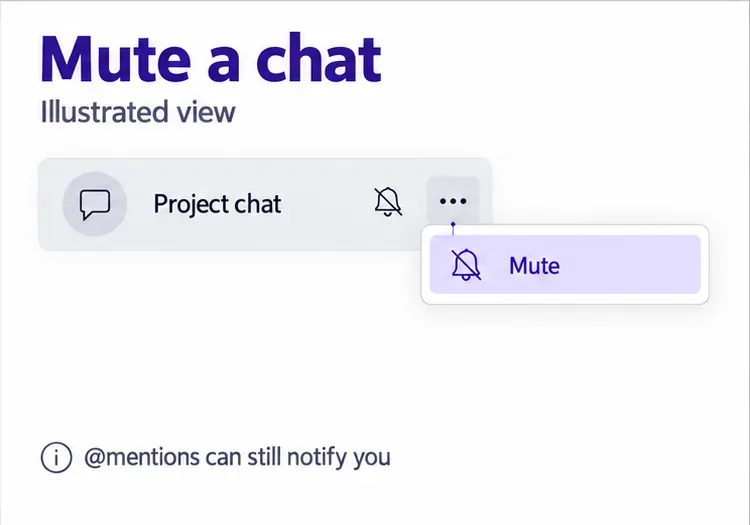
You remain in the conversation and can read or send messages. @mentions can still notify you, so Mute does not guarantee complete silence. Microsoft also notes that muted chats can still display bold text for unread messages.
On mobile, Microsoft documents swiping left on a chat and tapping Mute. See its chat organization and muting guide for platform-specific controls.
For broader changes, open Settings and more > Settings > Notifications and activity > Chats and channels. Adjust each notification type individually: choose Activity-only delivery to avoid banners, or Off where available.
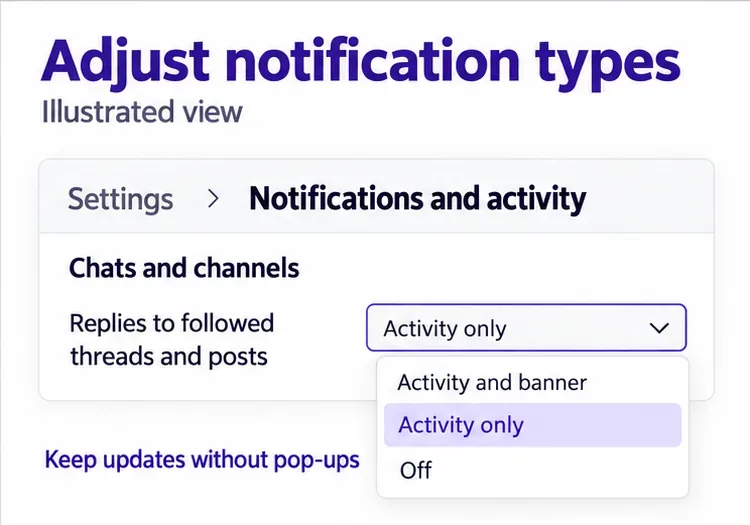
To reduce sound without removing visual alerts, review the sound controls under Notifications and activity. On iOS or Android, tap your profile picture and open Notifications. These options are covered in Microsoft’s notification settings guide.
Quick views such as Unread and @Mentions only filter your list; hiding one does not mute alerts. For broader quiet on Windows, General also offers Mute all notifications (except for calls and meetings). Use that control when individual conversation settings are not enough.
First identify whether the interruption is a banner, a sound, or an item in Activity. Changing a banner preference does not mean every other indication of new activity disappears.
A bold channel name indicates unread activity; it is different from a pop-up notification. In the Posts layout, new content can bold the channel name. In the Threads layout, new messages in the main conversation do so.
Also check what triggered the alert: a personal mention, team or channel mention, tag mention, or reply to a discussion you participate in. Teams treats these as distinct activity types. Microsoft explains them in its channel activity guide. Adjust the relevant category rather than repeatedly changing new-post alerts.
Use Mute when your goal is fewer alerts. Hiding organizes the list, and a hidden chat can reappear when someone sends another message. To revisit a conversation later, mark it unread; that is a reading reminder, not a scheduled notification.
Learn how to create a poll in Microsoft Teams chats, channels, and meetings, choose response settings, review results, and close voting.
Learn how to mute channel and message notifications in Microsoft Teams, unfollow noisy threads, and control banners while understanding mention alerts.
Learn how to transfer a Microsoft Teams meeting between your computer and phone, use both devices together, and fix missing transfer options or audio issues.
Learn how to snooze a message in Microsoft Teams with Snooze Bot, return to it later, and use saved messages or mute controls when you need another option.
Learn how to create a team in Microsoft Teams, add members, choose channel types, manage permissions, and use the Teams admin center.
Learn how to download a Microsoft Teams recording from Teams, OneDrive, or SharePoint, and fix missing download options, access issues, and expired recordings.
Fix echo during Microsoft Teams meetings by removing duplicate audio connections, selecting the right headset and microphone, and checking audio settings.
Set up Microsoft Teams–Slack integration to launch Teams meetings from Slack. Learn account requirements, app permissions, setup steps, and quick fixes.
Unable to connect to Microsoft Teams meetings? Check the meeting link, account, network, and app, then learn when to contact the organizer or IT.
Microsoft Teams not syncing? Refresh messages across desktop, web, iPhone, and Android, identify account or file issues, and avoid unnecessary cache resets.







