How to Create a Poll in Microsoft Teams

Learn how to create a poll in Microsoft Teams chats, channels, and meetings, choose response settings, review results, and close voting.
To snooze a message in Microsoft Teams, use a reminder app such as Snooze Bot: add the app, open the message’s More options > More actions menu, choose its snooze action, and select a delay. The bot sends you a personal reminder later with a link back to the original conversation.
Snoozing creates a follow-up reminder; it does not automatically silence new replies. Check your message menu for the reminder tools available to your account. The walkthrough below uses Snooze Bot in work or school Teams on desktop or the web.
Open Apps in Teams and search for Snooze Bot. Verify that the publisher is Augmentech Ltd, then open its details and select Add if available. You can also start from the app’s Microsoft Marketplace listing.
Review the permissions before continuing. The listing says the app can send data over the internet and access information in the active message, potentially including personal details. Follow your organization’s rules before using it with sensitive messages.
You do not automatically need an administrator account. Microsoft’s app installation guidance explains that permissions depend on the app and team settings. If you see Request instead of Add, request approval from IT.

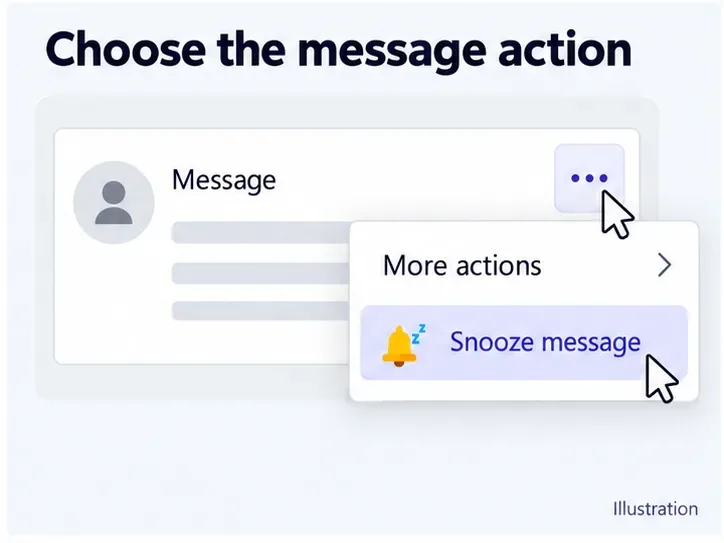
Return to the chat or channel and find the specific message you want to revisit. Hover over it, select the three-dot More options button, then open More actions and select Snooze Bot’s message action.
The developer’s original Snooze Bot instructions label this action Snooze message. Its placement or wording may differ in your installed version. Use the message’s menu, rather than the menu beside the conversation name.
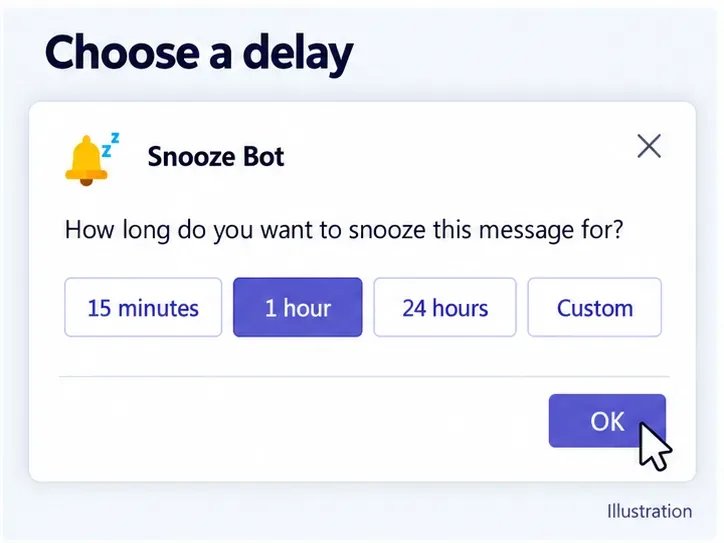
Choose one of the delays offered by the app. Its published interface shows 15 minutes, 1 hour, 24 hours, and Custom. Use Custom if you need another available interval, then confirm the selection with OK where prompted.
Choose a time when you can act on the message. For example, a one-hour delay can help you return to a request after a meeting. Check the app’s confirmation before leaving; if it reports an error, do not assume the reminder was created.
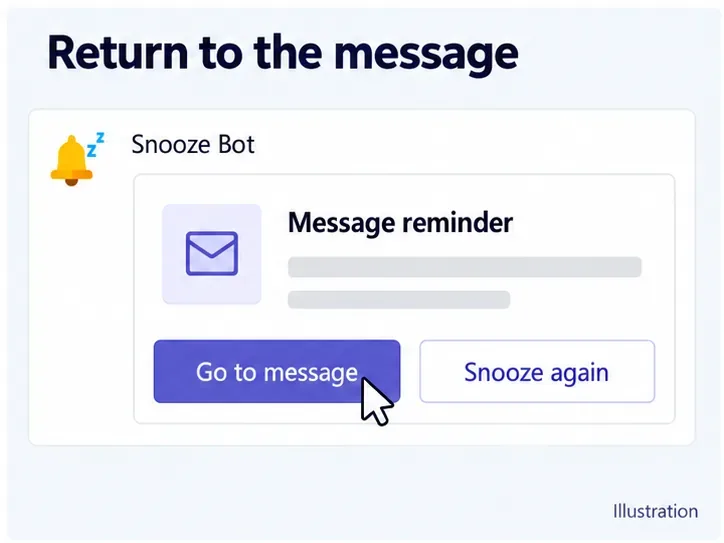
When the selected time arrives, Snooze Bot is designed to send a personal reminder card. Open its chat and select Go to message to return to the original message. If you still need more time, choose Snooze again and set another delay.
The Marketplace listing describes support for personal chats, group chats, and channels. Availability in a particular conversation still depends on your organization’s app configuration.
These controls serve different purposes:
See Microsoft’s instructions for saved messages and mute and unread controls.
No message action: confirm that the app was added to the account and organization containing the message. Check its welcome instructions and whether IT approval is pending. An unavailable third-party app does not necessarily indicate a Teams installation problem.
No visible reminder: open the bot’s chat directly. Check Settings > Notifications and activity, your Teams status, and your device’s notification permissions. Microsoft’s notification settings guide explains these controls. A suppressed banner and a missing reminder are different problems.
If reminders remain unavailable, save the message and use your organization’s approved task or calendar reminder tool for time-sensitive follow-ups.
Learn how to create a poll in Microsoft Teams chats, channels, and meetings, choose response settings, review results, and close voting.
Learn how to mute channel and message notifications in Microsoft Teams, unfollow noisy threads, and control banners while understanding mention alerts.
Learn how to transfer a Microsoft Teams meeting between your computer and phone, use both devices together, and fix missing transfer options or audio issues.
Learn how to snooze a message in Microsoft Teams with Snooze Bot, return to it later, and use saved messages or mute controls when you need another option.
Learn how to create a team in Microsoft Teams, add members, choose channel types, manage permissions, and use the Teams admin center.
Learn how to download a Microsoft Teams recording from Teams, OneDrive, or SharePoint, and fix missing download options, access issues, and expired recordings.
Fix echo during Microsoft Teams meetings by removing duplicate audio connections, selecting the right headset and microphone, and checking audio settings.
Set up Microsoft Teams–Slack integration to launch Teams meetings from Slack. Learn account requirements, app permissions, setup steps, and quick fixes.
Unable to connect to Microsoft Teams meetings? Check the meeting link, account, network, and app, then learn when to contact the organizer or IT.
Microsoft Teams not syncing? Refresh messages across desktop, web, iPhone, and Android, identify account or file issues, and avoid unnecessary cache resets.







