How to Create a Poll in Microsoft Teams

Learn how to create a poll in Microsoft Teams chats, channels, and meetings, choose response settings, review results, and close voting.
To transfer a Microsoft Teams meeting to another device, open Teams there, select Join call, then Transfer to this device. The original device disconnects after the new one joins.

Use the Teams desktop and mobile apps for this walkthrough. Install Teams on your iPhone or Android phone before you need to move, and sign in to the same Teams account on both devices. Check the account carefully if you use separate personal and work profiles.
Have the meeting invitation available as a backup. You can open the meeting from your calendar, its chat, or the invitation link; it does not have to be a channel meeting. Microsoft explains these entry points in its guide to joining Teams meetings.
Install any available mobile update through the App Store or Google Play. On desktop, Teams normally updates automatically while idle; if an update appears, use Update and restart Teams when you can interrupt your work. See Microsoft's Teams update instructions.
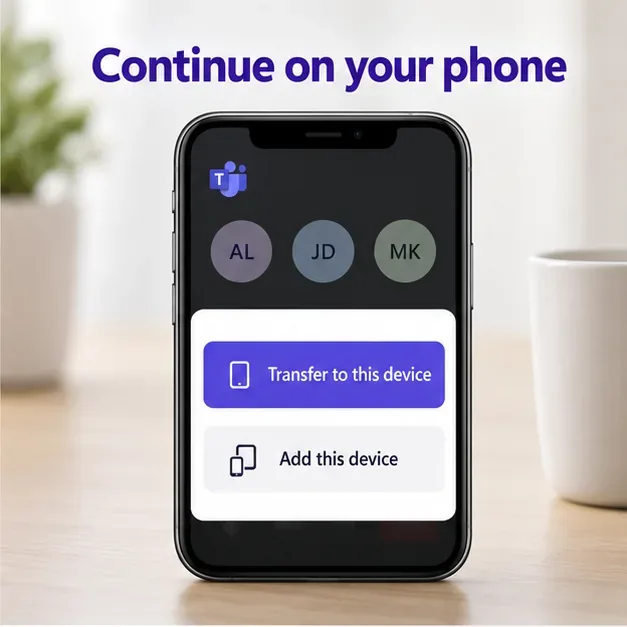
Yes. Open Teams on the computer during the meeting and follow the same destination-device process. Microsoft's current second-device meeting instructions cover desktop and mobile; transfers are not restricted to computer-to-phone.
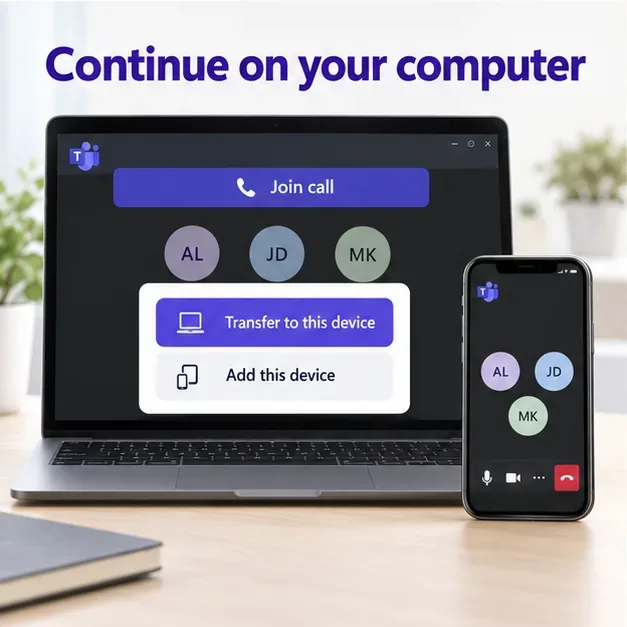
The destination device may use a different microphone, speaker, or headset. Before speaking, confirm that you can hear the meeting and that your microphone is unmuted when needed. A Bluetooth headset connected to the original computer may need to be connected to the phone separately.
On desktop, use the arrow beside Mic for audio settings. On mobile, tap Speaker to choose the output. Also check the device's microphone permission if Teams cannot capture your voice. Microsoft's meeting audio guide explains these controls and notes that organizational policies can limit some options.
Choose Add this device to keep both connected. Teams initially disables the second device's camera and microphone to reduce echo. You can then share content from either device.
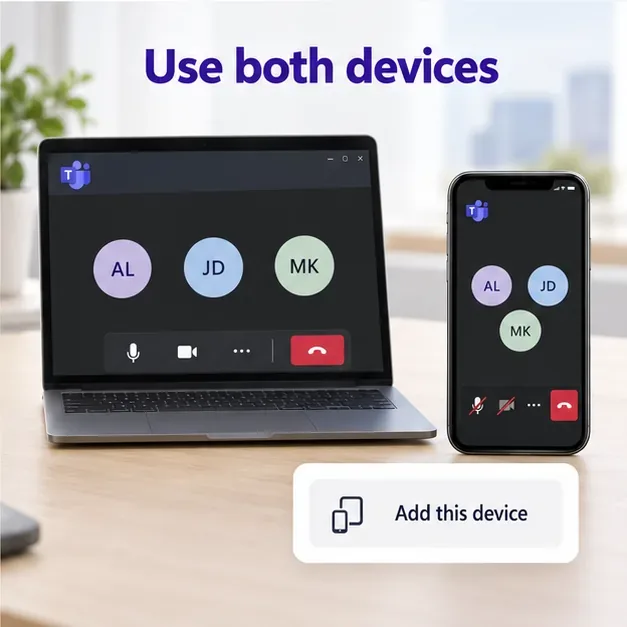
For example, keep a presentation visible on your laptop while accessing something on your phone. Keep only one nearby device's microphone and speaker active. Muting a microphone alone does not stop the other device's speaker from playing meeting audio; turn off that audio too if you hear feedback.
If the banner remains unavailable, try opening the original invitation on the destination device. This is a regular join attempt, so you may need admission again. Keep the original connection until you confirm the new device has joined, then leave on the old one. Consult Microsoft's meeting-join troubleshooting guide if access fails.
Calls have separate limits: Microsoft's second-device call documentation currently allows only one transfer per call. That restriction is stated for calls; it should not be presented as a universal, one-way meeting-transfer rule.
On desktop, open the arrow beside Leave and choose Leave on all my devices. On mobile, tap Leave and select that option.
Learn how to create a poll in Microsoft Teams chats, channels, and meetings, choose response settings, review results, and close voting.
Learn how to mute channel and message notifications in Microsoft Teams, unfollow noisy threads, and control banners while understanding mention alerts.
Learn how to transfer a Microsoft Teams meeting between your computer and phone, use both devices together, and fix missing transfer options or audio issues.
Learn how to snooze a message in Microsoft Teams with Snooze Bot, return to it later, and use saved messages or mute controls when you need another option.
Learn how to create a team in Microsoft Teams, add members, choose channel types, manage permissions, and use the Teams admin center.
Learn how to download a Microsoft Teams recording from Teams, OneDrive, or SharePoint, and fix missing download options, access issues, and expired recordings.
Fix echo during Microsoft Teams meetings by removing duplicate audio connections, selecting the right headset and microphone, and checking audio settings.
Set up Microsoft Teams–Slack integration to launch Teams meetings from Slack. Learn account requirements, app permissions, setup steps, and quick fixes.
Unable to connect to Microsoft Teams meetings? Check the meeting link, account, network, and app, then learn when to contact the organizer or IT.
Microsoft Teams not syncing? Refresh messages across desktop, web, iPhone, and Android, identify account or file issues, and avoid unnecessary cache resets.







