How to Create a Poll in Microsoft Teams

Learn how to create a poll in Microsoft Teams chats, channels, and meetings, choose response settings, review results, and close voting.
Microsoft Teams–Slack integration lets you start a Teams meeting from a Slack conversation using the Microsoft Teams Calls app. Install it in your workspace, connect your Microsoft account, and send /teams-calls. Participants follow the invitation into Teams for the actual meeting.

The Microsoft Teams Calls app, listed as developed by Slack, provides a bridge from Slack discussions to Teams video calls. Its Marketplace description also lists visibility into who has joined and when a call started. The older claim that it cannot show any call information is outdated.
Its documented features cover meetings, not two-way synchronization of Teams and Slack messages or files. If you need calendar reminders or access to Microsoft-hosted documents, those are separate integrations:
Slack explains these options in its Microsoft products integration guide.
You need a Slack workspace and a Microsoft account that can use Teams meetings. Slack lists work or school accounts and certain personal Microsoft accounts as supported. Its compatibility notes exclude on-premises SharePoint and the Microsoft national-cloud deployments it names; check the Teams Calls requirements if your organization uses a specialized environment.
You do not automatically need administrator access. Slack normally lets members install apps, but workspace owners can require approval or restrict specific apps. Installation and connecting your own account are separate actions.
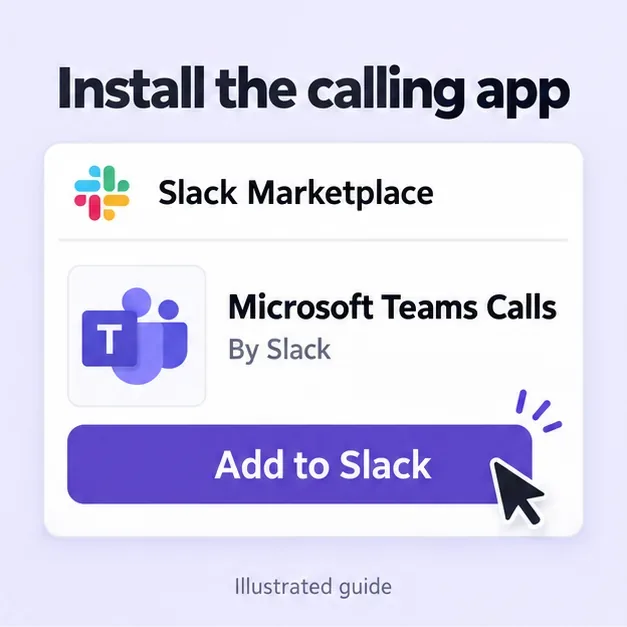
Open the Marketplace listing linked above while signed in to the correct Slack workspace. Choose Add to Slack, review the requested access, and follow the authorization prompts. Complete Microsoft sign-in if requested, then return to Slack.
If approval is required, submit an app request instead. If the app is already installed, proceed to connecting your account. Slack's app installation instructions explain both paths.
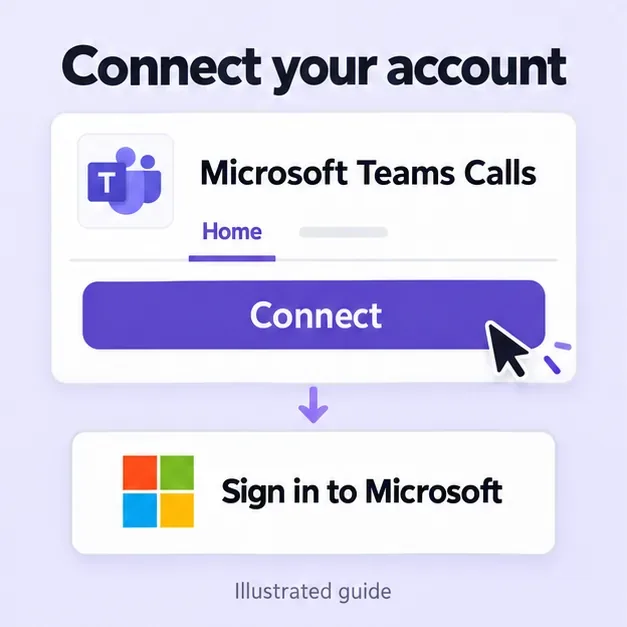
On Slack desktop, open Agents & tools > Apps, find Microsoft Teams Calls, and select Connect on its Home tab. Sign in to Microsoft and use Open Slack when prompted. If Agents & tools is hidden, check More or the Tools tab.
Each person who wants to use their own Microsoft account must connect it; another member's installation does not connect everyone automatically.
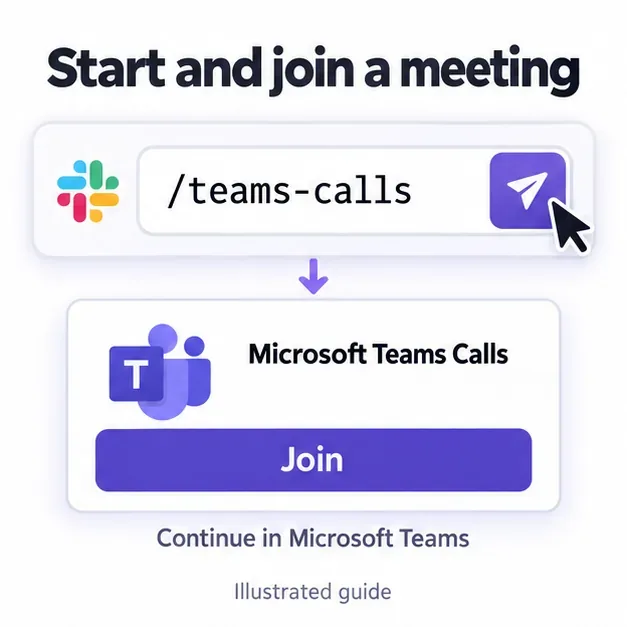
Open the intended channel or direct message, enter /teams-calls in the message field, and send it. The conversation receives a meeting invitation. Select Join, continue into Teams, and choose Join now on the pre-join screen.
To name the meeting, Slack documents this command format: /teams-calls meeting [Weekly Sales review]. Replace the example subject with a useful meeting title.
Microsoft supports joining in Edge or Chrome through Continue on this browser when that option is offered. Allow microphone or camera access as needed and check your audio before joining.
Some meetings allow people without an account, but organization settings may require sign-in or email verification. A participant may also wait in the lobby for admission. A Slack invitation does not override these Teams controls. See Microsoft's browser and guest joining instructions.
A workspace owner or administrator can open Admin > Workspace settings, expand Third-party call providers, select Teams under Calling options, and save. Enterprise organization settings can differ.
This adds a convenient calling option alongside Slack's existing choices. Follow Slack's calling-provider settings guide for your plan; the slash command remains the direct route described above.
To disconnect your account, send /teams-calls logout and confirm Yes, sign out. Removing the entire app affects everyone in the workspace, so use account disconnection when you only need to change your own connection.
Learn how to create a poll in Microsoft Teams chats, channels, and meetings, choose response settings, review results, and close voting.
Learn how to mute channel and message notifications in Microsoft Teams, unfollow noisy threads, and control banners while understanding mention alerts.
Learn how to transfer a Microsoft Teams meeting between your computer and phone, use both devices together, and fix missing transfer options or audio issues.
Learn how to snooze a message in Microsoft Teams with Snooze Bot, return to it later, and use saved messages or mute controls when you need another option.
Learn how to create a team in Microsoft Teams, add members, choose channel types, manage permissions, and use the Teams admin center.
Learn how to download a Microsoft Teams recording from Teams, OneDrive, or SharePoint, and fix missing download options, access issues, and expired recordings.
Fix echo during Microsoft Teams meetings by removing duplicate audio connections, selecting the right headset and microphone, and checking audio settings.
Set up Microsoft Teams–Slack integration to launch Teams meetings from Slack. Learn account requirements, app permissions, setup steps, and quick fixes.
Unable to connect to Microsoft Teams meetings? Check the meeting link, account, network, and app, then learn when to contact the organizer or IT.
Microsoft Teams not syncing? Refresh messages across desktop, web, iPhone, and Android, identify account or file issues, and avoid unnecessary cache resets.







