How to Create a Poll in Microsoft Teams

Learn how to create a poll in Microsoft Teams chats, channels, and meetings, choose response settings, review results, and close voting.
If you are unable to connect to Microsoft Teams meetings, first open the invitation in Microsoft Edge or Google Chrome on a computer and try joining in the browser. Then check the account and error message, test your connection, and update the desktop app. Some failures require the organizer or IT administrator to intervene.

If the meeting is starting, use this workaround before resetting or reinstalling anything:
Microsoft documents these options in its guide to joining without an account. Guest access depends on the meeting's policies; a browser cannot bypass them.
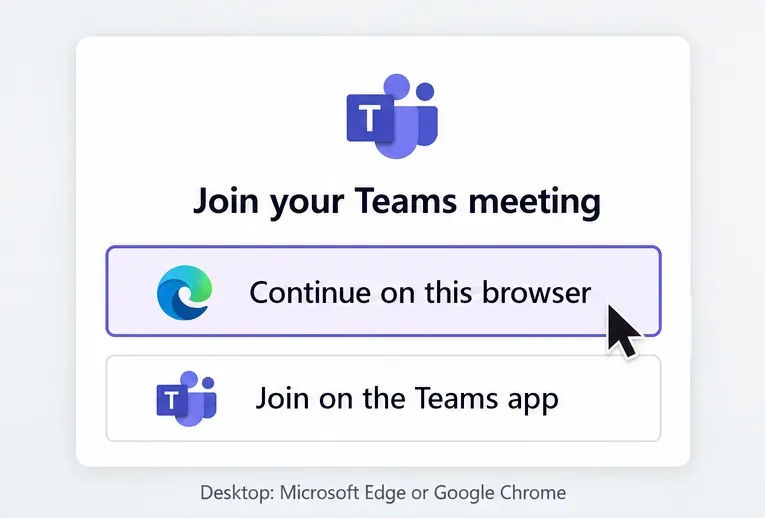
On a phone or tablet, use the Teams mobile app; mobile browsers do not currently support joining Teams meetings. If your invitation includes a phone number and conference ID, dial-in joining is another option.
A lobby or account restriction can look like a connection failure. Check the message before changing your computer:
If the invitation has no Teams join option, ask whether the organizer enabled an online meeting. Microsoft's meeting-join troubleshooting guide explains these restrictions.
Open a few unrelated websites. If those also fail, address the internet connection first. If browsing works, Teams traffic may still be affected by a network or proxy restriction.
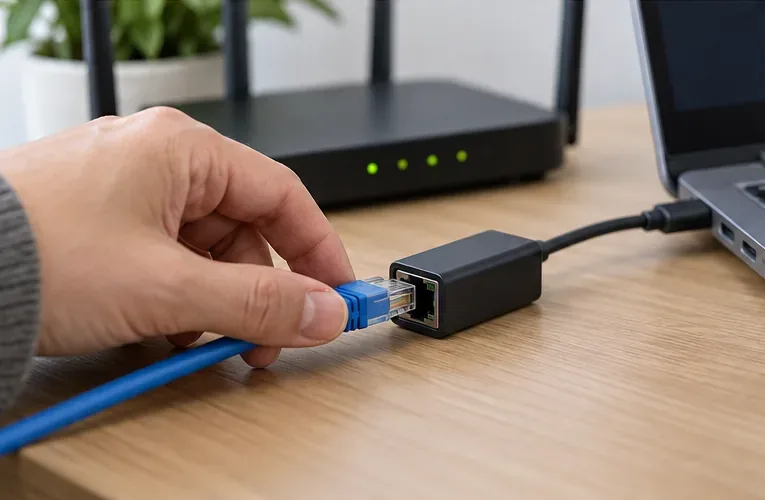
Move closer to the router, pause large downloads, or try Ethernet. Where workplace policy permits, test another trusted network or a phone hotspot. If Teams works there, that suggests a problem on the original network; it does not identify the exact cause.
On Windows 11, run the Network and Internet troubleshooter in Get Help, following Microsoft's Wi-Fi troubleshooting instructions. Restart a home router if needed, remembering that this disconnects everyone using it.
Keep your firewall and antivirus enabled. On a managed network, ask IT to review the Teams firewall and proxy requirements. Do not add Skype for Business as a substitute for Teams or enable broad public-network exceptions.
If the browser works but the desktop app fails, focus on the local app:
If only the Windows app still fails, a targeted reset may help. Open Settings > Apps > Installed apps, find Microsoft Teams, open its three-dot menu, and select Advanced options > Reset. Reopen Teams and sign in again.
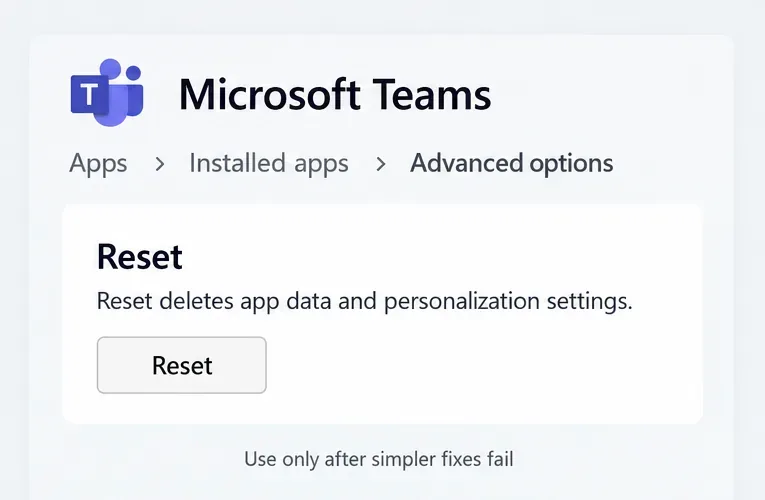
Reset deletes local app data and personalization settings. Microsoft cautions that clearing the Teams cache is a targeted troubleshooting action, not a universal first fix. If IT needs diagnostic logs, collect them before resetting. On a managed computer, contact IT if these controls are unavailable.
If several coworkers cannot join, ask an administrator to check Health > Service health in the Microsoft 365 admin center. Microsoft's service-health documentation explains the dashboard and access requirements.
For persistent failures, send IT the exact error, the time it occurred with your time zone, device and Teams version, whether one or all meetings fail, and the results from the browser and alternate-network checks. These details help distinguish meeting permissions, a local app problem, and network or service failures.
Learn how to create a poll in Microsoft Teams chats, channels, and meetings, choose response settings, review results, and close voting.
Learn how to mute channel and message notifications in Microsoft Teams, unfollow noisy threads, and control banners while understanding mention alerts.
Learn how to transfer a Microsoft Teams meeting between your computer and phone, use both devices together, and fix missing transfer options or audio issues.
Learn how to snooze a message in Microsoft Teams with Snooze Bot, return to it later, and use saved messages or mute controls when you need another option.
Learn how to create a team in Microsoft Teams, add members, choose channel types, manage permissions, and use the Teams admin center.
Learn how to download a Microsoft Teams recording from Teams, OneDrive, or SharePoint, and fix missing download options, access issues, and expired recordings.
Fix echo during Microsoft Teams meetings by removing duplicate audio connections, selecting the right headset and microphone, and checking audio settings.
Set up Microsoft Teams–Slack integration to launch Teams meetings from Slack. Learn account requirements, app permissions, setup steps, and quick fixes.
Unable to connect to Microsoft Teams meetings? Check the meeting link, account, network, and app, then learn when to contact the organizer or IT.
Microsoft Teams not syncing? Refresh messages across desktop, web, iPhone, and Android, identify account or file issues, and avoid unnecessary cache resets.







