갤럭시 S27 울트라와 윈도우: 실질적인 이점을 제공하는 완벽한 생태계 업그레이드
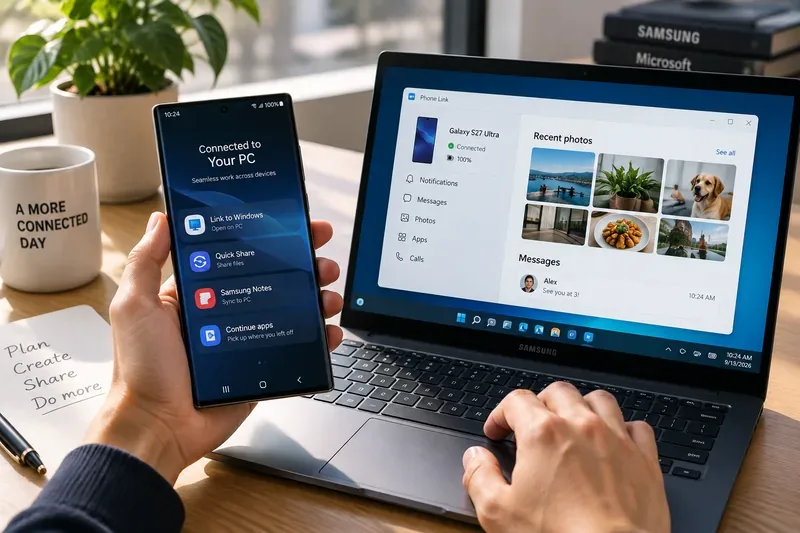
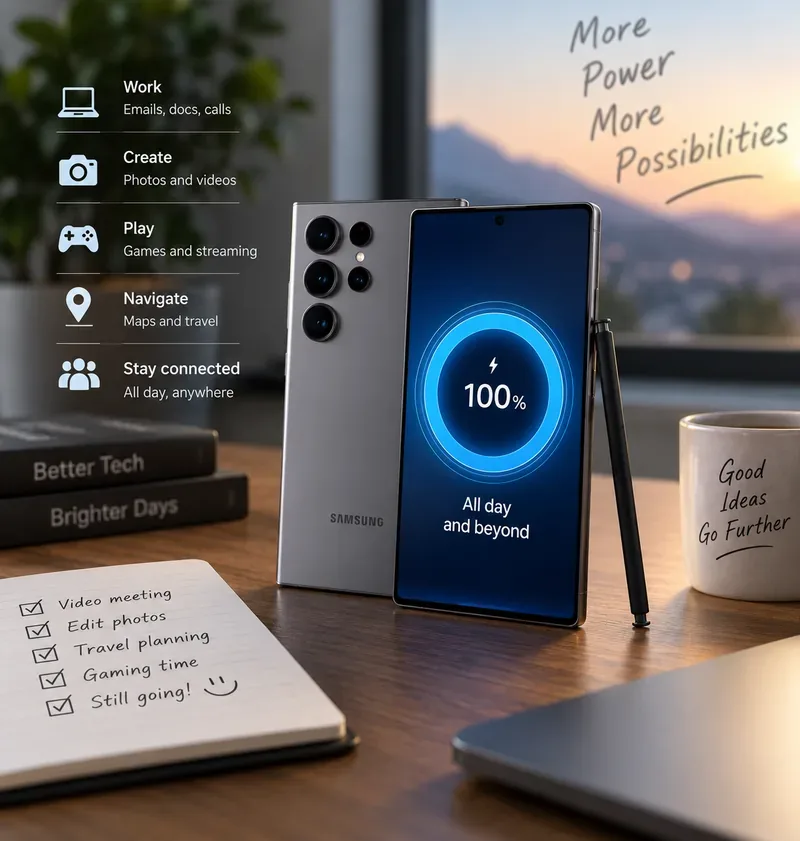
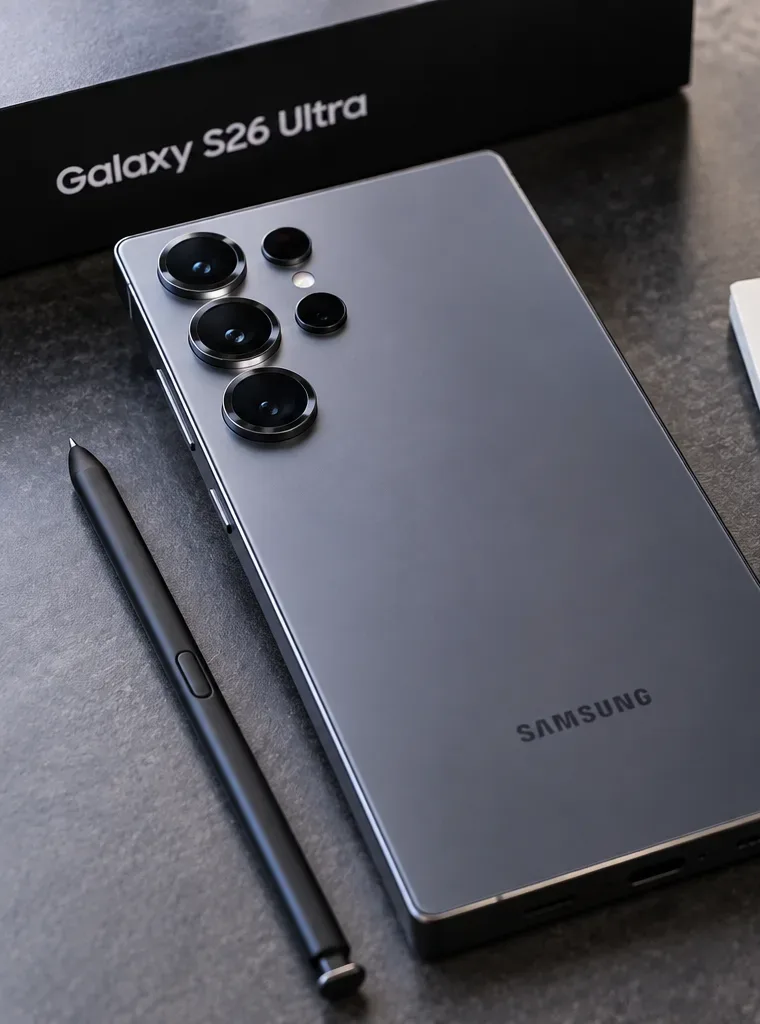
삼성은 아직 갤럭시 S27 울트라를 발표하지 않았지만, 윈도우 11은 이미 갤럭시와 PC의 더욱 긴밀한 통합이 나아갈 방향을 보여주고 있습니다. 앞으로 어떤 변화가 있을지 예상해 보겠습니다.
Have you ever fallen asleep only to wake up to the fact that you never turned off your Android TV? You think you’re not that tired and that you can finish the movie, but once again, that didn’t happen. If you’re tired of waking up to see your Android TV on, here is how you can turn off your Android TV on a timer by using a feature on your Android TV. If you have issues with the integrated feature, you can also use a third-party app. Here are the steps to follow.
How to Turn Off Your Android TV on a Timer
Even if you feel exhausted, putting your Motorola Android TV on a timer won’t take more than a few minutes. Grab your remote and press the Menu button. When the list of options appears, use the down arrow button to go to the Timer option.
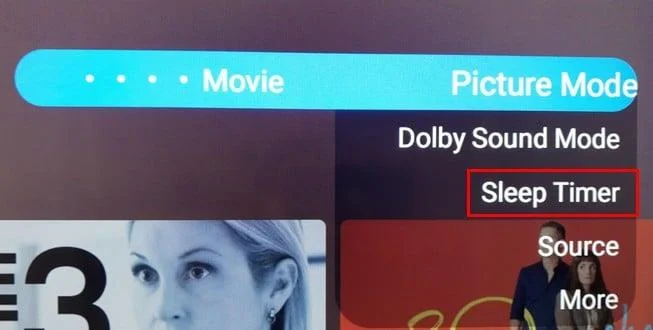
If this doesn’t work, you can also go to Settings and see a timer option.
Once the timer option is highlighted, use the right and left arrows to choose when your Android TV will turn off. You can select from times such as:
When you choose a time, press OK and leave the list of options. Your Android TV might or might not show you a confirmation message, but it should still record your time choice if it doesn’t. By using this option, the TV will turn off without showing a message that there is only a specific amount of time left.
How to Set a Sleep Timer for Your Android TV Using Sleep TV Timer
If you’ve looked in your Android TV’s settings and can’t find a timer option, you can install a Sleep TV Timer app. It’s free to download but also has a Pro version if you’re willing to pay. To install it, open Google Play on your Android TV and type or, say, Sleep TV Timer.
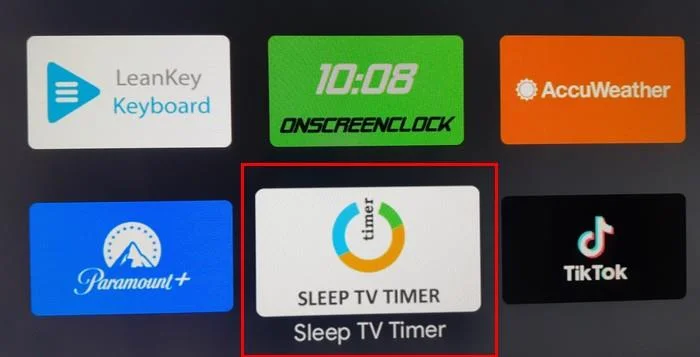
You’ll need to give the app some permissions and follow the on-screen instructions to turn them on. There will only be two permission to give the OK to continue.
On the app’s main page, you’ll see different sleep times to choose from. For example, you can choose from:
Another option you’ll see is Set time. With this option, you can choose a time that better fits your needs. Use the arrow keys to select the keyboard icon and set the hour, followed by the minutes. Once you’ve chosen the time, select OK, and your sleep time will be displayed as a countdown clock at the top right. You’ll also see a Stop button if you change your mind and want to stop the countdown. When there are 5 minutes left before your Android TV turn off, the app will show you a message letting you know.
Remember that if you try the app and it doesn’t turn off, it’ll show you a message that it’s because you have the screen saver on. You must turn the screen saver off on your Android TV for the app to work correctly. To turn off the screen saver, go to Settings > Device Preferences > Screen saver and select the screen saver option again.
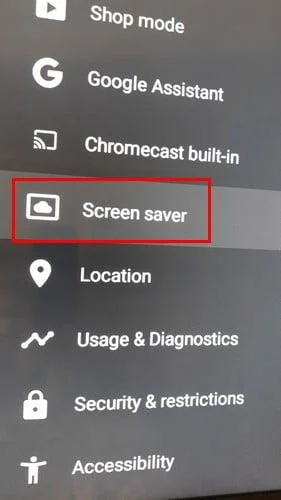
It’ll be the first one on the list. Select the Turn screen off option.
Return to the Sleep Timer app and set a time to turn off your Android TV. It might say the time to turn your TV off is about 10 minutes, but it wasn’t more than a few minutes during testing. That’s all there is to it when putting your Android TV to sleep on a timer.
Further Reading
Speaking of setting timers, here is how to set a timer in Apple Music for Android. It’s also possible to set a timer on your Windows 10 computer if you need to do that. Do you need to take some time off from some of your Android apps? Here is how you can set a limit for them to take a break from the apps.
Conclusion
Leaving the TV on all night but not seem like a big deal until you get the light bill. Setting a timer is the best way to go if you want to avoid waking up to a TV that’s been on all night. You can use the timer option on your Android TV, but if you’re having issues with that, you can also use a third-party app. Do you leave your Android TV on all night often? Share your thoughts in the comments below, and remember to share the article with others on social media.
삼성은 아직 갤럭시 S27 울트라를 발표하지 않았지만, 윈도우 11은 이미 갤럭시와 PC의 더욱 긴밀한 통합이 나아갈 방향을 보여주고 있습니다. 앞으로 어떤 변화가 있을지 예상해 보겠습니다.
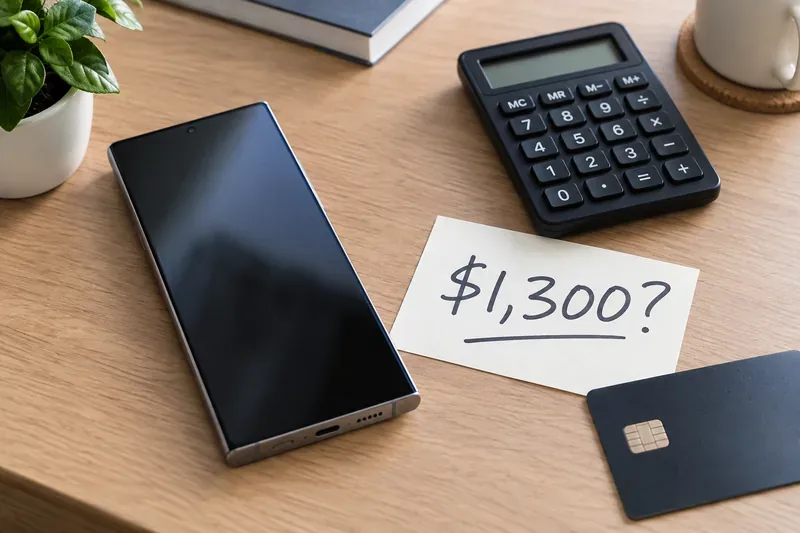
갤럭시 S27 울트라의 가격은 아직 발표되지 않았습니다. 삼성의 S23~S26 울트라의 가격 변동 추이를 보면 1,299.99달러로 유지되거나 1,399.99달러로 인상될 가능성이 있습니다.
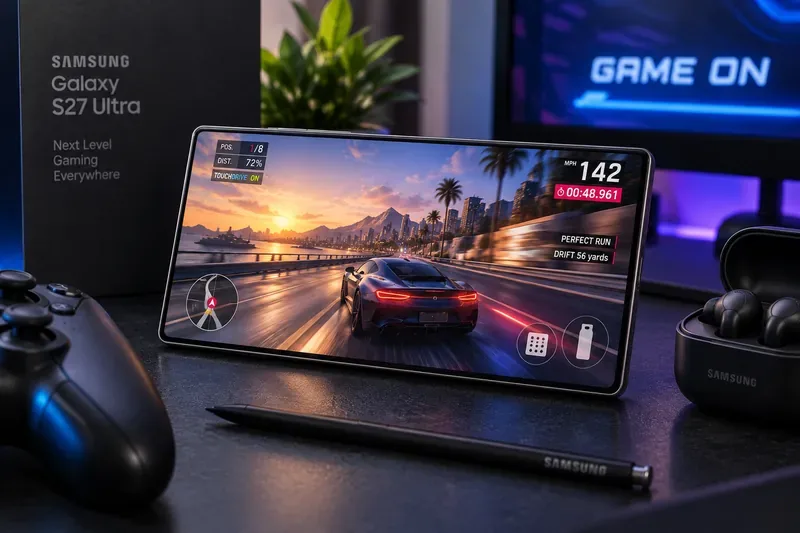
2027년 모바일 게임 시장을 선도하기 위해 갤럭시 S27 울트라에 필요한 요소들을 실질적인 관점에서 살펴보겠습니다. 지속적인 GPU 성능과 냉각 시스템부터 배터리, 디스플레이, 게임 부스터, 그리고 벌칸(Vulkan)까지 다룹니다.
갤럭시 S27 울트라에 대한 어떤 루머가 신빙성이 있을까요? 2026년 출시 예정인 기술을 바탕으로 배터리, 카메라, 칩, 디스플레이, 메모리, 생체인식 기능에 대한 루머들을 순위별로 정리해 보았습니다.
갤럭시 S27 울트라에 가장 중요한 10가지 업그레이드 사항을 순위별로 정리해봤습니다. 배터리 수명과 Qi2 자석부터 카메라, S펜, DeX, AI까지 다양하게 살펴보았습니다.
갤럭시 S27 울트라에 더 큰 배터리가 탑재될 것이라는 소문이 있습니다. 배터리 용량, 효율성, 발열, 충전 속도가 진정한 선두 자리를 차지할 수 있을지를 결정할 것입니다.
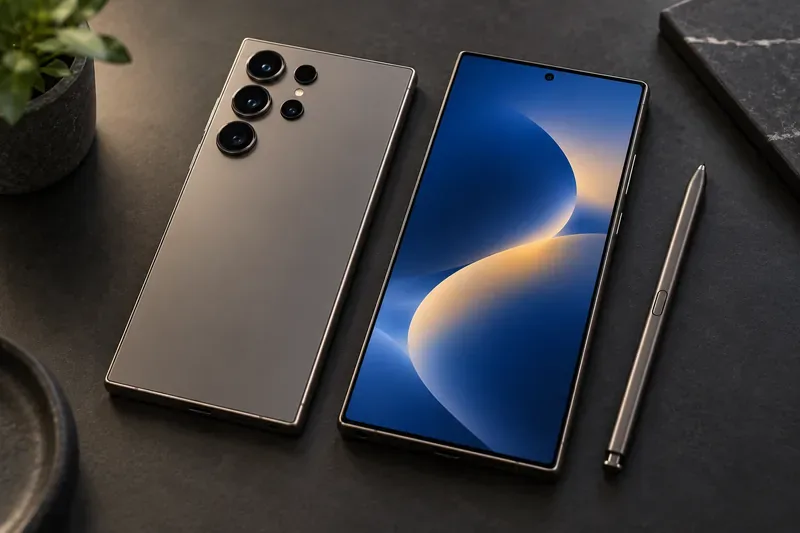
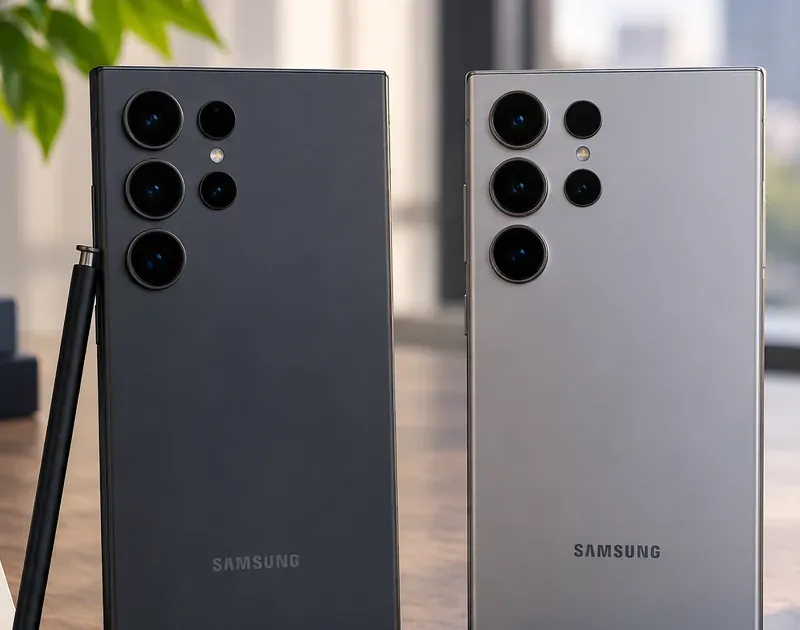
갤럭시 S26 울트라는 강력하지만, 배터리 성능 한계, S펜의 제약, 카메라 성능과 디스플레이 간의 균형 문제, 개인 정보 보호와 디스플레이 간의 절충점, 그리고 RAM 용량 차이로 인해 갤럭시 S27 울트라의 장점이 드러납니다.
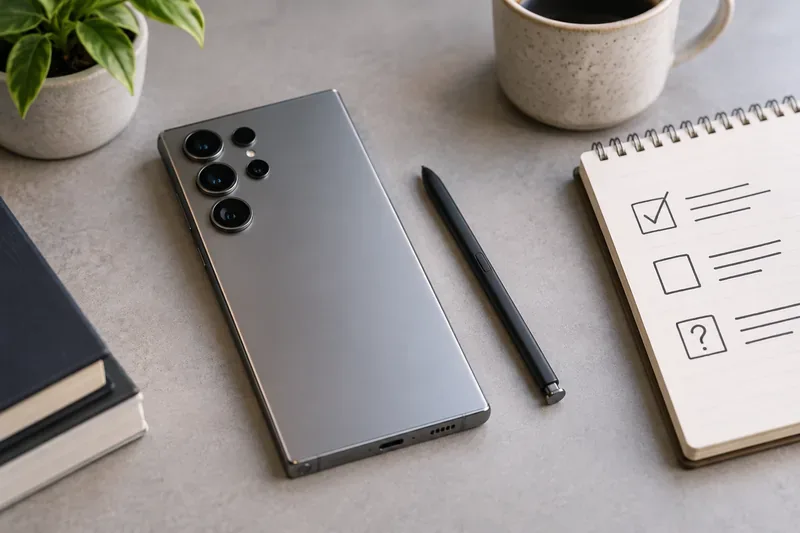
갤럭시 S26 울트라를 지금 구매해야 할까요, 아니면 S27 울트라를 기다려야 할까요? 현재 가격, 확정된 S26 사양, 예상 출시 시기, 그리고 기다릴 경우 발생할 수 있는 위험 요소를 비교해 보세요.
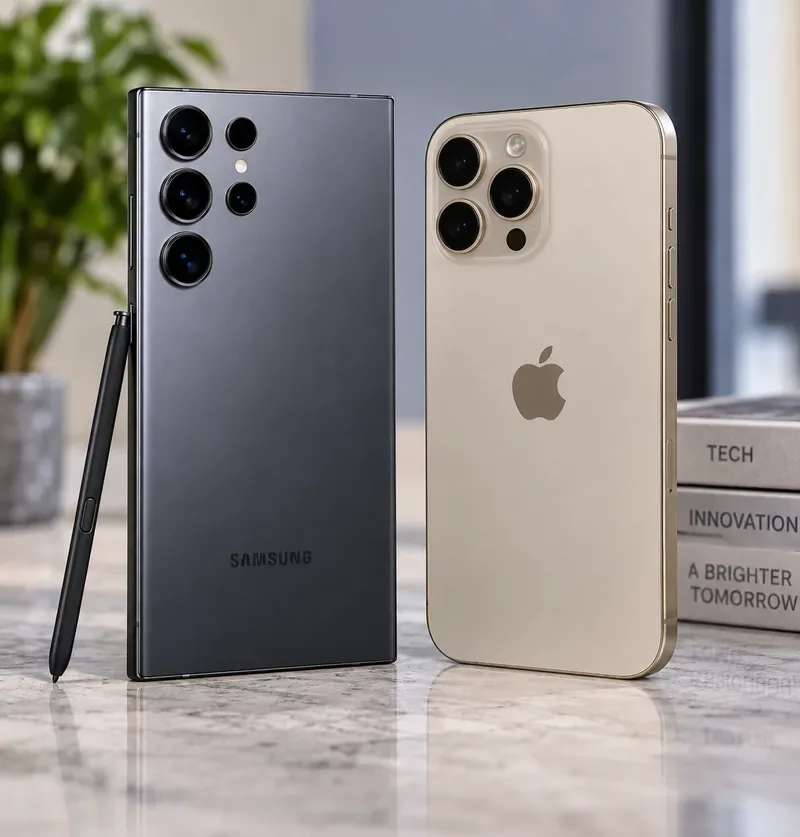
갤럭시 S27 울트라와 아이폰 18 프로 맥스의 초기 사양을 비교 분석한 자료입니다. 아이폰의 확정된 사양과 삼성의 현행 갤럭시 S26 울트라를 기준으로 비교했습니다.
갤럭시 S27 울트라는 드디어 셀카 카메라를 디스플레이 아래에 숨길까요? 삼성에서 공식적으로 확인한 내용, 아직 루머에 불과한 내용, 그리고 앞으로 주목해야 할 점을 정리해봤습니다.