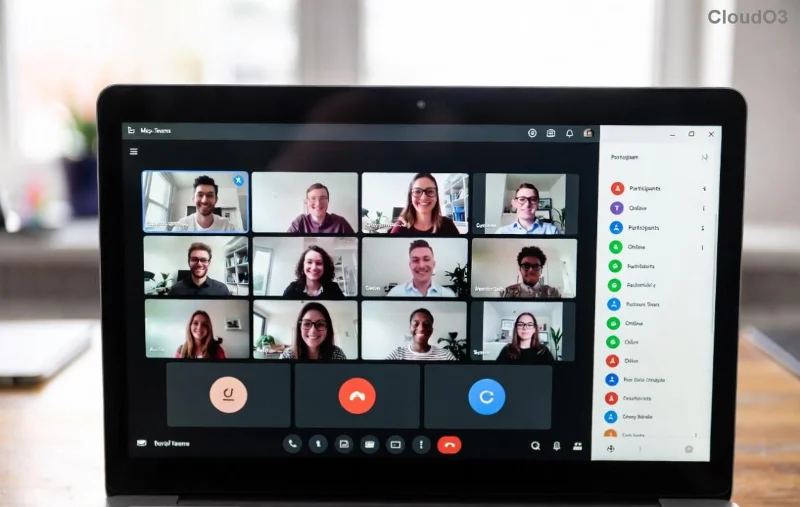
Imagine kicking off your virtual meeting with breakout rooms already set up and ready to go—no mid-session scrambling! Whether you're hosting a workshop, team brainstorm, or training session, pre-configuring breakout rooms before a meeting starts saves time, boosts engagement, and keeps everyone focused. This step-by-step guide walks you through the process in Zoom (the gold standard for this feature), using the latest updates for smooth execution. Ready to level up your meetings? Let's dive in! ✅
Why Pre-Set Breakout Rooms Before a Meeting Starts? The Game-Changing Benefits
Setting up breakout rooms in advance isn't just convenient—it's transformative. Participants dive straight into small-group discussions, fostering deeper conversations and better collaboration. Studies show breakout sessions increase participation by up to 30% in virtual meetings. Plus, with pre-assignment, you control who works with whom, ensuring balanced groups based on skills, roles, or topics.
- 🕒 Saves time: No interruptions during the main session.
- 👥 Personalized grouping: Assign by name, email, or reports.
- 📈 Higher engagement: Smaller groups mean more voices heard.
- 🔒 Security boost: Limit access and monitor easily.
Curious how to do it? Follow this foolproof step-by-step process. You'll be a pro in minutes!
Prerequisites: What You Need Before Starting
Before creating breakout rooms before a meeting starts, ensure:
| Requirement |
Details |
| Zoom Account |
Pro, Business, or Education plan (free tier limited to manual rooms during meetings). |
| Host Privileges |
You must be the meeting host or co-host. |
| Participant List |
Emails or names for pre-assignment (optional but recommended). |
| App Version |
Latest Zoom desktop/mobile app (auto-updates to newest features). |
Got these? Perfect. Now, the magic happens. 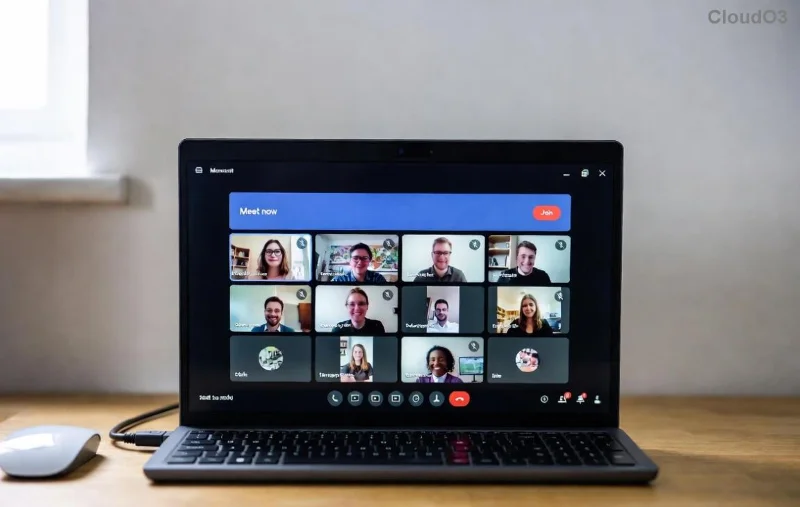
Step-by-Step: How to Make Breakout Rooms Before a Meeting Starts in Zoom
We'll use Zoom's scheduling feature for pre-setup. This works for instant or recurring meetings too. Follow these numbered steps precisely:
- 1️⃣ Schedule Your Meeting
Open Zoom desktop app or web portal (zoom.us). Click Schedule (blue button). Set your meeting topic, date, time, and duration. Under Advanced Options, enable Allow breakout rooms—this unlocks pre-configuration! Hit Save to proceed.
- 2️⃣ Access Breakout Room Settings
In the scheduling window, scroll to Breakout Room section (now visible). Click Create. Choose manual or automatic assignment—pre-assign shines here for control.
- 3️⃣ Set Number of Rooms and Participants
Enter the number of breakout rooms (e.g., 4-8 for 20 people). Zoom auto-suggests based on attendees. For pre-assignment, switch to Assign tab. Import from a CSV or manually add emails/names. Drag-and-drop to rooms!
- 4️⃣ Customize Each Room
Name rooms descriptively (e.g., "Marketing Ideas," "Tech Deep Dive"). Set duration (default 5-60 mins) and options like Move all to breakout rooms automatically or Countdown timer. Enable host entry to pop in.
- 5️⃣ Save and Share
Click Save in Breakout Room editor, then Save the meeting. Share the invite link. Done—rooms are prepped! Participants see assignments upon joining.
- 6️⃣ Launch and Manage During Meeting
Start the meeting. Click Breakout Rooms > Open All Rooms. Monitor via thumbnails, chat between rooms, or broadcast messages. Recall anytime with one click.
Visual proof? Here's the assignment interface in action: ![Zoom breakout room pre-assignment screen with participant lists]()
Pro tip: Test with a quick practice meeting first. It'll feel effortless live! 🎉
Advanced Tips for Killer Breakout Rooms Before a Meeting Starts
Want to wow your audience? Elevate with these hacks:
- 📊 Use Reports: Generate pre/post-session reports via Zoom dashboard for attendance and feedback.
- 🎨 Theme Rooms: Assign topics via room names and share prompts in chat.
- 👨🏫 Co-Host Magic: Let co-hosts manage rooms while you facilitate.
- 🔄 Multiple Rounds: Pre-plan sequential sets for rotating discussions.
- 📱 Mobile-Friendly: Ensure participants update apps for full features.
These tweaks turn standard meetings into interactive powerhouses. Keep reading for pitfalls to dodge!
Common Mistakes to Avoid When Setting Up Breakout Rooms
Don't let small slips derail your session:
- ❌ Forgetting to enable in scheduling—rooms vanish!
- ❌ Uneven groups—always balance numbers.
- ❌ No timers—set auto-return to main room.
- ❌ Ignoring permissions—check attendee roles.
Avoid these, and you'll have raving participants. Need more? Check Zoom's official guide for edge cases: Zoom Breakout Rooms Support.
FAQ: Your Breakout Rooms Questions Answered
Q: Can I pre-assign in free Zoom?
A: Limited—manual only during meetings. Upgrade for pre-setup.
Q: What about Google Meet or Teams?
A: Meet lacks true pre-assign; Teams supports but Zoom leads. Stick here for best results.
Q: How many rooms max?
A: Up to 50 rooms, 200 participants total (plan-dependent).
Ready to Transform Your Meetings?
With this step-by-step blueprint, creating breakout rooms before a meeting starts is a breeze. Implement today, and watch engagement soar! Share your success stories in the comments—what's your favorite breakout hack? 👇 Stay tuned for more Zoom mastery tips.