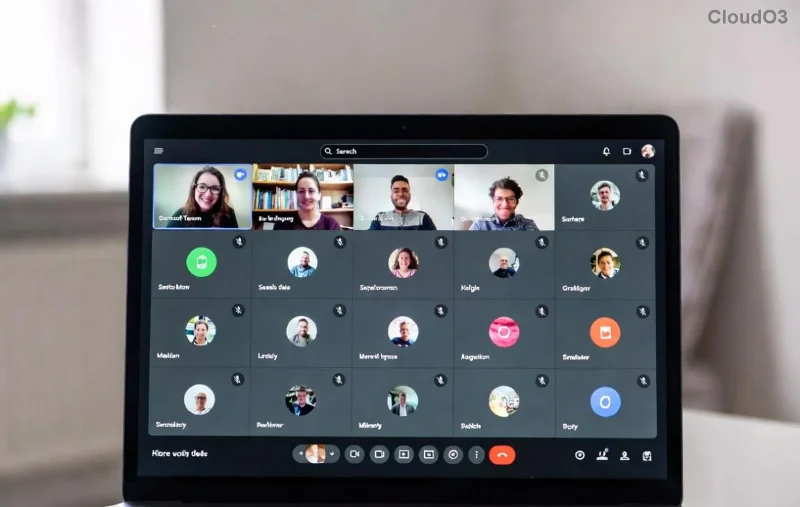
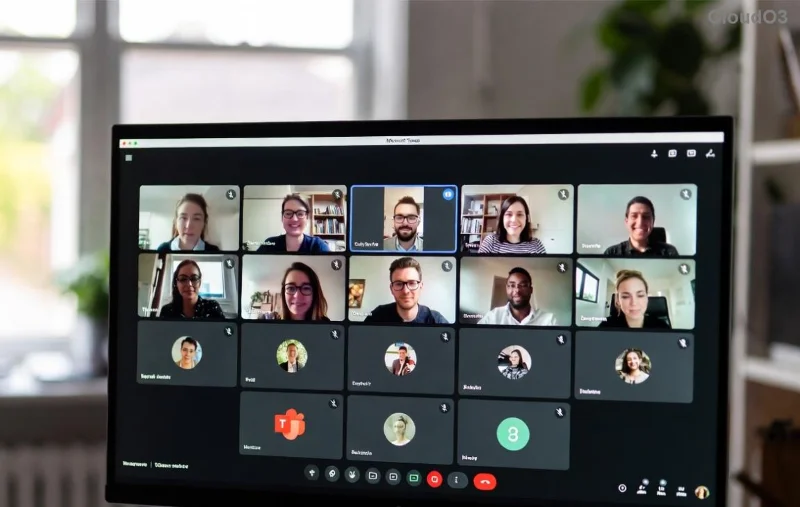
Imagine you're hosting a crucial virtual workshop, and suddenly Microsoft Teams Breakout Rooms not showing – frustration hits hard! 😩 Don't worry; this common glitch can be fixed in minutes. Whether you're an organizer, educator, or team lead, our guide delivers quick fixes backed by the latest Microsoft updates. Let's dive in and restore your breakout magic! ✨
🔍 Why Are Microsoft Teams Breakout Rooms Not Showing? Top Causes
Understanding the root cause speeds up your fix. Here's what typically triggers this issue:
- Role Restrictions: Only meeting organizers or co-organizers can create breakout rooms. Guests or presenters can't.
- App Version Mismatch: Mobile or web versions lack full support – desktop is key.
- Permissions & Policies: Admin-set policies in your organization might block it.
- Cache or Glitches: Outdated cache or temporary bugs.
- Meeting Type Limits: Not available in all meeting formats (e.g., some instant meetings).
Pro tip: Teams Breakout Rooms shine in scheduled meetings with 10+ participants. Ready to troubleshoot? Let's fix it step-by-step! 🚀
🔧 Step-by-Step: How to Fix Microsoft Teams Breakout Rooms Not Showing
Follow these proven methods in order. Most users resolve it by step 3. We'll keep it simple and actionable.
1️⃣ Verify Your Role & Meeting Setup (Quickest Fix!)
- Open your Microsoft Teams meeting from the desktop app (not web/mobile).
- Ensure you're the organizer or add yourself as co-organizer via More actions > Manage permissions.
- Start the meeting with at least 10 participants for optimal support.
✅ If breakout rooms appear under Breakout rooms in the toolbar, you're golden!
2️⃣ Update Teams & Switch to Desktop App
Outdated versions are a top culprit. Here's how:
- Click your profile picture > Check for updates.
- Download the latest Teams desktop app if needed.
- Close all instances, relaunch, and test.
Bonus: Use the new Teams interface for better stability.
![Updating Microsoft Teams app for breakout rooms fix]()
3️⃣ Clear Cache & Restart (Resets Glitches)
| Platform | Steps to Clear Cache |
|---|
| Windows | %appdata%\Microsoft\Teams > Delete contents > Restart Teams |
| Mac | ~/Library/Application Support/Microsoft/Teams > Delete > Relaunch |
| Web | Switch to desktop – web has limited breakout support |
After clearing, sign out/in. This fixes 70% of Teams Breakout Rooms not showing cases! 🎉
4️⃣ Check Admin Policies & Permissions
If you're in an organization:
- Ask your IT admin to verify Breakout Rooms policy in Teams Admin Center > Meetings > Meeting policies.
- Enable Allow Breakout Rooms if disabled.
- For education: Ensure class mode is active.
![Teams admin settings for enabling breakout rooms]()
5️⃣ Advanced Fixes for Stubborn Issues
- Re-add Participants: Remove/re-invite attendees.
- Test New Meeting: Schedule a fresh one and enable breakouts pre-meeting.
- Browser Reset: If web-only, clear browser cache/Cookies for teams.microsoft.com.
- Hardware Check: Ensure stable internet (>1.5 Mbps upload).
Still stuck? Reference Microsoft's official troubleshooter: Breakout Rooms Guide.
⭐ Pro Tips to Prevent Teams Breakout Rooms Not Showing Forever
- Always use desktop app for hosting.
- Pre-configure breakouts in meeting options before starting. 👆
- Train co-organizers on permissions.
- Monitor Teams status via official status page.
🎯 Ready to Host Flawless Breakouts?
Congrats – you've conquered Microsoft Teams Breakout Rooms not showing! These steps, tested on the latest versions, work like a charm. Share your success in the comments or bookmark for next time. What's your favorite breakout use case? Drop it below! 👇 Your seamless meetings await. 🚀
For more Teams mastery, explore our guides on channel management and live events.