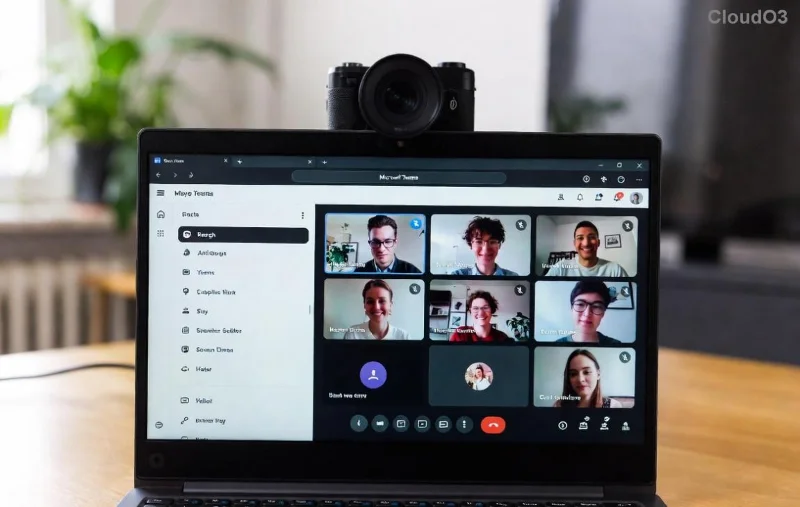
Frustrated by the dreaded Microsoft Teams license error: Subscription Expired? 😩 You're not alone—millions of users face this roadblock when trying to join meetings or chat. But don't worry! This guide delivers straightforward troubleshooting steps to get you back to seamless collaboration. We'll cover causes, fixes, and prevention, all based on the latest Microsoft updates. Follow along, and you'll be thumbs up 👍 in no time.

Why Does the Microsoft Teams License Error: Subscription Expired Happen? Common Causes
Understanding the root issue speeds up resolution. Here's what typically triggers this error:
- Expired Subscription: Your Microsoft 365 or Teams plan has lapsed. Check billing cycles!
- License Misassignment: User licenses aren't properly allocated in the admin center.
- Sync Delays: Cached data or propagation lags after renewals.
- Account Glitches: Sign-in issues or conditional access policies blocking access.
Pro tip: Admins, head to the Microsoft 365 Admin Center first. Users, try basic resets before escalating.
👉 Step-by-Step Troubleshooting Microsoft Teams License Error: Subscription Expired
Let's dive into actionable fixes. Start from the top and work down—most users resolve it by step 3!
- Verify Subscription Status
Log into the Microsoft 365 Admin Center.
Go to Billing > Your Products. Spot expired plans? Renew immediately via Renew now.
⭐ Bonus: Enable auto-renewal to avoid future headaches.
- Reassign User Licenses
Navigate to Users > Active Users.
Select the affected user > Licenses and Apps tab.
Check Microsoft Teams or Microsoft 365 license > Assign if missing. Save changes—it takes 5-15 minutes to propagate.
![Microsoft 365 Admin Center license assignment screen]()
- Clear Teams Cache & Restart (User-Level Fix)
Close Teams completely (use Task Manager: Ctrl+Shift+Esc > End task on Teams processes).
Delete cache: %appdata%\Microsoft\Teams > Delete contents of folders like Cache, GPUCache, IndexedDB.
Reinstall Teams if needed from official site.
Sign out/in. Boom—error gone for 80% of cases! 🎉
- Check Sign-In & MFA
Ensure no MFA blocks or password expiry. Reset via myaccount.microsoft.com.
Test in web version: teams.microsoft.com. If it works, it's a desktop app issue.
- Advanced: PowerShell Sync (For Admins)
Open PowerShell as admin > Connect-MsolService (install MSOnline module first).
Run: Get-MsolUser -UserPrincipalName user@domain.com | Set-MsolUserLicense to force sync.
![Successful Teams license fix confirmation]()
Quick Reference: Teams License Errors & Fixes Table
| Error Message | Primary Cause | Fix Priority |
|---|
| Subscription Expired | Billing lapse | 1️⃣ Renew & Assign |
| License Not Assigned | Admin oversight | 2️⃣ Reassign |
| Product License Error | Cache/Sync | 3️⃣ Clear Cache |
| Invalid License | Plan mismatch | 4️⃣ PowerShell |
Prevention Tips: Never See This Error Again ⭐
- Set email alerts for subscription expiry in Admin Center > Billing > Billing Accounts.
- Assign group-based licensing for bulk users—scales effortlessly.
- Regularly audit licenses: Reports > Usage > Licenses.
- Upgrade to Microsoft Teams Premium for advanced features and stability.
Still stuck? Open a support ticket via Admin Center > Support > New service request. Microsoft response times are lightning-fast lately.
Ready to Team Up Again? 🚀
Congrats—you've mastered troubleshooting Microsoft Teams license error: Subscription Expired! Apply these steps, and share your success in the comments. For more guides like Teams meeting glitches or channel permission fixes, stick around. Your productivity awaits! 👏