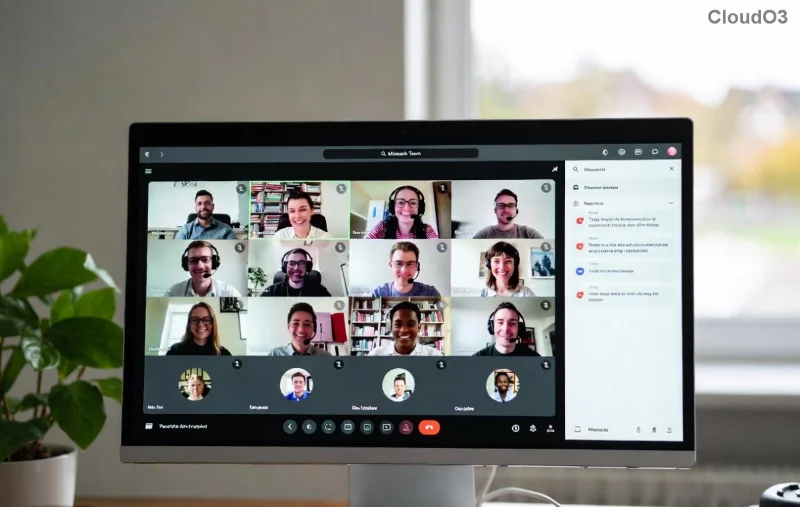
🚀 Imagine logging into your class without a hitch, collaborating with peers, and acing assignments—all from Microsoft Teams for students. In 2026, Microsoft Teams remains the go-to platform for virtual learning, powering millions of classrooms worldwide. Whether you're a newbie or need a refresher, this guide delivers how to join classes in 2026 with crystal-clear steps, pro tips, and fixes for common hiccups. Let's dive in and get you class-ready! ⭐
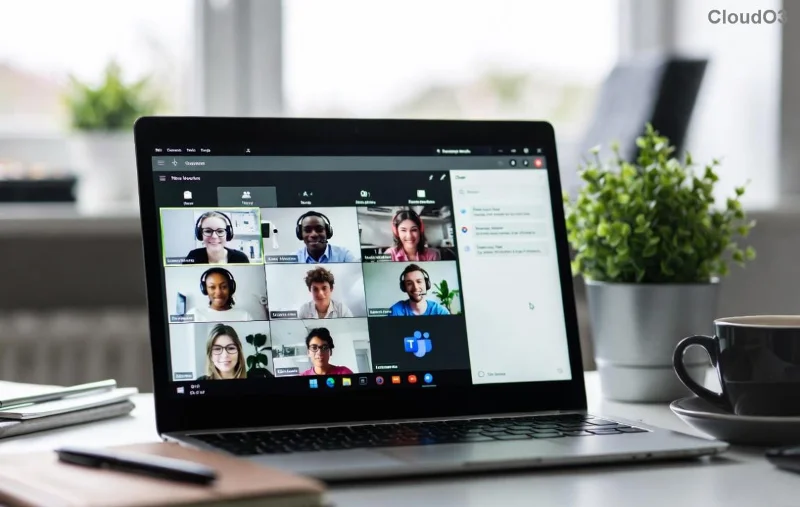
Why Microsoft Teams for Students Rocks in 2026
With AI-powered features like intelligent recaps and breakout rooms, Microsoft Teams makes school feel dynamic and fun. Students love its seamless integration with OneNote for notes and Outlook for schedules. No more missing classes—join from anywhere on any device. Ready to start? 👉
Prerequisites: Gear Up Before Joining
- School Account: Ensure you have your institution's Microsoft Teams login (usually email@school.edu).
- Device: Works on Windows, Mac, iOS, Android, or web browsers like Edge/Chrome.
- Internet: Stable connection (at least 1.5 Mbps upload/download).
- App Update: Download the latest Microsoft Teams app from the official store for 2026 enhancements.
Step-by-Step: How to Join Classes in 2026
Follow these numbered steps for a smooth entry into your Microsoft Teams for students classes. We've broken it down simply—no tech jargon!
- 👉 Download and Install
Head to Microsoft's official site or your app store. Install the free Microsoft Teams app. Web version? Just visit teams.microsoft.com.
- ⭐ Sign In
Open the app, select "Work or school account," and enter your school email. Verify with your password or school's multi-factor auth. Pro tip: Enable "Remember me" for quick access.
- 📅 Find Your Class
Navigate to the Calendar tab. Your classes auto-populate from your school's schedule. Spot the meeting? Click "Join."
- 🔗 Use Invite Link
Got a link from your teacher? Paste it in the search bar or click directly. Choose mic/camera settings—mute if you're lurking! 🎤
- ✅ Enter the Meeting
Boom! You're in. Raise hand for questions, share screen for presentations, or chat with classmates. Record if permitted for later review.
![Student joining <strong>Microsoft Teams</strong> class on laptop – step-by-step visual guide for 2026]()
Web vs. App: Quick Comparison Table
| Feature |
Web Version |
Desktop/Mobile App |
| Performance |
Good for basics |
⭐ Superior with AI features |
| Notifications |
Browser-dependent |
Push alerts always on |
| Offline Access |
Limited |
Download chats/files |
| Best For |
Quick joins |
Daily classes & collaboration |
Choose the app for the full Microsoft Teams for students experience—it's optimized for 2026's immersive learning tools like Live Captions and Together Mode. 😊
Pro Tips to Excel in Microsoft Teams Classes
- Customize Profile: Add a fun profile pic and status like "Ready to learn! 🚀" to stand out.
- Assignments Tab: Never miss homework—check here for due dates and submissions.
- Breakout Rooms: Practice group work; volunteer to host for bonus points! 👏
- Focus Mode: Blur background or use avatars for privacy during calls.
- Keyboard Shortcuts: Ctrl + Shift + M to mute—speed up your workflow.
Troubleshooting Common Issues
Stuck? Here's your quick-fix toolkit:
- ❌ Can't Join? Check link validity or ask teacher for a new one. Clear browser cache.
- 🔇 No Audio/Video? Allow permissions in settings. Test in Teams settings > Devices.
- ⏳ Lagging? Close tabs, use wired internet, or switch to app.
- Login Fails? Reset password via school's IT portal or Microsoft Support.
For deeper dives, explore official Teams help. Most issues resolve in under 2 minutes!
Level Up Your Learning Journey
Congrats—you're now a Microsoft Teams for students pro! Mastering how to join classes in 2026 opens doors to interactive education, group projects, and even virtual field trips. Stay updated via the app's release notes, experiment with features, and share this guide with classmates. Your future self (and grades) will thank you. What's your first class? Drop a comment below! 🎉
Stay connected, stay learning—Microsoft Teams has your back in 2026.