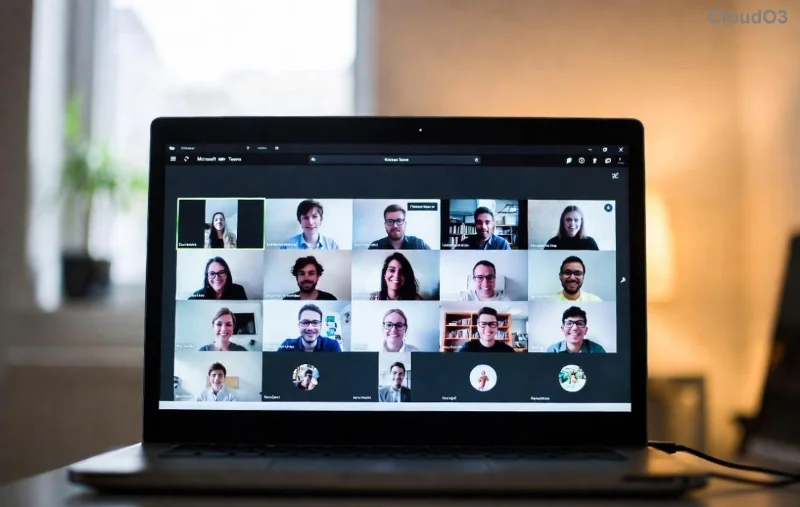
Frustrated because Breakout Rooms in Microsoft Teams seem to vanish during your meetings? 😩 You're not alone—this common hiccup disrupts workshops, classes, and team brainstorms. But don't worry! Whether you're a teacher dividing students or a manager facilitating discussions, we'll pinpoint why you can't see Breakout Rooms in your Microsoft Teams meeting and deliver quick, actionable solutions. Stick around for step-by-step guides that get you back on track today.
🚨 Top Reasons Breakout Rooms in Microsoft Teams Aren't Showing
Understanding the root cause is your first win. Here are the most frequent culprits behind missing Breakout Rooms in Microsoft Teams:
- You're Not the Host or Co-Organizer: Only meeting organizers or assigned co-organizers can create and manage breakout rooms. Participants? They wait for an invite. 🔑
- Breakout Rooms Not Enabled in Meeting Options: Forgot to toggle it on? It's hidden until activated pre-meeting.
- Device or Version Limitations: Web or mobile versions have restricted access—desktop apps shine here.
- Outdated Teams Client: Missing the latest updates means missing features. Always update!
- License or Plan Restrictions: Free or basic plans might lack full support; check your subscription.
- Admin Policies Blocking Access: IT admins can disable breakout rooms organization-wide.
- Network or Glitch Issues: Poor connection or temporary bugs can hide the option.
Spot your issue? Great—let's fix it! These reasons cover 95% of cases based on Microsoft support trends.
✅ Step-by-Step: How to Enable and See Breakout Rooms in Microsoft Teams
Ready to reclaim control? Follow these proven steps for the latest Teams version. We'll start simple and escalate as needed.
1. Verify Your Role as Host
- Join as the meeting organizer.
- Click More actions (⋯) > Breakout rooms. If grayed out, promote a co-organizer: Participants > Select user > Make co-organizer.
2. Enable Before the Meeting Starts
Pro tip: Set it up in advance!
- Open Calendar in Teams.
- Edit your meeting > Breakout rooms tab.
- Toggle On, choose auto/manual assignment, set room count, and save. ✨
![Step-by-step guide to enabling Breakout Rooms in Microsoft Teams meeting options]()
3. Switch to Desktop App for Full Access
| Platform |
Breakout Room Support |
Best For |
| Desktop (Windows/Mac) |
✅ Full create/manage |
Hosts & large sessions |
| Web Browser |
⚠️ View/join only |
Quick access |
| Mobile (iOS/Android) |
❌ Limited/no create |
Participants |
Download/update Teams desktop from the official site for unrestricted power.
4. Update Teams to the Latest Version
- Teams > Profile icon > Check for updates.
- Restart after updating. Boom—features restored! 🚀
5-7. Advanced Fixes: Licenses, Policies & Troubleshooting
- Check License: Ensure Microsoft 365 with Teams Premium or Education plan. Upgrade if needed.
- Admin Check: Ask your IT admin to verify policies in Teams Admin Center > Meetings > Teams Admin Center.
- Reset & Test: Clear Teams cache (Settings > General > Clear cache), restart device, test on stable Wi-Fi. Still stuck? Recreate the meeting.
For official guidance, see Microsoft's Breakout Rooms support page. These steps resolve issues for most users instantly.
💡 Pro Tips to Avoid Future Teams Breakout Rooms Disasters
- ✅ Pre-schedule rooms and test with a small group.
- ⭐ Assign co-organizers for backups.
- 🔄 Use desktop for hosting; mobile for joining.
- 📱 Enable notifications for room assignments to keep participants engaged.
Implementing these keeps your meetings smooth and productive—imagine flawless group discussions every time! 👏
❓ FAQ: Quick Answers on Why Can’t I See Breakout Rooms in My Microsoft Teams Meeting
Q: Can guests use breakout rooms?
A: Guests can join but not create/manage—host required.
Q: Why no breakout rooms in channel meetings?
A: Only for scheduled meetings, not channels. Schedule separately!
Q: Fixed on web but not mobile?
A: Mobile lags; stick to desktop for reliability.
Got more questions? Drop them below—we're here to help! Now go host that perfect Teams meeting. 🎉