CO2 Regulator Bubble Counter Not Working: Setup

Fix an aquarium co2 regulator bubble counter that stays still, empties, or bubbles unevenly. Check assembly, leaks, pressure, tubing, and safe CO2 flow.
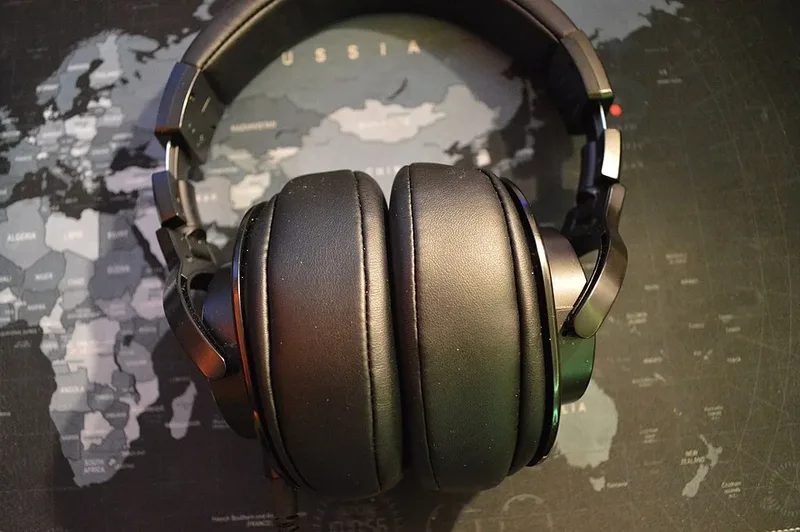
If airpods pro 2 keeps disconnecting windows users may find audio cutting out, the earbuds vanishing from Bluetooth, or playback switching back to the PC. The most common cause is an unstable Bluetooth connection, often made worse by Windows power management or the earbuds switching between devices.
AirPods Pro 2 work with Windows as standard Bluetooth audio devices, but Windows does not manage every Apple feature the way an iPhone does. A weak radio link, a stale pairing, or switching between a PC and phone can interrupt playback. Voicemeeter, OBS, ASIO applications, and audio enhancements can also change which Windows device an app uses.
| Possible cause | Typical symptom | Quick test |
|---|---|---|
| Another paired device | Audio stops when a phone is nearby | Temporarily turn Bluetooth off on the phone |
| Hands-free profile | Audio changes when a call or app starts | Close apps using the AirPods microphone |
| PC Bluetooth power or driver | Disconnects after idle or sleep | Reconnect after waking the PC |
Temporarily turn Bluetooth off on nearby phones, tablets, or other computers that have been paired with the AirPods. On Windows, open Settings > Bluetooth & devices > Devices and confirm the AirPods show as connected. Play audio for several minutes. If the drops stop, another device or automatic switching was likely interrupting the PC session; turn other devices back on one at a time to identify which one.
In Windows, go to Settings > Bluetooth & devices > Devices, select the AirPods, and choose Remove device. Put both earbuds in the case, open the lid, and use the setup button on the case until its status light flashes white. Keep the case near the PC, then select Add device > Bluetooth and choose the AirPods. Menu wording can vary by Windows version and case model. A fresh connection that stays active through playback is the confirming result.
Select the speaker icon on the taskbar, open the sound output selector, and choose the AirPods stereo or headphone output. Then open Settings > System > Sound and confirm the same device is selected as the output. If an app is using the AirPods microphone, Windows may switch to a lower-quality hands-free mode. As a test, set the PC's built-in microphone as the input in Sound settings and close calling or recording apps. If playback stays stable, the profile change was involved.
Right-click Start, open Device Manager, expand Bluetooth, and open the properties for the PC's Bluetooth adapter. If a Power Management tab is available, clear Allow the computer to turn off this device to save power, then select OK. Some adapters do not show this option. Reconnect the AirPods and check whether they remain connected after the PC has been idle or wakes from sleep.
In Device Manager > Bluetooth, right-click the adapter and select Update driver > Search automatically for drivers. Also check Settings > Windows Update > Advanced options > Optional updates for driver updates, if available. For laptops, the manufacturer's support page may provide a driver tailored to the hardware. Restart the PC after installing an update. A stable connection after restart suggests the previous driver was contributing to the problem.
Keep the PC and AirPods close while troubleshooting, and move USB 3 devices, hubs, or external drives away from the Bluetooth antenna if practical. If the computer uses a desktop Bluetooth adapter, check that its antenna is connected and positioned clear of the case. Temporarily disconnect other Bluetooth accessories and test again. Fewer dropouts at close range or after moving equipment point to interference or weak reception.
In Voicemeeter, OBS, or another audio application, inspect the selected output device and make sure it matches the Windows AirPods output. In Windows, open Settings > System > Sound > Volume mixer and check the app's output assignment. ASIO devices may use their own driver and routing settings; close the audio application to see whether Windows playback becomes stable. For Equalizer APO, temporarily disable its processing for the AirPods device using its configuration tool, then reconnect and test. If the connection stays up with the app or processing disabled, restore features one at a time to find the conflict.
A weak Bluetooth link, adapter power saving, or another paired device can interrupt the connection. Start by testing near the PC with Bluetooth disabled on your phone, then check the adapter's power settings.
Windows may switch from stereo playback to a hands-free profile when an app uses the AirPods microphone. Try the PC's built-in microphone as the input while keeping the AirPods selected for output.
Check whether the Bluetooth adapter has a power-saving option in Device Manager and install available Windows or PC-maker driver updates. If the option is absent or the issue continues, remove and pair the AirPods again.
For airpods pro 2 keeps disconnecting windows problems that persist, test the earbuds with another device and test another Bluetooth headset with the PC to isolate which side is failing. If the PC is the cause, contact its manufacturer with the adapter model and driver details; if the AirPods also drop on other devices, contact Apple Support.
Photo: P0lykey / CC0 (Wikimedia Commons)
Fix an aquarium co2 regulator bubble counter that stays still, empties, or bubbles unevenly. Check assembly, leaks, pressure, tubing, and safe CO2 flow.
Fix an aquarium ato float switch stuck by checking buildup, movement, wiring, and controller status, then add safe ATO limits to reduce overflow risk.
Fix reef tank dosing pump calibration with a measured three-point check, tubing inspection, priming, controller steps, and a safe verification run.
Fix apex controller not connecting to wifi by checking AquaBus communication, network compatibility, signal, and Fusion status with practical steps you can try today.
Fix tractive not charging red light issues by checking the charger, contacts, power source, and battery condition, with practical tests to identify the cause.
Fix a tractive tracker not connected to network issue by checking coverage, charging, SIM status, and LTE compatibility before contacting Tractive support.
Fix a petlibro feeder not dispensing by checking food flow, portion settings, the motor, and app connection, with safe steps to confirm the cause.
Fix a Petlibro feeder camera icon that keeps flashing: check Wi-Fi, power, app status, and setup steps to bring the camera back online today.
Petlibro feeder won t connect to wifi? Check your model’s Wi-Fi band, router settings, app permissions, and pairing mode with these practical fixes.
Fix the litter robot 4 pinch detect error by checking the waste drawer, cleaning pinch contacts, reseating the bonnet, and safely testing the cycle.








