CO2 Regulator Bubble Counter Not Working: Setup

Fix an aquarium co2 regulator bubble counter that stays still, empties, or bubbles unevenly. Check assembly, leaks, pressure, tubing, and safe CO2 flow.
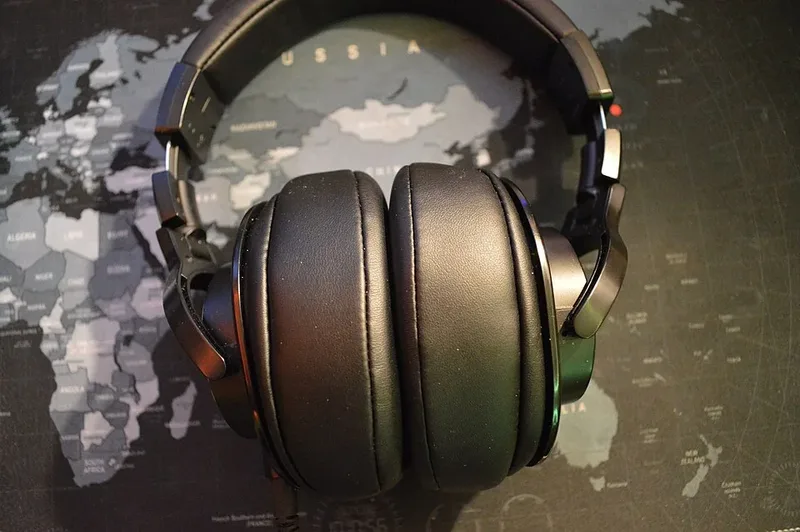
If your AirPods Pro connect to Windows 11 but sound is missing, the microphone fails, or audio turns tinny during a call, the usual cause is Windows switching to the hands-free Bluetooth profile. The earbuds can appear connected while Windows or an app is using the wrong playback device or microphone.
Bluetooth audio uses different profiles for stereo playback and headset calls. Windows and individual apps may choose different devices, and audio tools such as Voicemeeter or OBS can keep a stale device selection after the earbuds reconnect.
Open Settings > System > Sound. Under Output, select the AirPods Pro headphones device for listening. Under Input, select the AirPods Pro headset device only when you need its microphone. Names vary by driver and Windows version, so check the device descriptions rather than relying on a precise label. Test playback and input from the same page; hearing sound and seeing the input meter respond confirms the selections.
Put both AirPods in the case, close it briefly, then open it and reconnect from Settings > Bluetooth & devices > Devices. If Windows offers separate headphones and headset entries, use the headphones entry for music and the headset entry for calls. Do not disable the hands-free device if you need the AirPods microphone. If the devices remain stuck, remove the AirPods from the device list, put them back in pairing mode using your model’s instructions, and pair them again.
In the affected app, open its audio or device settings and explicitly choose the AirPods for the microphone and speaker. For example, in OBS open Settings > Audio and check the relevant Mic/Auxiliary Audio and monitoring selections. In Voicemeeter, select the intended hardware input and output, then verify that the meters move. A successful test call or moving meter confirms the app is receiving the selected input.
Go to Settings > Privacy & security > Microphone. Turn on Microphone access and allow desktop apps to access the microphone if the affected program is a desktop app. Then return to Settings > System > Sound > Input, select the headset microphone, and check its input level. If access is enabled and the meter responds, the issue is likely the app’s device selection or audio routing.
Open Control Panel > Hardware and Sound > Sound. On the Communications tab, choose Do nothing to prevent Windows from automatically lowering other sounds during calls. On the playback or recording device’s Properties page, check Advanced; if available, clear the exclusive-control options temporarily and retest. The change helps if other playback stops or changes when a call starts.
If you use Equalizer APO, Voicemeeter, ASIO, or OBS, test the AirPods directly in Windows first. Then reopen the audio app and reselect its input and output devices; virtual cables and ASIO devices do not automatically become the AirPods. Equalizer APO may not apply to Bluetooth devices or every audio path, so temporarily bypass its processing to isolate the route. If direct Windows playback works but the app does not, the routing or processing configuration is the likely cause.
If pairing repeatedly fails or the AirPods disconnect, open Device Manager, expand Bluetooth, right-click your Bluetooth adapter, and choose Update driver. Also check Settings > Windows Update > Advanced options > Optional updates for applicable driver updates. If the problem began after an update, use the adapter’s Properties > Driver tab to check whether Roll Back Driver is available. Restart and pair again; stable reconnection after restart suggests the adapter driver was involved.
| Likely cause | Typical symptom | Quick test |
|---|---|---|
| Hands-free profile active | Audio becomes tinny in calls | Switch output to headphones, then compare |
| Wrong app device | Windows works, one app is silent | Select AirPods directly in that app |
| Microphone permission blocked | Input meter stays still | Check Microphone access in Privacy & security |
| Bluetooth driver or pairing issue | Disconnects or fails to reconnect | Restart, then pair again |
Windows may switch to the hands-free profile so the AirPods microphone can work. That profile has lower playback quality than stereo headphones mode. For better call audio, try a separate microphone while keeping the AirPods selected as the output.
Select the AirPods headset microphone in Settings > System > Sound > Input, then choose it in the calling app too. Confirm microphone access is allowed and check whether the input meter moves. Windows may lower playback quality while the Bluetooth microphone is active.
Windows or an app may have retained an old device selection or profile. Check the output and input in Windows and in the affected app, then remove and pair the AirPods again if needed. If they still disconnect, check for Bluetooth adapter driver updates.
For airpods pro not working with windows 11, start by testing the headphones output and headset microphone separately, then check the app’s device choices and audio routing. If the issue persists after re-pairing and updating the Bluetooth adapter, test another Bluetooth headset or adapter to isolate which device needs further troubleshooting.
Photo: P0lykey / CC0 (Wikimedia Commons)
Fix an aquarium co2 regulator bubble counter that stays still, empties, or bubbles unevenly. Check assembly, leaks, pressure, tubing, and safe CO2 flow.
Fix an aquarium ato float switch stuck by checking buildup, movement, wiring, and controller status, then add safe ATO limits to reduce overflow risk.
Fix reef tank dosing pump calibration with a measured three-point check, tubing inspection, priming, controller steps, and a safe verification run.
Fix apex controller not connecting to wifi by checking AquaBus communication, network compatibility, signal, and Fusion status with practical steps you can try today.
Fix tractive not charging red light issues by checking the charger, contacts, power source, and battery condition, with practical tests to identify the cause.
Fix a tractive tracker not connected to network issue by checking coverage, charging, SIM status, and LTE compatibility before contacting Tractive support.
Fix a petlibro feeder not dispensing by checking food flow, portion settings, the motor, and app connection, with safe steps to confirm the cause.
Fix a Petlibro feeder camera icon that keeps flashing: check Wi-Fi, power, app status, and setup steps to bring the camera back online today.
Petlibro feeder won t connect to wifi? Check your model’s Wi-Fi band, router settings, app permissions, and pairing mode with these practical fixes.
Fix the litter robot 4 pinch detect error by checking the waste drawer, cleaning pinch contacts, reseating the bonnet, and safely testing the cycle.








