CO2 Regulator Bubble Counter Not Working: Setup

Fix an aquarium co2 regulator bubble counter that stays still, empties, or bubbles unevenly. Check assembly, leaks, pressure, tubing, and safe CO2 flow.
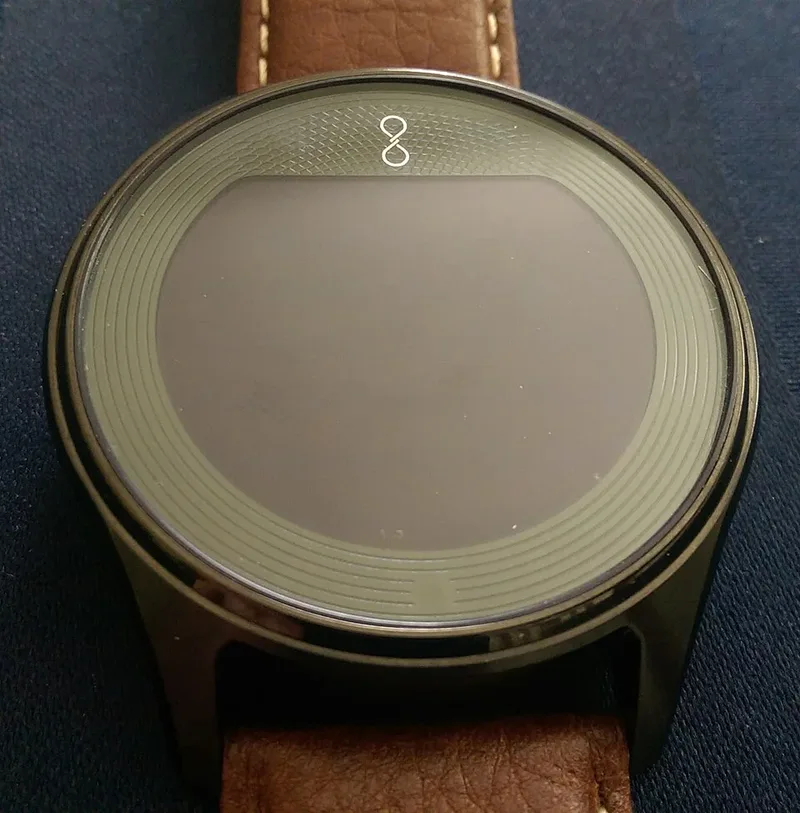
If your Amazfit watch will not pair, reconnect, or sync with your phone, the usual cause is a stale Bluetooth pairing that Zepp cannot reuse. The fix is to remove the old pairing from both the phone and Zepp, then connect through Zepp instead of the phone’s Bluetooth menu.
Zepp manages the watch connection and synchronization, while the phone’s Bluetooth service carries the connection. A saved pairing left over from setup, a phone permission change, or a second nearby device can interrupt that handoff.
Charge the watch, keep it close to the phone, and make sure Bluetooth is on. Restart both devices, then open Zepp and check its device page. If the watch appears connected and recent activity syncs, the connection is restored; if it remains offline, continue below.
In Zepp, open Profile, select your watch, and choose the available unpair or remove-device option. On iPhone, open Settings > Bluetooth; on Android, open Settings > Connected devices or Bluetooth. Select the Amazfit entry and tap Forget or Unpair. Then return to Zepp, choose Add device, select the watch category, and follow the on-screen pairing prompt. Accept the confirmation on both screens. A connected status in Zepp and a successful sync confirm the fix.
On iPhone, go to Settings > Privacy & Security > Bluetooth and enable Zepp. On Android, open Settings > Apps > Zepp > Permissions and allow Nearby devices or Bluetooth access; older Android versions may also request location for Bluetooth scanning. Menu wording varies by OS version. Reopen Zepp and try adding the watch again; if it can find the watch, the permission was the blocker.
If pairing works but the watch disconnects or stops syncing when Zepp is closed, check background access. On iPhone, go to Settings > General > Background App Refresh and allow it for Zepp. On Android, open Settings > Apps > Zepp > Battery and allow background use or choose an unrestricted option if available. Also check your phone maker’s battery manager for app sleeping rules. A sync that continues after the screen locks indicates this adjustment helped.
Turn Bluetooth off on any old phone or tablet that was paired with the watch, or remove the watch from that device’s Bluetooth list. If the watch was previously used with another account, sign in to the original Zepp account or follow the model’s transfer or unbind process. Retry pairing from the current phone’s Zepp app. The watch appearing in Zepp without a connection warning confirms it is available to this phone.
Install any available Zepp update from the App Store or Google Play, then check for a phone OS update in Settings > General > Software Update on iPhone or Settings > System > Software update on Android; paths can vary. Restart the phone after updating and try syncing again. If Zepp now detects and synchronizes the watch, an app or system compatibility issue likely caused the failure.
Use the watch’s on-device Settings menu to find its reset or factory-reset option; the location varies by model. A factory reset can erase watch data that has not synced, so try the preceding steps first and sync anything still available. After resetting, add the watch through Zepp. A fresh pairing and completed sync show the reset cleared a corrupted connection state.
| Likely cause | Typical symptom | Quick test |
|---|---|---|
| Stale Bluetooth pairing | Zepp cannot finish pairing | Forget the watch on the phone and retry in Zepp |
| Missing permission | Zepp cannot discover the watch | Allow Bluetooth or nearby-device access |
| Background restriction | Watch connects, then stops syncing | Keep Zepp open, then test with the screen locked |
| Another phone is connected | Current phone cannot claim the watch | Disable Bluetooth on the previously paired phone |
The phone may have a saved pairing that no longer matches the watch, or Zepp may not have Bluetooth or nearby-device permission. Forget the watch in the phone settings and pair it again from Zepp.
Use Zepp’s add-device flow for initial setup and reconnection. Pairing only from the phone’s Bluetooth page can leave Zepp without the connection it needs to sync.
Check that Zepp is allowed to run in the background and is not restricted by battery-saving settings. Open Zepp while the phone is online and try a manual sync; a successful update points to a background restriction.
In most cases, removing the stale pairing and reconnecting through Zepp restores the watch without a reset. If nothing worked, note your watch model, phone model, OS version, and which step failed, then contact Amazfit support through the official support channel for model-specific help.
Photo: United States Federal Communications Commission / Public domain (Wikimedia Commons)
Fix an aquarium co2 regulator bubble counter that stays still, empties, or bubbles unevenly. Check assembly, leaks, pressure, tubing, and safe CO2 flow.
Fix an aquarium ato float switch stuck by checking buildup, movement, wiring, and controller status, then add safe ATO limits to reduce overflow risk.
Fix reef tank dosing pump calibration with a measured three-point check, tubing inspection, priming, controller steps, and a safe verification run.
Fix apex controller not connecting to wifi by checking AquaBus communication, network compatibility, signal, and Fusion status with practical steps you can try today.
Fix tractive not charging red light issues by checking the charger, contacts, power source, and battery condition, with practical tests to identify the cause.
Fix a tractive tracker not connected to network issue by checking coverage, charging, SIM status, and LTE compatibility before contacting Tractive support.
Fix a petlibro feeder not dispensing by checking food flow, portion settings, the motor, and app connection, with safe steps to confirm the cause.
Fix a Petlibro feeder camera icon that keeps flashing: check Wi-Fi, power, app status, and setup steps to bring the camera back online today.
Petlibro feeder won t connect to wifi? Check your model’s Wi-Fi band, router settings, app permissions, and pairing mode with these practical fixes.
Fix the litter robot 4 pinch detect error by checking the waste drawer, cleaning pinch contacts, reseating the bonnet, and safely testing the cycle.








