CO2 Regulator Bubble Counter Not Working: Setup

Fix an aquarium co2 regulator bubble counter that stays still, empties, or bubbles unevenly. Check assembly, leaks, pressure, tubing, and safe CO2 flow.
If asio4all keeps crashing fl studio, the program may freeze when you open a project, start playback, or change audio devices. A common cause is another app or Windows audio session holding the output device while ASIO4ALL tries to use it.
ASIO4ALL is a driver layer that gives some Windows audio devices an ASIO interface; it does not replace the device’s underlying Windows audio driver. Conflicts can arise when several apps request the same device, when an unavailable device remains enabled, or when a buffer setting is too demanding for the computer.
Use this quick check to narrow down the cause before changing several settings at once.
| Possible cause | Typical symptom | Quick test |
|---|---|---|
| Another app owns the device | Audio stops or FL Studio hangs when playback starts | Close browsers and call apps, then retry |
| Wrong endpoint selected | No sound, or the device panel shows an unavailable output | Choose the connected output in ASIO4ALL |
| Buffer too small | Crackles or stutters during playback | Raise the ASIO buffer and test a light project |
Save your project, then quit browser tabs playing media, chat and meeting apps, OBS, and other audio software. Check the Windows notification area and Task Manager for apps that stay open in the background. Reopen FL Studio and test playback. If the crash stops, reopen the other apps one at a time to identify the conflict.
In FL Studio, open Options > Audio settings and select ASIO4ALL v2 in the Device list. Open its control panel. Expand the device list using the wrench or advanced view control if needed, then enable the connected output you want to hear. Disable unavailable or unused endpoints for this test. A lit status indicator for the chosen output and audible playback confirm that the selection is working.
In the ASIO4ALL control panel, move the buffer size slider toward a larger value. The slider’s scale and available settings can vary by driver and device, so increase it gradually rather than assuming one number is right for every PC. Play a simple project after each change. Fewer crackles or a stable playback session suggests the earlier buffer was too small for the current workload.
Open Settings > System > Sound, select the output device, and open its device properties. Find the additional or advanced sound properties, then open the device’s Properties > Advanced tab in the classic Sound control panel. If available, clear Allow applications to take exclusive control of this device, apply the change, and restart FL Studio. The wording and route can vary by Windows version and device. If the conflict was related to exclusive access, FL Studio should now start playback while other audio apps are open.
In the same device Advanced properties, check the default format. Choose a format supported by the device, then set FL Studio’s sample rate in Options > Audio settings to a compatible rate. Avoid changing several format options together. Restart audio playback and listen for stability. If the device stops disconnecting or crackling, the previous format combination may have been unsupported or a poor match.
Open a new, empty project and test playback. If that works, reopen the problem project and temporarily bypass CPU-heavy instruments and effects, especially those recently added. You can also check FL Studio’s CPU meter during playback. A stable empty project but unstable full project points toward project load or a plugin issue rather than a basic output-device failure.
Close FL Studio, disconnect and reconnect a USB audio device if you use one, and restart Windows. Then check the PC or audio-device maker’s support page for a current driver for your exact model. Avoid installing generic drivers from download sites. After installation, reopen FL Studio and select the intended device again. A device that stays available across a restart and plays reliably is a good sign the driver path has recovered.
Playback makes FL Studio open the selected audio endpoints, which can expose a device conflict or an unavailable output. Close other audio apps, check the ASIO4ALL panel, and try a larger buffer. If an empty project works, investigate the project’s plugins and CPU load.
AirPods connect to Windows as Bluetooth audio devices, and Bluetooth endpoints may not behave like low-latency wired audio devices in ASIO4ALL. Select the connected AirPods endpoint if it appears, but expect latency and possible format or device limitations. For recording or responsive monitoring, a wired or dedicated audio interface is usually a more reliable choice.
Try the device, buffer, and Windows settings first; reinstalling will not resolve an app still holding the output or an incompatible endpoint. If the issue persists, uninstall ASIO4ALL through Windows Apps settings, restart, and install it again from its official source. Check the audio-device maker’s driver guidance as well.
Once playback remains stable in a simple project, restore your usual apps and plugins gradually to confirm the setup. If the crash continues, note your Windows version, audio device, selected FL Studio driver, and the step that triggers the failure, then consult the device maker or FL Studio support.
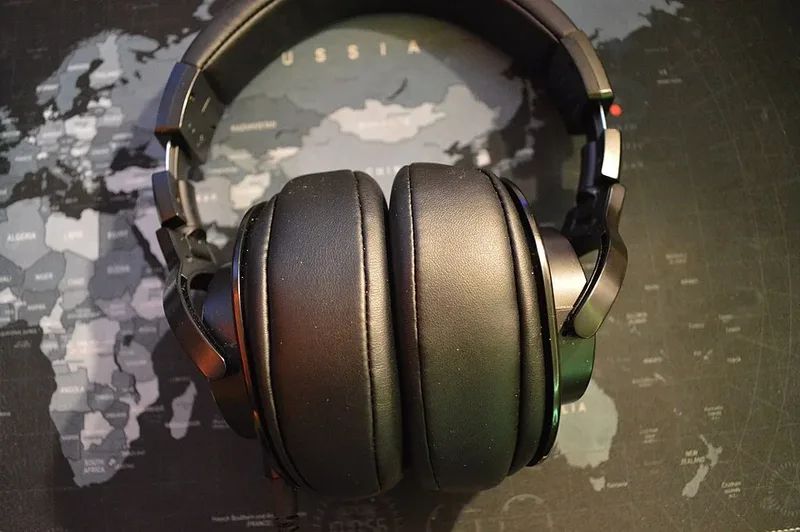
Photo: P0lykey / CC0 (Wikimedia Commons)
Fix an aquarium co2 regulator bubble counter that stays still, empties, or bubbles unevenly. Check assembly, leaks, pressure, tubing, and safe CO2 flow.
Fix an aquarium ato float switch stuck by checking buildup, movement, wiring, and controller status, then add safe ATO limits to reduce overflow risk.
Fix reef tank dosing pump calibration with a measured three-point check, tubing inspection, priming, controller steps, and a safe verification run.
Fix apex controller not connecting to wifi by checking AquaBus communication, network compatibility, signal, and Fusion status with practical steps you can try today.
Fix tractive not charging red light issues by checking the charger, contacts, power source, and battery condition, with practical tests to identify the cause.
Fix a tractive tracker not connected to network issue by checking coverage, charging, SIM status, and LTE compatibility before contacting Tractive support.
Fix a petlibro feeder not dispensing by checking food flow, portion settings, the motor, and app connection, with safe steps to confirm the cause.
Fix a Petlibro feeder camera icon that keeps flashing: check Wi-Fi, power, app status, and setup steps to bring the camera back online today.
Petlibro feeder won t connect to wifi? Check your model’s Wi-Fi band, router settings, app permissions, and pairing mode with these practical fixes.
Fix the litter robot 4 pinch detect error by checking the waste drawer, cleaning pinch contacts, reseating the bonnet, and safely testing the cycle.








