CO2 Regulator Bubble Counter Not Working: Setup

Fix an aquarium co2 regulator bubble counter that stays still, empties, or bubbles unevenly. Check assembly, leaks, pressure, tubing, and safe CO2 flow.
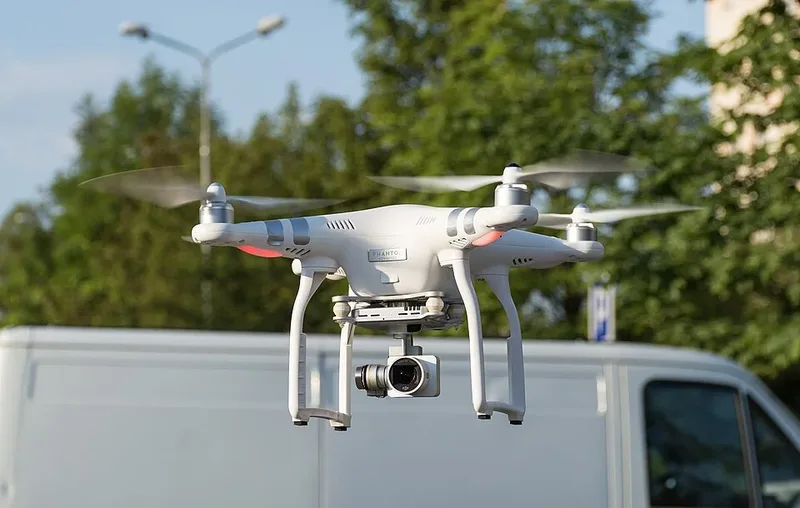
If Betaflight reports an MSP DShot telemetry error, or bidirectional DShot telemetry stops working after you connect a flight controller to a computer, the usual cause is a UART or resource conflict. A UART assigned to MSP or a peripheral can interfere with a device or feature using the same resources, while a mismatch between motor protocol and bidirectional DShot settings can also prevent telemetry.
MSP is the protocol Betaflight Configurator uses to communicate with the flight controller; DShot telemetry is a separate feature that returns motor data over the motor signal connection. The error can point to a configuration conflict, but the exact cause depends on when it appears and which device is connected. Check these mechanisms first:
Connect the flight controller to Betaflight Configurator, open the Setup tab, and note the exact warning in the status area or the Configurator message panel. Check whether it appears immediately on USB connection, after connecting a receiver or video unit, or only after arming or starting motors. That timing helps separate an MSP connection issue from missing motor telemetry; do not assume the wording identifies a specific UART.
Open Ports and review the UART rows. Look at the Configuration/MSP column and the peripheral columns for GPS, Serial RX, telemetry, or other connected devices. Each physical device should be assigned to the UART it is actually wired to, and a UART should not be assigned to incompatible functions at once. Change only a mapping you can confirm from your wiring diagram or flight-controller documentation, then select Save and Reboot. The fix is confirmed when the warning clears and the affected device still connects.
Open Configuration and locate the ESC/Motor Features settings. Confirm that the selected motor protocol is DShot when the ESC supports DShot and you intend to use bidirectional DShot. Save and reboot after a change. If you use a different protocol or an ESC without bidirectional support, turn off the bidirectional feature instead; telemetry is confirmed only when the ESC and Betaflight report compatible settings and motor data becomes available.
On current versions, check the Configuration tab for Bidirectional DShot and, if you use it, the related RPM filter setting under PID Tuning. Labels and placement vary by version, so check your model's menu and firmware documentation. Enable bidirectional DShot only when supported by the ESC firmware and motor protocol. Save and reboot, then check the Motors tab with propellers removed; valid motor telemetry or RPM data confirms the signal path is working.
With the battery disconnected, temporarily unplug optional UART devices such as GPS, receiver, or digital video peripherals, leaving USB and the ESC connections in place. Reconnect USB and observe whether the MSP warning changes, then reconnect devices one at a time with power disconnected before each wiring change. If the error returns after a particular device is connected, compare its wiring and Ports assignment with the flight-controller documentation. A repeatable change identifies the likely conflict.
If the configuration uses custom resource remapping, open the CLI and enter resource to inspect assignments. Compare the motor outputs and affected pins with the board manufacturer's pinout and the firmware target documentation; do not copy a resource command from another board. Restore only a mapping that you can verify is incorrect. A successful result is that motors use the documented outputs and telemetry is available without the warning.
| Possible cause | Typical symptom | Quick test |
|---|---|---|
| UART assignment conflict | Error appears when a serial peripheral is connected | Disconnect optional UART devices one at a time |
| Motor protocol mismatch | Motors work but bidirectional telemetry is absent | Compare Configuration settings with ESC support |
| Custom resource mapping | Problem remains after UART checks | Inspect CLI resource output against the board pinout |
If the problem began after a firmware update or configuration change, save a backup from the CLI with diff all and keep a copy of your current settings before changing anything. Compare your board target and firmware documentation, then use the correct target and supported settings for that controller. Avoid pasting a full dump from another build or board. The fix is confirmed when the warning is gone on a known-good configuration and the connected peripherals still function.
It can result from an MSP UART assignment that conflicts with a peripheral, or from incompatible motor protocol and bidirectional DShot settings. The timing of the error and whether it changes when peripherals are disconnected help narrow the cause.
A video system can be involved if it is connected to a UART that is also assigned to another function or configured incorrectly. Verify the wiring and UART assignment against the flight-controller and video-system documentation; the video link itself does not establish that DShot telemetry is working.
Check that the ESC, firmware, motor protocol, and bidirectional setting are compatible, then inspect motor telemetry or RPM data in Betaflight. Test with propellers removed and do not spin motors unless the aircraft is secured and the test is safe.
Most cases are resolved by correcting the UART assignment or matching the motor protocol and bidirectional DShot settings to the ESC. If the warning remains, save the exact message, firmware target, Ports settings, and ESC details, then compare them with the board and ESC documentation or ask a Betaflight support community for a board-specific review.
Photo: Jacek Halicki / CC BY-SA 4.0 (Wikimedia Commons)
Fix an aquarium co2 regulator bubble counter that stays still, empties, or bubbles unevenly. Check assembly, leaks, pressure, tubing, and safe CO2 flow.
Fix an aquarium ato float switch stuck by checking buildup, movement, wiring, and controller status, then add safe ATO limits to reduce overflow risk.
Fix reef tank dosing pump calibration with a measured three-point check, tubing inspection, priming, controller steps, and a safe verification run.
Fix apex controller not connecting to wifi by checking AquaBus communication, network compatibility, signal, and Fusion status with practical steps you can try today.
Fix tractive not charging red light issues by checking the charger, contacts, power source, and battery condition, with practical tests to identify the cause.
Fix a tractive tracker not connected to network issue by checking coverage, charging, SIM status, and LTE compatibility before contacting Tractive support.
Fix a petlibro feeder not dispensing by checking food flow, portion settings, the motor, and app connection, with safe steps to confirm the cause.
Fix a Petlibro feeder camera icon that keeps flashing: check Wi-Fi, power, app status, and setup steps to bring the camera back online today.
Petlibro feeder won t connect to wifi? Check your model’s Wi-Fi band, router settings, app permissions, and pairing mode with these practical fixes.
Fix the litter robot 4 pinch detect error by checking the waste drawer, cleaning pinch contacts, reseating the bonnet, and safely testing the cycle.








