CO2 Regulator Bubble Counter Not Working: Setup

Fix an aquarium co2 regulator bubble counter that stays still, empties, or bubbles unevenly. Check assembly, leaks, pressure, tubing, and safe CO2 flow.
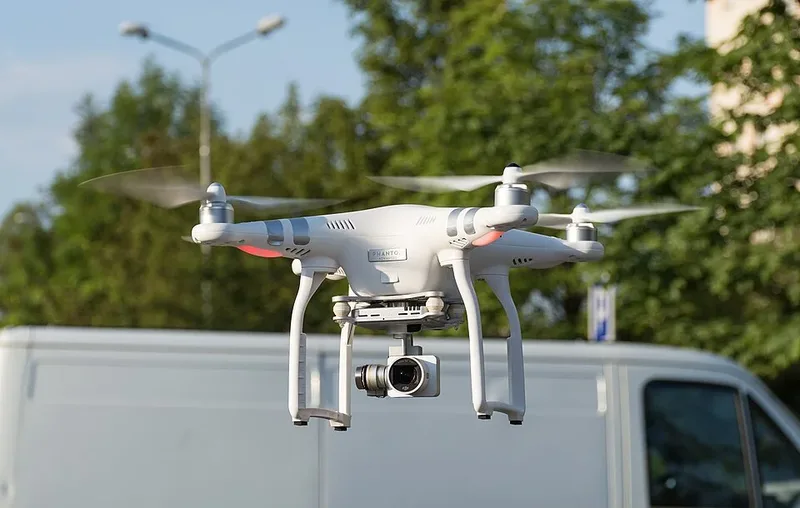
If Betaflight Configurator will not connect to your drone, the usual symptom is a failed connection or a board that never appears on the Ports list. The most common cause is a USB cable that carries power but not data; check that before changing firmware or settings.
Betaflight Configurator needs a data connection to a compatible flight controller and, in normal mode, its serial interface must be available. A charging-only cable, a missing USB driver, the wrong port, or bootloader mode can interrupt that path.
Disconnect the drone, then use a cable known to transfer files from another device. Connect directly to a computer USB port, without a hub or dock, and try another port if needed. Look for a new serial device or COM port in the operating system and in Betaflight Configurator's port selector. If the board appears, select it and click Connect; the cable or USB path was the issue.
Quit other flight-controller tools, serial terminals, and applications that may connect to the board. In Betaflight Configurator, choose the controller's port from the selector and click Connect. If it connects after another app is closed, that app had the port open. Disconnect before reopening other tools.
On Windows, open Device Manager while the controller is plugged in and check Ports (COM & LPT) and Universal Serial Bus devices. Note whether a device appears, disappears when unplugged, or has a warning symbol. Install or repair the driver recommended by your flight-controller manufacturer for that board, then reconnect it. A recognized serial device appearing without a warning confirms the driver path is working. Driver needs vary by board and operating system; do not install a driver package from an unknown source.
Unplug USB and reconnect without pressing the board's boot button or holding its boot pads. In Betaflight Configurator, check whether a serial port appears. If it appears only when the board is started normally, connect in that mode for configuration. A controller in DFU mode is waiting for firmware operations and may not expose the usual serial port. Do not flash firmware simply because the board is not listed as a normal port.
DFU is a firmware-update mode, not the usual way to connect for routine setup. If you deliberately need it, disconnect USB, follow the board maker's boot-button or boot-pad instructions, and reconnect. Check whether the device appears as a bootloader device in the operating system and whether Configurator's firmware area recognizes it. When finished, exit DFU by disconnecting USB and restarting the board normally. The board returning as a serial port confirms normal mode is restored.
| Cause | Symptom | Quick test |
|---|---|---|
| Charge-only cable | Board powers up, no port appears | Try a known data cable and direct USB port |
| Driver issue | Unknown device or warning in Device Manager | Check device status while plugging and unplugging |
| DFU mode | Bootloader device appears instead of serial port | Restart without the boot button held |
| Port in use | Port is listed but connection fails | Close other serial or configurator apps |
Use a Betaflight Configurator release that supports the firmware already on the flight controller. If you can connect on another computer, check the firmware version shown in Configurator and compare it with the Configurator release notes. For an update or reflash, identify the exact flight-controller target from the manufacturer or board documentation first. A wrong target can leave the board unusable; back up settings before flashing whenever the board can still connect.
If the port connects but settings are causing unexpected behavior, open the CLI tab and enter version to record the firmware details. Back up the configuration with diff all and save the output before changing anything. A CLI reset is not a fix for a missing USB device or driver. Avoid defaults unless you have confirmed the correct target and are prepared to restore configuration; reset procedures can vary by firmware and board.
USB power alone does not prove the cable carries data. Try a known data cable connected directly to the computer, then check whether a serial device appears. If it does not, inspect the driver and board mode.
DFU is for firmware recovery or flashing, so routine serial connection may not be available in that mode. Disconnect USB and restart without holding the boot button, then select the serial port in Configurator. Follow the board maker's instructions if DFU is needed for a deliberate firmware operation.
A CLI reset requires a working connection, so it cannot repair a missing port or USB driver. First restore a normal serial connection. Then back up the configuration and confirm the board target before considering a reset.
Work through the cable, port, driver, and board-mode checks before changing firmware; they resolve many cases of betaflight not connecting to drone. If none works, note the flight-controller model, operating system, device status, and whether normal or DFU mode appears, then contact the board manufacturer or a qualified repair technician.
Photo: Jacek Halicki / CC BY-SA 4.0 (Wikimedia Commons)
Fix an aquarium co2 regulator bubble counter that stays still, empties, or bubbles unevenly. Check assembly, leaks, pressure, tubing, and safe CO2 flow.
Fix an aquarium ato float switch stuck by checking buildup, movement, wiring, and controller status, then add safe ATO limits to reduce overflow risk.
Fix reef tank dosing pump calibration with a measured three-point check, tubing inspection, priming, controller steps, and a safe verification run.
Fix apex controller not connecting to wifi by checking AquaBus communication, network compatibility, signal, and Fusion status with practical steps you can try today.
Fix tractive not charging red light issues by checking the charger, contacts, power source, and battery condition, with practical tests to identify the cause.
Fix a tractive tracker not connected to network issue by checking coverage, charging, SIM status, and LTE compatibility before contacting Tractive support.
Fix a petlibro feeder not dispensing by checking food flow, portion settings, the motor, and app connection, with safe steps to confirm the cause.
Fix a Petlibro feeder camera icon that keeps flashing: check Wi-Fi, power, app status, and setup steps to bring the camera back online today.
Petlibro feeder won t connect to wifi? Check your model’s Wi-Fi band, router settings, app permissions, and pairing mode with these practical fixes.
Fix the litter robot 4 pinch detect error by checking the waste drawer, cleaning pinch contacts, reseating the bonnet, and safely testing the cycle.








