Brother Print Unable 0B: Reset and Sensor Fix
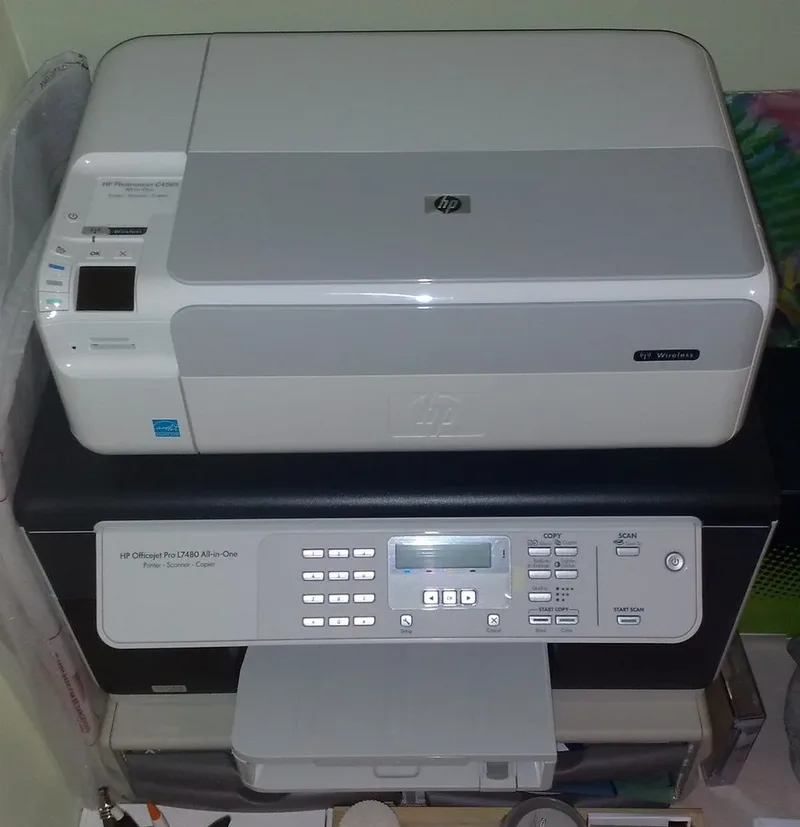
Fix Brother printer error message print unable 0b with safe reset steps, sensor checks, and clear tests to identify a jam, obstruction, or service issue.
If your Brother printer displays “Print Unable 0B,” it has detected a condition that prevents the print engine from moving or completing its startup check. The most common cause is a mechanical obstruction, such as a small scrap of paper or a foreign object near the print head or carriage.
The message is a printer-side fault, rather than a Windows or Mac print queue error. The exact cause can vary by model, so check your model’s manual before opening covers beyond the normal user-accessible areas.
| Possible cause | What you may notice | Quick test |
|---|---|---|
| Paper or debris in the path | Error appears after a jam or paper feed | Inspect accessible paths with the power off |
| Blocked or restricted carriage | Startup stops before printing | Check for objects without forcing the carriage |
| Sensor or internal fault | Error returns with clear paths | Restart once; if it persists, contact Brother support |
Turn the printer off using its power button, then unplug it from the outlet. Wait about one minute. Open only the covers intended for user access and remove the paper tray. Use a flashlight to look for torn paper, label scraps, clips, or other objects in the paper path and around the print head or carriage path. Remove loose debris gently; do not reach into hot, moving, or inaccessible areas. Reconnect power and start the printer. If it reaches Ready without the error, the obstruction was likely the cause.
With the printer unplugged, look for anything visibly blocking the carriage’s normal path. Do not push or slide the carriage unless your model’s instructions explicitly say that it can be moved by hand; some mechanisms can be damaged or displaced. Check for a label, paper edge, or packaging material near the ends of the path, where it may be difficult to see. If nothing is visible and the carriage is stuck, stop and arrange service rather than applying force.
Remove the paper stack, check the tray and accessible feed area for scraps, then fan and reload paper within the tray guides. Do not exceed the tray’s fill mark. Reinsert the tray fully and make sure the paper guides touch the stack without bending it. Restart the printer and try a copy or a built-in test page if your model offers one. Successful feeding and printing confirm that a paper-feed obstruction or misload was contributing to the fault.
If your model uses ink cartridges, open the cartridge cover as described in its manual and check that each cartridge is seated correctly. Remove and reseat cartridges only if the model’s instructions permit it. Look for packing material or debris that could interfere with the print head, but do not touch the nozzle plate, encoder strip, or electrical contacts. Close the cover securely and power on. A normal startup suggests the issue may have been a cartridge seating or access-cover condition; if 0B remains, continue to the reset step.
Switch the printer off, unplug its power cord from both the printer and outlet if removable, and disconnect any USB or network cable. Wait one minute, reconnect power directly to a wall outlet, and turn the printer on. Keep data cables disconnected until startup completes. If the display reaches Ready, reconnect the computer and print a test page. A clean startup after this reset indicates a temporary control or startup state; a recurring 0B points to a persistent printer-side problem.
If the printer reaches Ready, but jobs still fail, clear the computer’s queue. In Windows, open Settings > Bluetooth & devices > Printers & scanners, select the Brother printer, then choose Open print queue and cancel stuck jobs. On macOS, open System Settings > Printers & Scanners, select the printer, and open its queue to remove pending jobs. These steps address computer-side printing failures, not the printer’s 0B display; if 0B appears before a job is sent, focus on the printer hardware.
If the message returns after the accessible paths are clear and the power reset is complete, note the exact model name and when the error appears. Do not use a service-menu reset, dismantle the printer, lubricate parts, or clean internal sensors with liquid or solvents. Those actions can erase settings or cause damage, and the sensor or motion mechanism may need professional inspection. Contact Brother support or an authorized service provider and describe the steps you tried.
It means the printer has detected a condition that prevents normal operation, often during a mechanical startup or motion check. The code alone does not identify one confirmed failed part across every Brother model.
A full power reset can clear a temporary startup state, but it will not remove a physical obstruction or repair a failed sensor. Inspect the accessible paper and carriage paths first, then reset once.
A small torn piece may remain, or the fault may involve a carriage sensor or another internal mechanism. If the printer shows the message again with the paths clear and after a power reset, stop troubleshooting internally and request model-specific service.
Start with a careful obstruction check, then perform one safe power reset and confirm whether the printer reaches Ready. If Print Unable 0B remains, give Brother support your model number and the checks you completed so they can advise on service.
Photo: Fhuity / CC BY-SA 4.0 (Wikimedia Commons)
Fix Brother printer error message print unable 0b with safe reset steps, sensor checks, and clear tests to identify a jam, obstruction, or service issue.
Fix an aquarium co2 regulator bubble counter that stays still, empties, or bubbles unevenly. Check assembly, leaks, pressure, tubing, and safe CO2 flow.
Fix an aquarium ato float switch stuck by checking buildup, movement, wiring, and controller status, then add safe ATO limits to reduce overflow risk.
Fix reef tank dosing pump calibration with a measured three-point check, tubing inspection, priming, controller steps, and a safe verification run.
Fix apex controller not connecting to wifi by checking AquaBus communication, network compatibility, signal, and Fusion status with practical steps you can try today.
Fix tractive not charging red light issues by checking the charger, contacts, power source, and battery condition, with practical tests to identify the cause.
Fix a tractive tracker not connected to network issue by checking coverage, charging, SIM status, and LTE compatibility before contacting Tractive support.
Fix a petlibro feeder not dispensing by checking food flow, portion settings, the motor, and app connection, with safe steps to confirm the cause.
Fix a Petlibro feeder camera icon that keeps flashing: check Wi-Fi, power, app status, and setup steps to bring the camera back online today.
Petlibro feeder won t connect to wifi? Check your model’s Wi-Fi band, router settings, app permissions, and pairing mode with these practical fixes.








