CO2 Regulator Bubble Counter Not Working: Setup

Fix an aquarium co2 regulator bubble counter that stays still, empties, or bubbles unevenly. Check assembly, leaks, pressure, tubing, and safe CO2 flow.
If CarPlay is not working with iPhone 17, the phone may charge without appearing on the car’s screen, or CarPlay may connect and then drop. A charge-only or faulty USB-C cable is the most common cause of trouble with wired CarPlay; wireless connection problems more often involve pairing or the car’s wireless settings.
CarPlay depends on a working connection between the iPhone and the car’s infotainment system. Wired setups need a cable and a compatible data port; wireless setups rely on Bluetooth to start pairing and Wi-Fi to carry the connection. A changed restriction, stale pairing, or software glitch can also prevent the dashboard from launching CarPlay.
For wired CarPlay, connect the iPhone directly to the car’s USB port using a known-good cable that supports data. Avoid adapters, hubs, and extension cables while troubleshooting. Try another port if the car has more than one; check the owner’s manual to identify the port intended for smartphone data, since some ports provide charging only.
Unlock the iPhone after connecting and look for a CarPlay prompt. If a different cable or port makes the car display appear, the original cable or port was the cause. Charging alone does not confirm a data connection.
Confirm that your vehicle supports the type of CarPlay connection you are trying to use. Some vehicles support wired CarPlay only, while others support wireless CarPlay or both; check the manual or the infotainment system’s smartphone settings. If wireless CarPlay is unavailable or unreliable, test with a data-capable cable where the vehicle supports wired CarPlay.
Start CarPlay from the car’s phone projection, smartphone, or device menu if it does not open automatically. The menu label and setup steps vary by model. Seeing the iPhone listed and CarPlay open on the display confirms that the car recognizes the connection.
On the iPhone, open Settings > Apple Intelligence & Siri or Settings > Siri, depending on the current iOS version, and make sure Siri is enabled. CarPlay requires Siri to be available. Then check Settings > Screen Time > Content & Privacy Restrictions > Allowed Apps & Features and confirm CarPlay is allowed, if restrictions are in use.
Reconnect and check whether CarPlay now launches. If it does, Siri availability or a restriction was preventing access.
Go to Settings > General > CarPlay, select your vehicle, and check that Allow CarPlay While Locked is enabled if that option appears. Also unlock the phone once after connecting and accept any on-screen prompt asking to allow or trust the connection.
If CarPlay starts after unlocking or approving the prompt, the phone’s locked state or an unanswered permission request was the obstacle.
On the iPhone, open Settings > General > CarPlay, select the vehicle, and tap Forget This Car. For a wireless setup, also remove the iPhone from the car’s Bluetooth device list using the vehicle’s device settings. Restart the iPhone and the infotainment system, then follow the car maker’s pairing steps to connect again.
Test CarPlay after pairing. A fresh connection that stays active points to stale pairing information as the cause. If the car has separate driver profiles, pair the phone from the profile you normally use.
Restart the iPhone, then restart the infotainment system using the vehicle maker’s normal procedure. Check Settings > General > Software Update on the iPhone for an available iOS update. Check your vehicle maker’s instructions or dealer information for infotainment updates; update steps vary by model.
Reconnect after both systems restart. If CarPlay works afterward, a temporary software issue may have been cleared. If a failure began immediately after an update, note that timing before contacting Apple or the vehicle maker.
| Likely cause | Common symptom | Quick test |
|---|---|---|
| Charge-only or damaged cable | iPhone charges, but wired CarPlay does not start | Try a data-capable cable and another data port |
| Wireless pairing issue | CarPlay does not connect or drops wirelessly | Forget the car and pair again |
| Restriction or Siri setting | CarPlay is missing or will not launch | Check Siri and Screen Time permissions |
| Car infotainment issue | More than one phone fails to connect | Restart the system and check the vehicle maker’s update guidance |
If another iPhone also fails in the same car, focus on the vehicle’s port, infotainment settings, or software. If your iPhone fails in multiple CarPlay-equipped cars, focus on its cable, settings, or iOS.
Charging does not prove the cable or port can transfer data. Try a known-good data-capable USB-C cable and the vehicle’s designated data port. If CarPlay then appears, replace the cable or avoid the port that failed.
Open Settings > General > CarPlay, select your car, and choose Forget This Car. Remove the phone from the car’s paired-device list as well, then set up CarPlay again using the vehicle’s instructions.
An update can coincide with a temporary software issue or changed settings, but it does not by itself confirm the cause. Restart both devices, check for a newer iOS update, and pair the car again if needed. If the issue remains, note the iOS version and contact Apple or the vehicle maker.
Start with the cable and car port for wired CarPlay, then check Siri, restrictions, and pairing before pursuing software support. If none of these steps restores the connection, contact Apple and your vehicle maker with the car model, connection type, iOS version, and tests you tried.
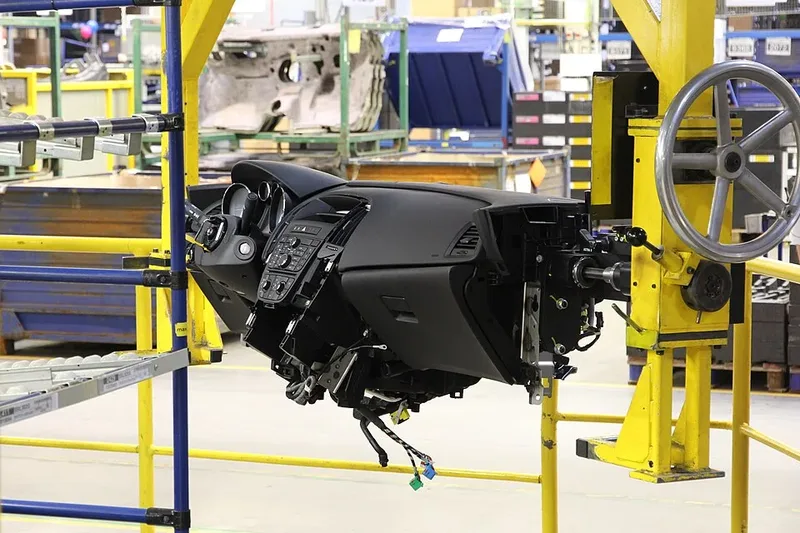
Photo: Marek Ślusarczyk (Tupungato) Photo portfolio / CC BY 3.0 (Wikimedia Commons)
Fix an aquarium co2 regulator bubble counter that stays still, empties, or bubbles unevenly. Check assembly, leaks, pressure, tubing, and safe CO2 flow.
Fix an aquarium ato float switch stuck by checking buildup, movement, wiring, and controller status, then add safe ATO limits to reduce overflow risk.
Fix reef tank dosing pump calibration with a measured three-point check, tubing inspection, priming, controller steps, and a safe verification run.
Fix apex controller not connecting to wifi by checking AquaBus communication, network compatibility, signal, and Fusion status with practical steps you can try today.
Fix tractive not charging red light issues by checking the charger, contacts, power source, and battery condition, with practical tests to identify the cause.
Fix a tractive tracker not connected to network issue by checking coverage, charging, SIM status, and LTE compatibility before contacting Tractive support.
Fix a petlibro feeder not dispensing by checking food flow, portion settings, the motor, and app connection, with safe steps to confirm the cause.
Fix a Petlibro feeder camera icon that keeps flashing: check Wi-Fi, power, app status, and setup steps to bring the camera back online today.
Petlibro feeder won t connect to wifi? Check your model’s Wi-Fi band, router settings, app permissions, and pairing mode with these practical fixes.
Fix the litter robot 4 pinch detect error by checking the waste drawer, cleaning pinch contacts, reseating the bonnet, and safely testing the cycle.








