CO2 Regulator Bubble Counter Not Working: Setup

Fix an aquarium co2 regulator bubble counter that stays still, empties, or bubbles unevenly. Check assembly, leaks, pressure, tubing, and safe CO2 flow.
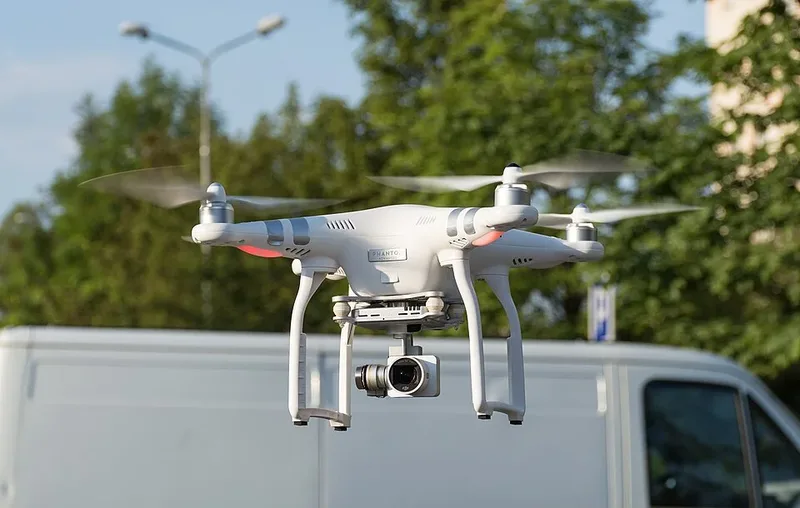
If your DJI Neo will not connect to your phone, DJI Fly may stay on its connection screen, fail to show a live view, or lose the aircraft’s Wi-Fi. The most common cause is a phone or another nearby device already occupying the Neo’s Wi-Fi connection, so start with a clean, direct pairing attempt.
For phone control, Neo connects to DJI Fly over Wi-Fi; Bluetooth and location services also need to be enabled on the phone during setup. A controller-linked aircraft, a second phone, saved network details, or blocked app permissions can interrupt discovery or the Wi-Fi handoff. The phrase dji neo not connecting to phone can describe several different failures, so note whether the aircraft is missing from the app, Wi-Fi fails to join, or the app connects without live view.
| Cause | Symptom | Quick test |
|---|---|---|
| Controller still on | Phone cannot join Neo | Power off the controller and retry |
| Another phone nearby | Connection stalls or drops | Disable its Wi-Fi and Bluetooth |
| Saved network issue | Phone fails to reconnect | Forget Neo’s network and pair again |
Place the aircraft on a stable surface and power it on. Turn on Wi-Fi, Bluetooth, and location services on the phone. Open DJI Fly, tap Connection Guide at the bottom right, choose DJI Neo, then select Connect via Mobile Device. Follow the prompts in the app instead of selecting a network first. A successful fix brings up the Neo’s live view in DJI Fly.
If you normally fly with a remote controller, power it off before attempting a phone connection. DJI advises this when the aircraft and controller are both powered on. Also turn off Wi-Fi and Bluetooth on any other phone that may be connected to Neo nearby. Retry the connection guide. If the phone connects now, the wireless link was occupied by another device.
A saved network entry can keep the phone from completing a new connection. On iPhone, open Settings > Wi-Fi, tap the information button beside the Neo network if it appears, and choose Forget This Network. On Android, open Settings > Network & internet or Connections > Wi-Fi, select the Neo network, and tap Forget. Menu labels vary by phone. Return to DJI Fly and use Connection Guide to pair again; the app should reconnect without repeatedly prompting for the old network.
Open your phone’s app settings for DJI Fly and allow the available Wi-Fi or nearby-device and Bluetooth permissions. On Android, also allow location access and enable the phone’s location service; Android versions and manufacturers label these options differently. On iPhone, check Settings > Privacy & Security for Bluetooth and Location Services, as well as DJI Fly’s app settings. Retry from the connection guide. If Neo now appears and the app opens live view, a denied permission was blocking discovery or connection.
Close DJI Fly, power off Neo, and restart the phone. Power the aircraft back on, re-enable the phone’s Wi-Fi, Bluetooth, and location services, then open DJI Fly and start the connection guide again. This clears a stuck wireless session without changing aircraft settings. A live view that remains stable after reconnecting confirms the restart resolved a temporary software or radio state.
Check DJI Fly for an available update through DJI’s official app source for your phone, then check the aircraft firmware using DJI’s supported update process. Use a controller or DJI Assistant 2 if needed and available for your setup; follow the current DJI instructions for your model and firmware. Avoid interrupting an update. Retry phone pairing after both updates finish. If the connection works after updating, an app or firmware compatibility issue was likely involved.
If the original phone still cannot connect, test with another compatible phone running a current DJI Fly version. Enable Wi-Fi, Bluetooth, and location services there, then use the same connection guide. If the second phone connects, focus on the first phone’s permissions, saved network, operating system, or compatibility. If neither phone connects after the earlier steps, note whether Neo’s Wi-Fi is visible and whether DJI Fly shows live view; those details help DJI Support narrow down the fault.
Make sure Neo is powered on and another phone is not already connected. Turn off a linked controller, then try Connection Guide > DJI Neo > Connect via Mobile Device in DJI Fly. If the network remains unavailable, restart both devices and retry.
Yes. DJI Neo supports phone connection through DJI Fly over Wi-Fi. Enable Wi-Fi, Bluetooth, and location services on the phone, then use the app’s connection guide to connect via mobile device.
Confirm that DJI Fly has the required phone permissions and that the app is current. Close and reopen DJI Fly, restart Neo, and reconnect through the app. If another phone or controller is active, power it off before trying again.
Most phone pairing failures clear when the controller and other phones are disconnected, the saved network is forgotten, and DJI Fly starts a fresh connection. If dji neo not connecting to phone persists on a second compatible phone, contact DJI Support with your phone model, app version, aircraft firmware status, and the exact step where pairing stops.
Photo: Jacek Halicki / CC BY-SA 4.0 (Wikimedia Commons)
Fix an aquarium co2 regulator bubble counter that stays still, empties, or bubbles unevenly. Check assembly, leaks, pressure, tubing, and safe CO2 flow.
Fix an aquarium ato float switch stuck by checking buildup, movement, wiring, and controller status, then add safe ATO limits to reduce overflow risk.
Fix reef tank dosing pump calibration with a measured three-point check, tubing inspection, priming, controller steps, and a safe verification run.
Fix apex controller not connecting to wifi by checking AquaBus communication, network compatibility, signal, and Fusion status with practical steps you can try today.
Fix tractive not charging red light issues by checking the charger, contacts, power source, and battery condition, with practical tests to identify the cause.
Fix a tractive tracker not connected to network issue by checking coverage, charging, SIM status, and LTE compatibility before contacting Tractive support.
Fix a petlibro feeder not dispensing by checking food flow, portion settings, the motor, and app connection, with safe steps to confirm the cause.
Fix a Petlibro feeder camera icon that keeps flashing: check Wi-Fi, power, app status, and setup steps to bring the camera back online today.
Petlibro feeder won t connect to wifi? Check your model’s Wi-Fi band, router settings, app permissions, and pairing mode with these practical fixes.
Fix the litter robot 4 pinch detect error by checking the waste drawer, cleaning pinch contacts, reseating the bonnet, and safely testing the cycle.








