CO2 Regulator Bubble Counter Not Working: Setup

Fix an aquarium co2 regulator bubble counter that stays still, empties, or bubbles unevenly. Check assembly, leaks, pressure, tubing, and safe CO2 flow.
If your Dwarf 3 captures frames but does not combine them into a sharper image, the stack may be stalled, empty, or no better than a single exposure. The most common cause is that stars are not being aligned reliably because tracking, focus, or the framing changed during capture.
Stacking depends on the telescope collecting usable frames and matching the same stars across them. A tracking interruption or a sudden change in the field can leave too few consistent frames for a useful result.
In the DwarfLab app, open the active observation or image view and check the live preview, frame count, and any stacking progress shown. Labels and screen locations can vary by app version, so check the current session screen for its capture and stack status. Wait for several new frames; if the count stays still, restart the observation only after noting whether the app reports a pause, completion, or storage problem.
Start a fresh observation with the telescope on a stable surface and do not move the tripod or optical tube while it captures. Avoid changing the target, crop, or framing mid-session. If the stack improves after restarting with a fixed target, the original sequence likely mixed frames that could not be aligned consistently.
Use the app’s focusing controls or autofocus option, if available for your mode, and inspect the stars in a single frame at high magnification. Stars should look as small and round as conditions allow; bloated or streaked stars make alignment harder. Refocus after a large temperature change or after adjusting the optics, then begin a new stack to see whether the stars combine cleanly.
Open the exposure controls for the current observation and shorten the exposure time if individual frames show elongated stars. On current versions, available controls depend on the selected mode; check your model’s menu rather than assuming a specific range. Capture a few frames at the shorter setting. Rounder stars in each frame and a cleaner combined preview confirm that trailing was contributing to the problem.
Verify that the Dwarf 3 has a clear view of the sky and is not blocked by a roof, tree, or nearby structure. Re-run the app’s pointing or alignment process if the target drifted, the setup was bumped, or the telescope was restarted. Keep the target away from obstructions during the test; steadier frames and a stack that gains detail over time indicate tracking is holding.
Thin cloud and haze can wash out stars even when the sky looks mostly clear. Compare a fresh single frame with the earlier ones, and pause or retry when stars become more visible. If the stack improves during a clear interval, conditions were reducing the number of frames the software could use.
Look in the app or device settings for available storage and confirm the session can save images. If storage is nearly full, transfer or remove files you no longer need, then start a short test observation. If the frame counter or preview remains frozen, stop the session normally, close and reopen the app, and reconnect to the telescope. A new session that counts frames and updates its stack confirms the capture pipeline is running again.
| Cause | Symptom | Quick test |
|---|---|---|
| Tracking shift | Stars drift or stretch in frames | Restart on a stable surface and compare star shapes |
| Poor focus | Stars look bloated and merge in the preview | Refocus, then inspect a new single frame |
| Cloud or haze | Frames look washed out or show few stars | Retry when stars are clearer |
| Storage or stalled session | Frame count or preview stops updating | Check free space and run a short new session |
Frames can continue to appear while alignment struggles with trailing, poor focus, clouds, or changes in framing. Check one new frame for sharp, round stars and keep the target still during a fresh test session.
There is no single wait time because it depends on the capture mode, exposure, conditions, and number of usable frames. Watch for the frame count and preview to update; if both stay unchanged, check session status and storage rather than waiting indefinitely.
They can help when stars are stretched within individual frames due to tracking or movement. Shorter exposures will not fix soft focus, blocked tracking, clouds, or a stalled session, so compare individual frames before changing settings.
For dwarf 3 not stacking, begin with a steady setup, sharp stars, and a short test observation so you can isolate the cause. If the session still will not advance, save any useful files and contact DwarfLab support with the app version, observation mode, and a sample frame.
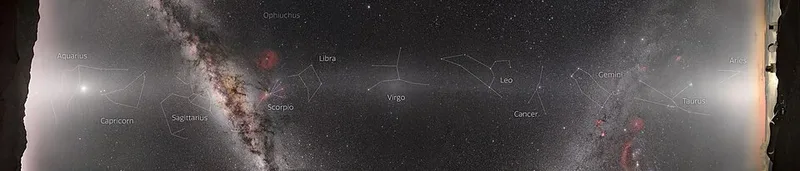
Photo: NOIRLab/NSF/AURA/ P. Horálek (Institute of Physics in Opava), T. Slovinský / CC BY 4.0 (Wikimedia Commons)
Fix an aquarium co2 regulator bubble counter that stays still, empties, or bubbles unevenly. Check assembly, leaks, pressure, tubing, and safe CO2 flow.
Fix an aquarium ato float switch stuck by checking buildup, movement, wiring, and controller status, then add safe ATO limits to reduce overflow risk.
Fix reef tank dosing pump calibration with a measured three-point check, tubing inspection, priming, controller steps, and a safe verification run.
Fix apex controller not connecting to wifi by checking AquaBus communication, network compatibility, signal, and Fusion status with practical steps you can try today.
Fix tractive not charging red light issues by checking the charger, contacts, power source, and battery condition, with practical tests to identify the cause.
Fix a tractive tracker not connected to network issue by checking coverage, charging, SIM status, and LTE compatibility before contacting Tractive support.
Fix a petlibro feeder not dispensing by checking food flow, portion settings, the motor, and app connection, with safe steps to confirm the cause.
Fix a Petlibro feeder camera icon that keeps flashing: check Wi-Fi, power, app status, and setup steps to bring the camera back online today.
Petlibro feeder won t connect to wifi? Check your model’s Wi-Fi band, router settings, app permissions, and pairing mode with these practical fixes.
Fix the litter robot 4 pinch detect error by checking the waste drawer, cleaning pinch contacts, reseating the bonnet, and safely testing the cycle.








