CO2 Regulator Bubble Counter Not Working: Setup

Fix an aquarium co2 regulator bubble counter that stays still, empties, or bubbles unevenly. Check assembly, leaks, pressure, tubing, and safe CO2 flow.
If Equalizer APO not working on discord, Discord may sound unchanged even though the EQ works in other apps. The most common cause is that Discord is using a different playback device than the one where Equalizer APO is installed, often after switching to AirPods, a headset, or Voicemeeter.
Equalizer APO processes audio through a Windows playback device. Discord can select its own output, and virtual audio tools can route that output through another device before it reaches your speakers or headphones.
In Discord, open User Settings > Voice & Video and check Output Device. For a quick test, choose the same named device that you configured in Equalizer APO, rather than leaving Discord on a different headset or virtual output.
To find the configured device, open the Equalizer APO Configurator from the Start menu and inspect the selected playback devices. If choosing the matching device makes the EQ audible, the routing mismatch was the cause. Restart Discord after changing the output if the sound does not switch immediately.
Open Equalizer APO Configurator, select the playback device Discord actually uses, and make sure its checkbox is enabled. Apply the change and restart the computer if prompted; the configurator may require a reboot for device changes to take effect.
Device names can be similar, especially for Bluetooth headsets, HDMI audio, and virtual devices. Verify the exact active endpoint in Windows Settings > System > Sound. A working EQ on speakers does not confirm it is installed on AirPods or a Voicemeeter endpoint.
Open Settings > System > Sound, select the output device, and review its audio enhancements or effects setting. Menu labels vary by Windows version and device driver. If Windows offers an option to enable audio enhancements, turn it on for a test; disabling enhancements can prevent APO effects from being applied on some setups.
You can also open More sound settings, select the playback device, choose Properties, and inspect the Advanced tab. Temporarily clear Enable audio enhancements only if it is currently selected and compare results; driver behavior varies, so keep the setting that allows the EQ to work.
Temporarily set Discord’s Output Device to your physical headphones or speakers, and set the same device as the Windows default output under Settings > System > Sound. Play a voice or test sound, then make a clearly audible temporary EQ change.
If the EQ works directly but stops when you select Voicemeeter or another virtual device, that route is bypassing the processed endpoint. This test isolates Discord from the extra audio routing; it does not mean you need to remove the virtual mixer.
If Discord outputs to Voicemeeter, check that Discord is assigned to the expected virtual input and that the signal is sent to the hardware output you listen through. Then check where Equalizer APO is installed: it must process the endpoint carrying the signal at the stage you intend to equalize.
For a simple comparison, set Discord directly to the physical playback device again. If EQ returns, restore Voicemeeter and review its input and output routing one connection at a time. Avoid changing ASIO buffer or driver settings unless you have confirmed the signal path depends on them.
When using AirPods on Windows, check Settings > System > Sound and note the selected output. Windows may expose separate playback choices or change the active route when the headset microphone is in use. In Discord, try selecting the stereo or headphones playback endpoint when available, then confirm that same endpoint in the Equalizer APO Configurator.
If the sound changes when Discord starts using the headset microphone, the active Bluetooth route may have changed. Test with a separate microphone or the PC’s built-in microphone, then see whether Discord returns to the playback endpoint where EQ is enabled.
Close OBS and other audio applications briefly, then play Discord audio with only the normal Windows playback route active. Some ASIO paths or application-specific monitoring routes do not pass through the Windows endpoint configured for Equalizer APO. If EQ returns after closing an app, check that app’s monitoring and output device selections.
Use the following quick checks to narrow down the route:
| Possible cause | Typical symptom | Quick test |
|---|---|---|
| Discord output mismatch | EQ works in other apps | Select the configured endpoint in Discord |
| Voicemeeter routing | EQ works on direct output only | Temporarily bypass the virtual device |
| Bluetooth route switch | EQ changes when mic activates | Try another microphone and recheck output |
| ASIO or app monitoring | Only one app bypasses EQ | Close it and test standard Windows playback |
Discord can use a different playback endpoint from the one Equalizer APO processes. Compare Discord’s Output Device with the selected device in Equalizer APO Configurator, then restart Discord after matching them.
It can work when Windows sends audio through the AirPods playback endpoint configured for Equalizer APO. Check the active endpoint after connecting the AirPods and again after Discord starts using a microphone, since the route may change.
Yes, if the audio route avoids the Windows playback endpoint where Equalizer APO is installed. Compare Discord with a direct Windows output, then inspect the virtual input, hardware output, and monitoring route you use.
Most cases of Equalizer APO not applying to Discord come down to a device mismatch or a route that bypasses the configured endpoint. If none of these checks restores the EQ, note Discord’s selected output, the active Windows playback device, and your Voicemeeter or ASIO route, then troubleshoot that signal path one connection at a time.
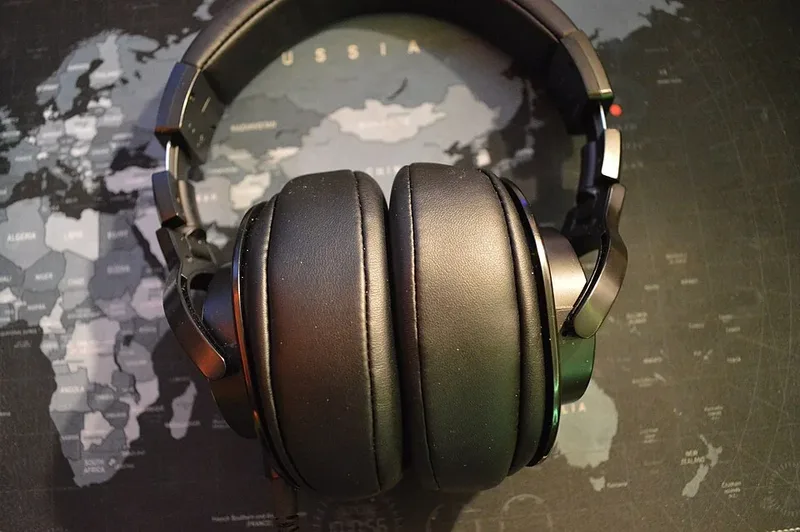
Photo: P0lykey / CC0 (Wikimedia Commons)
Fix an aquarium co2 regulator bubble counter that stays still, empties, or bubbles unevenly. Check assembly, leaks, pressure, tubing, and safe CO2 flow.
Fix an aquarium ato float switch stuck by checking buildup, movement, wiring, and controller status, then add safe ATO limits to reduce overflow risk.
Fix reef tank dosing pump calibration with a measured three-point check, tubing inspection, priming, controller steps, and a safe verification run.
Fix apex controller not connecting to wifi by checking AquaBus communication, network compatibility, signal, and Fusion status with practical steps you can try today.
Fix tractive not charging red light issues by checking the charger, contacts, power source, and battery condition, with practical tests to identify the cause.
Fix a tractive tracker not connected to network issue by checking coverage, charging, SIM status, and LTE compatibility before contacting Tractive support.
Fix a petlibro feeder not dispensing by checking food flow, portion settings, the motor, and app connection, with safe steps to confirm the cause.
Fix a Petlibro feeder camera icon that keeps flashing: check Wi-Fi, power, app status, and setup steps to bring the camera back online today.
Petlibro feeder won t connect to wifi? Check your model’s Wi-Fi band, router settings, app permissions, and pairing mode with these practical fixes.
Fix the litter robot 4 pinch detect error by checking the waste drawer, cleaning pinch contacts, reseating the bonnet, and safely testing the cycle.








