CO2 Regulator Bubble Counter Not Working: Setup

Fix an aquarium co2 regulator bubble counter that stays still, empties, or bubbles unevenly. Check assembly, leaks, pressure, tubing, and safe CO2 flow.
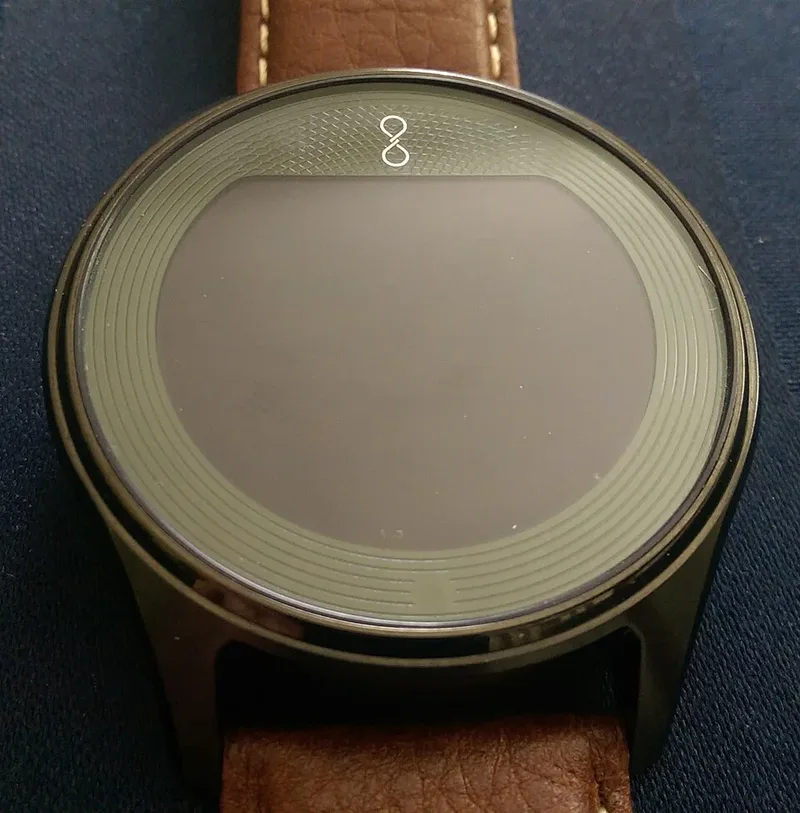
If your Garmin watch shows “Cannot Unlock Maps,” it has found a map file it cannot validate. The most common cause is an incomplete or damaged map update, often after an update did not finish writing to the watch.
The message concerns the map installed on the Garmin device, not the map display on a Fitbit, Pixel Watch, Polar, or Whoop. MapInstall transfers compatible maps from a computer to certain Garmin devices; if a map is locked to another device or copied without valid unlock information, the watch may reject it. For supported watch map updates, start with Garmin Express, which can reinstall the map associated with your device.
| Possible cause | What you may notice | Quick test |
|---|---|---|
| Interrupted map update | Error began after an update | Check Garmin Express for a map reinstall option |
| Map from another device | Error began after copying or using a card | Remove the card and restart, if your model uses one |
| Old computer map installation | MapInstall cannot find an unlocked map | Check whether the map is installed on the computer’s main drive |
Power the watch off, wait a few seconds, and turn it back on. If the error returns, write down the map filename shown, if any, and whether the problem started after an update, file transfer, or memory-card change. That detail helps distinguish a failed update from an unsupported or incorrectly unlocked map. Avoid deleting map files manually at this stage; names and roles vary by model, and removing the wrong file can make the map problem harder to repair.
If your Garmin device uses a microSD card, power it off, remove the card, and restart the device. If the message disappears, the card likely contains a map that is damaged or unlocked for a different Garmin. Do not format the card if you need its contents. Reinstall a compatible map for this device through the map provider’s supported method, or leave the card out while you troubleshoot the watch’s own map.
On a Windows PC or Mac, open Garmin Express and install any available application update. Connect the watch using its USB cable, select it in Express, and check for map or software updates. If Express offers to reinstall the affected map, choose that option and let the transfer finish before disconnecting. A completed installation with no map error after restart confirms that the replacement map was accepted.
If the error appeared directly after a map update, use Garmin Express to reinstall that map rather than copying a map image from another watch or computer. Follow the prompts for your model; available map choices and menu labels differ. Keep the watch connected until Express reports completion. Restart it and check whether the map loads without the warning. If Express does not offer a reinstall, do not guess at a download or map filename; check the device’s support page or contact Garmin Support.
A computer may still be writing cached data after the update window says it is done. On Windows, open File Explorer, right-click the Garmin device under “This PC,” and choose “Eject” when that option is available. On Mac, eject the device in Finder. Then disconnect the cable and restart the watch. If the warning followed a transfer, a clean reinstall followed by safe ejection can resolve a file that was not fully written.
MapInstall is for transferring compatible computer-installed maps to supported Garmin devices or cards; it is not the standard repair tool for an installed watch map. If the issue is actually “No Unlocked Maps Were Found” inside MapInstall, first check that the map is installed and unlocked for the target device. On current Windows versions, Garmin’s documented map location is under your user profile at AppData\Roaming\Garmin\Maps; on Mac, check /Library/Application Support/Garmin/Maps. If the map lives on another drive, use Garmin’s supported location guidance rather than assuming that copying it will unlock it.
If Express completes a reinstall but the watch still reports the same map as locked, provide Garmin Support with the model, map filename, and update history. Ask them to confirm the correct map and recovery steps for that specific device. A factory reset or manual file deletion may remove settings or data, so use either only if Garmin’s instructions for your model call for it and your activity data has synced.
Connect the watch to an updated Garmin Express installation and check for a map reinstall. Let the transfer finish, safely eject the device where available, then restart it. If the error persists, contact Garmin with the displayed map filename.
MapInstall transfers compatible maps that are already available and unlocked for the target device; it does not make a map licensed for another device valid. For supported preloaded watch maps, Garmin Express is the appropriate place to check for updates or a reinstall.
The map may not have transferred completely, or its data or unlock information may not validate on the watch. Reinstall it through Garmin Express and safely eject the device before unplugging. The exact recovery options depend on your Garmin model.
The garmin error message cannot unlock maps usually clears when the affected, compatible map is reinstalled correctly through Garmin Express. If it remains after a complete reinstall, send Garmin Support the watch model and map filename so they can identify the right model-specific recovery step.
Photo: United States Federal Communications Commission / Public domain (Wikimedia Commons)
Fix an aquarium co2 regulator bubble counter that stays still, empties, or bubbles unevenly. Check assembly, leaks, pressure, tubing, and safe CO2 flow.
Fix an aquarium ato float switch stuck by checking buildup, movement, wiring, and controller status, then add safe ATO limits to reduce overflow risk.
Fix reef tank dosing pump calibration with a measured three-point check, tubing inspection, priming, controller steps, and a safe verification run.
Fix apex controller not connecting to wifi by checking AquaBus communication, network compatibility, signal, and Fusion status with practical steps you can try today.
Fix tractive not charging red light issues by checking the charger, contacts, power source, and battery condition, with practical tests to identify the cause.
Fix a tractive tracker not connected to network issue by checking coverage, charging, SIM status, and LTE compatibility before contacting Tractive support.
Fix a petlibro feeder not dispensing by checking food flow, portion settings, the motor, and app connection, with safe steps to confirm the cause.
Fix a Petlibro feeder camera icon that keeps flashing: check Wi-Fi, power, app status, and setup steps to bring the camera back online today.
Petlibro feeder won t connect to wifi? Check your model’s Wi-Fi band, router settings, app permissions, and pairing mode with these practical fixes.
Fix the litter robot 4 pinch detect error by checking the waste drawer, cleaning pinch contacts, reseating the bonnet, and safely testing the cycle.








