CO2 Regulator Bubble Counter Not Working: Setup

Fix an aquarium co2 regulator bubble counter that stays still, empties, or bubbles unevenly. Check assembly, leaks, pressure, tubing, and safe CO2 flow.
If Klipper reports “Error Updating System Packages,” the update process could not complete the operating system’s package upgrade. The most common cause is a stale or unreachable APT package repository, often due to a temporary network or DNS problem.
Klipper itself usually is not the package manager: on common Raspberry Pi and Debian-based printer hosts, an update tool calls APT to refresh package lists and upgrade installed packages. A failure at any step can stop the upgrade, and a partially completed package operation may need repair before retrying.
Use the table to narrow down the likely cause before changing packages.
| Cause | Symptom | Quick test |
|---|---|---|
| Network or DNS | Repository host cannot be reached | Open a known website from another device on the same network; check the printer host’s connection. |
| APT lock or interrupted job | APT says another process is using it | Check whether an update is still running in the host’s update interface. |
| Low storage | Download or write operation fails | Run df -h over SSH and inspect the root filesystem’s available space. |
| Broken package state | Dependencies or configuration fail | Run sudo dpkg --audit to identify incomplete package work. |
Check that the printer host—not just your desktop—has network access. In the host’s web interface, such as a Mainsail or Fluidd dashboard, confirm it is reachable and connected; if you use SSH, connect to the host and try ping -c 3 deb.debian.org. If the host cannot resolve the name or receive replies, restore Wi-Fi or Ethernet and retry the update. A successful response confirms basic connectivity, though a repository mirror can still be unavailable.
In the printer host’s update page, check whether a system update is still in progress. If you have SSH access, ps -ef | grep -E 'apt|dpkg' can show package processes. Do not delete lock files or kill an active package process; wait for it to finish. When no package operation is running, retry through the same update page once.
Over SSH, run df -h and look at the filesystem mounted at /. If it is full or nearly full, remove only files you recognize, such as old logs or downloads, using the host’s supported tools; do not delete system directories. Rerun df -h to confirm space is available, then retry. If the storage keeps filling or reports errors, back up printer configuration before investigating the SD card or drive.
On a Debian-based host with SSH access, run sudo apt update. Read the output for failed repository fetches, name-resolution errors, or expired release metadata. If it completes without repository errors, the package lists refreshed successfully; retry the update from your host’s interface or run sudo apt upgrade if you normally manage packages in the terminal. Do not add repositories or switch distribution releases to silence an error.
If the update stopped midway and no other package process is running, run sudo dpkg --configure -a, then sudo apt --fix-broken install. Review APT’s proposed actions before accepting them; stop if it proposes removing important printer or system packages. A successful finish without dependency errors means the package state is repaired. Then run sudo apt update and retry the upgrade.
If connectivity is stable and package repair reports no errors, reboot the host from its dashboard or use sudo reboot over SSH. Wait for the printer interface to return, then run the system package update once. A completed update with no new error confirms recovery. Avoid repeatedly restarting an update that is visibly still running.
If the error returns, back up your Klipper configuration and note the host operating system before making further changes. Copy the exact failed command or repository message from the update log; “Error Updating System Packages” alone does not identify the failing package. Share that output with the maintainer of your printer host image or support channel. This is the safest next step when the repository is unavailable or the package manager proposes unexpected removals.
Start by checking the host’s network and storage, then run sudo apt update on Debian-based hosts. If package configuration was interrupted, use sudo dpkg --configure -a followed by sudo apt --fix-broken install, reviewing proposed changes before proceeding.
No, not while APT or dpkg may be running; deleting a lock file does not stop the package operation and can risk package database problems. Check for an active update, wait for it to finish, and investigate a stale lock only with guidance specific to your host image.
A routine package upgrade normally does not target printer configuration, but host images and upgrade paths vary. Back up your configuration before retrying a failed or unusual upgrade, especially if APT proposes removing packages.
Most cases of klipper error updating system packages come down to repository access, low storage, or an interrupted package operation. If these steps do not resolve it, keep the configuration backup and give your host’s support team the full update log and operating system details.
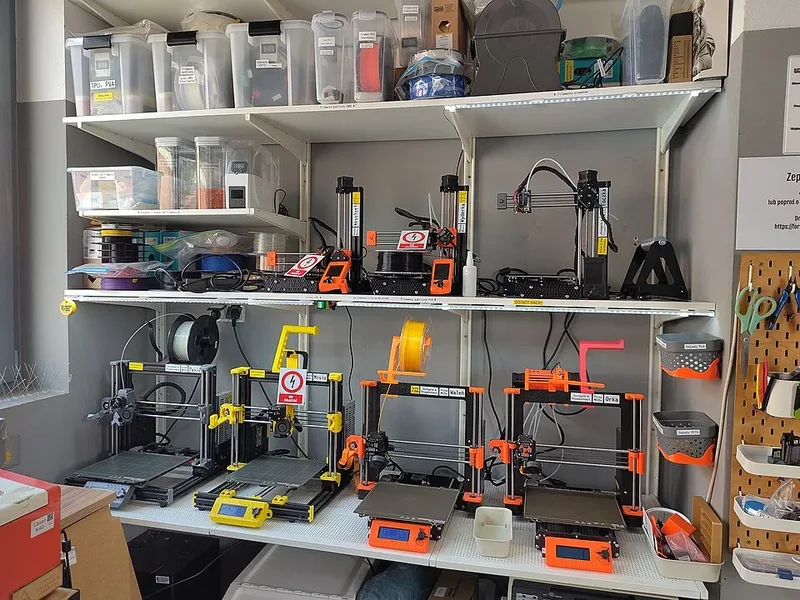
Photo: Majabojarska / CC BY 4.0 (Wikimedia Commons)
Fix an aquarium co2 regulator bubble counter that stays still, empties, or bubbles unevenly. Check assembly, leaks, pressure, tubing, and safe CO2 flow.
Fix an aquarium ato float switch stuck by checking buildup, movement, wiring, and controller status, then add safe ATO limits to reduce overflow risk.
Fix reef tank dosing pump calibration with a measured three-point check, tubing inspection, priming, controller steps, and a safe verification run.
Fix apex controller not connecting to wifi by checking AquaBus communication, network compatibility, signal, and Fusion status with practical steps you can try today.
Fix tractive not charging red light issues by checking the charger, contacts, power source, and battery condition, with practical tests to identify the cause.
Fix a tractive tracker not connected to network issue by checking coverage, charging, SIM status, and LTE compatibility before contacting Tractive support.
Fix a petlibro feeder not dispensing by checking food flow, portion settings, the motor, and app connection, with safe steps to confirm the cause.
Fix a Petlibro feeder camera icon that keeps flashing: check Wi-Fi, power, app status, and setup steps to bring the camera back online today.
Petlibro feeder won t connect to wifi? Check your model’s Wi-Fi band, router settings, app permissions, and pairing mode with these practical fixes.
Fix the litter robot 4 pinch detect error by checking the waste drawer, cleaning pinch contacts, reseating the bonnet, and safely testing the cycle.








