CO2 Regulator Bubble Counter Not Working: Setup

Fix an aquarium co2 regulator bubble counter that stays still, empties, or bubbles unevenly. Check assembly, leaks, pressure, tubing, and safe CO2 flow.
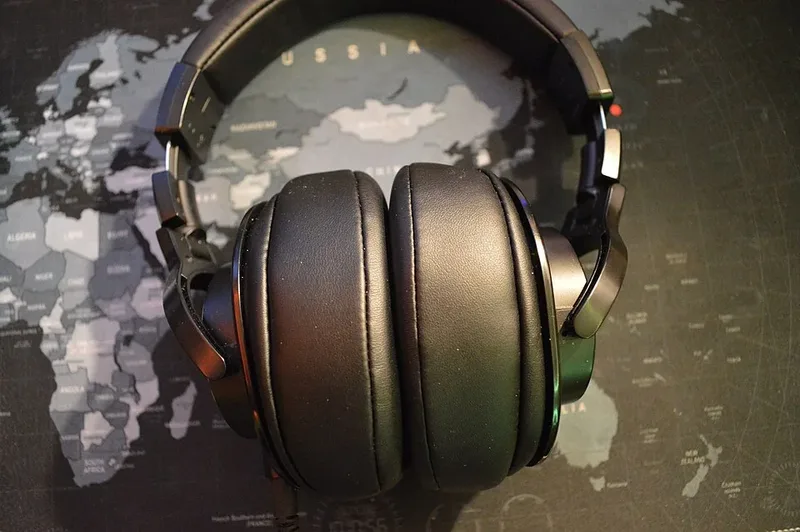
If LDAC is not working on Windows 11, your headphones may connect and play audio while using AAC or SBC instead. The most common cause is that Windows 11 does not provide a built-in LDAC Bluetooth audio encoder, so selecting LDAC on an Android phone does not make a Windows connection use it.
Bluetooth codecs must be supported by both the transmitting device and the headphones. Windows’ standard Bluetooth audio path generally negotiates codecs such as SBC, with other options depending on hardware and drivers; it does not offer a native LDAC setting on current versions. Audio tools such as Voicemeeter, ASIO, OBS, or Equalizer APO process audio, but do not add an LDAC Bluetooth encoder.
| Cause | Symptom | Quick test |
|---|---|---|
| Windows lacks an LDAC transmitter | Headphones connect, but LDAC is absent | Check Bluetooth codec options on the PC; no LDAC option means it is not being offered |
| Headphones are in call mode | Audio becomes narrow or low quality | Choose the Stereo output instead of the Hands-Free output |
| Phone-to-PC routing is mistaken for LDAC | Android shows LDAC, but PC audio is unchanged | Play a local PC sound with the phone disconnected |
| Third-party driver or adapter limitation | Codec choices differ between devices | Check the adapter and driver documentation for explicit LDAC transmit support |
Open Settings > System > Sound and select your headphones under Output. If Windows lists separate Stereo and Hands-Free entries, select Stereo for music and other playback. A Hands-Free profile is intended for calls and may sound noticeably worse; switching to Stereo confirms whether the issue is profile quality rather than LDAC.
Open Settings > Bluetooth & devices > Devices and review the available headphone and adapter options. Windows does not expose a universal built-in LDAC selector. If your PC’s Bluetooth software has a codec or quality setting, check its documentation and confirm that it explicitly supports transmitting LDAC; the codec name on the headphone packaging alone is not enough.
Go to Settings > Bluetooth & devices > Devices, remove the headphones, put them into pairing mode, and add them again. Then install Bluetooth and audio drivers offered by your PC or adapter manufacturer, and restart Windows. This can correct connection or profile problems, but a driver update will not add LDAC unless the hardware and driver explicitly support it.
If you need LDAC from PC audio, use a USB Bluetooth transmitter or other device whose manufacturer explicitly documents LDAC transmission from a Windows computer. Follow its setup instructions, select it in Settings > System > Sound, and check its companion software for the active codec. A successful fix is an explicit LDAC status while audio plays; a generic “Bluetooth connected” message does not confirm the codec.
As a workaround, send PC audio to an Android phone over a local audio-streaming connection, then connect the phone to the headphones over Bluetooth. Pair the headphones with the phone, enable LDAC in the phone’s Bluetooth device settings if available, and verify the codec there while audio is playing. This adds routing delay and depends on the phone and app; it does not make Windows itself an LDAC transmitter.
Temporarily bypass Voicemeeter, ASIO routing, OBS monitoring, and Equalizer APO while testing. Choose the headphones directly as the Windows output and play a simple local audio file. If this fixes missing or silent audio, restore one tool at a time and check its input and output devices; if sound works but the codec is still not LDAC, the Bluetooth transmitter remains the issue.
Disconnect apps that may be using the headphone microphone, then play audio again through the Stereo output. For a test, select a different microphone in Settings > System > Sound and close calling apps. If full-quality playback returns, the headset was likely using its call profile; this improves sound but does not enable LDAC.
Windows 11 does not generally include a built-in LDAC transmitter or a universal setting to enable it. Use a transmitter that specifically supports LDAC on Windows, or route PC audio through a compatible phone.
The phone and PC are separate Bluetooth transmitters with different codec support. An LDAC option on Android controls the phone’s connection to the headphones, not the PC’s connection.
No. These tools can mix, route, or process audio, but they do not provide the Bluetooth LDAC encoder. They may help with an audio-routing problem, while codec support depends on the Bluetooth transmitter and its software.
For ldac not working windows 11, first confirm the Stereo output and then check whether your PC transmitter explicitly supports LDAC. If it does not, use a documented LDAC-capable transmitter or a phone-based audio route; if neither works, contact the PC, adapter, or headphone manufacturer with your model details.
Photo: P0lykey / CC0 (Wikimedia Commons)
Fix an aquarium co2 regulator bubble counter that stays still, empties, or bubbles unevenly. Check assembly, leaks, pressure, tubing, and safe CO2 flow.
Fix an aquarium ato float switch stuck by checking buildup, movement, wiring, and controller status, then add safe ATO limits to reduce overflow risk.
Fix reef tank dosing pump calibration with a measured three-point check, tubing inspection, priming, controller steps, and a safe verification run.
Fix apex controller not connecting to wifi by checking AquaBus communication, network compatibility, signal, and Fusion status with practical steps you can try today.
Fix tractive not charging red light issues by checking the charger, contacts, power source, and battery condition, with practical tests to identify the cause.
Fix a tractive tracker not connected to network issue by checking coverage, charging, SIM status, and LTE compatibility before contacting Tractive support.
Fix a petlibro feeder not dispensing by checking food flow, portion settings, the motor, and app connection, with safe steps to confirm the cause.
Fix a Petlibro feeder camera icon that keeps flashing: check Wi-Fi, power, app status, and setup steps to bring the camera back online today.
Petlibro feeder won t connect to wifi? Check your model’s Wi-Fi band, router settings, app permissions, and pairing mode with these practical fixes.
Fix the litter robot 4 pinch detect error by checking the waste drawer, cleaning pinch contacts, reseating the bonnet, and safely testing the cycle.








