CO2 Regulator Bubble Counter Not Working: Setup

Fix an aquarium co2 regulator bubble counter that stays still, empties, or bubbles unevenly. Check assembly, leaks, pressure, tubing, and safe CO2 flow.
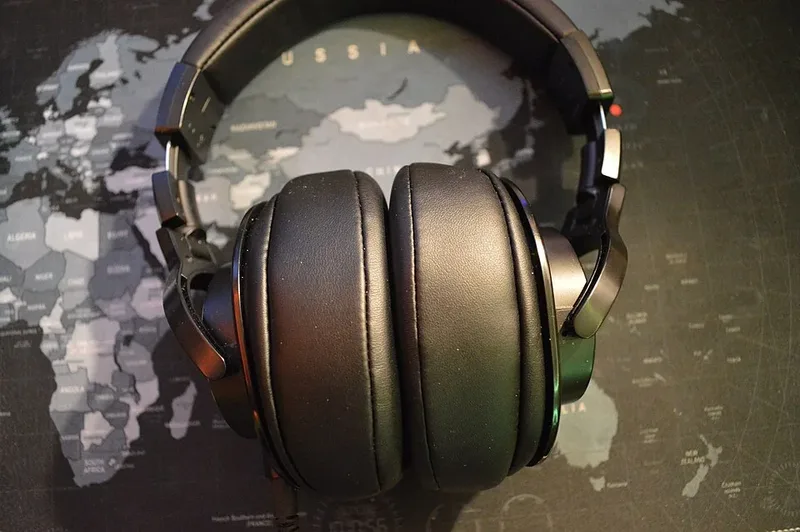
If an OBS mixer fader or meter seems stuck at 1, the most common cause is a mismatch between OBS audio monitoring and the Windows playback device or application routing. The OBS mixer controls a source inside OBS; it does not set the Windows Volume Mixer level, and monitoring can make audio seem unchanged even when the fader moves.
OBS separates source volume, desktop playback, and monitoring. The mixer meter shows signal reaching a source, while the fader changes that source’s level in the OBS output mix; neither necessarily changes the volume you hear in your headphones.
In OBS, look at the source’s fader and its meter separately. A fader at 1.0 (unity) is a normal maximum setting, not a fault; a moving meter means OBS is receiving audio. If you mean the Windows Volume Mixer slider, open Settings > System > Sound > Volume mixer and check the app’s volume and output device there.
In OBS, find the source under Audio Mixer, move its fader, and check whether the displayed level changes. For a more precise adjustment, select the source’s three-dot menu or right-click it and open Filters; add a Gain filter and adjust it gradually. If the fader is at 1.0, lowering it should reduce that source in the stream or recording mix. If it jumps back, remove and recreate the source or reset its mixer settings.
Open Edit > Advanced Audio Properties. For the affected source, inspect Audio Monitoring. Set it to Monitor Off to test whether the sound you hear is coming from OBS monitoring; if monitoring is needed, choose Monitor and Output and select the intended device under Settings > Audio > Advanced > Monitoring Device. A single, predictable audio path confirms that monitoring was the source of the confusion.
Open Settings > System > Sound > Volume mixer while OBS is running. Check the OBS app volume and its output device, then confirm the device under Settings > System > Sound > Output. Re-select the intended headphones or speakers, including AirPods if connected. Play audio again; the correct device should show activity and produce the expected level.
If you use Voicemeeter or an ASIO interface, temporarily set OBS under Settings > Audio to the actual input and output devices you want to test. Avoid selecting both a virtual device and the same physical source as separate inputs, which can duplicate audio. If the level behaves normally on the direct device, restore the virtual routing one connection at a time until the unexpected behavior returns.
For Windows playback devices, open Settings > System > Sound, select the device, and review its available audio enhancements or effects. The exact controls vary by device and Windows version. Temporarily disable enhancements or Equalizer APO processing for that device, then compare playback. If the level changes, re-enable processing in stages and inspect its preamp or gain settings.
Disconnect and reconnect the headphones or interface, then reselect it in Windows and OBS. For Bluetooth AirPods, confirm they are connected as the intended playback device and that OBS is not monitoring to another output. Restart OBS after changing device routing. If sound now follows the expected control, the stale device selection was likely responsible.
| Possible cause | Typical symptom | Quick test |
|---|---|---|
| OBS fader at unity | Fader reads 1.0 while the meter moves | Lower the fader and listen to the OBS output |
| Monitoring route mismatch | OBS output sounds different from monitored audio | Set the source to Monitor Off |
| Windows app routing | Changing OBS has no effect on app playback | Check the app entry in Volume mixer |
| Virtual device or processing | Unexpected gain, duplicate sound, or no sound | Test with a direct device and processing disabled |
A value of 1.0 usually means the source fader is at unity gain, not that the mixer is frozen. Move the fader and watch the meter, then listen to the OBS output to confirm whether the source level changes.
You may be hearing a monitored signal, another app’s audio, or playback routed through a different Windows device. Set the source to Monitor Off temporarily and check its Windows Volume mixer output assignment.
Choose the AirPods as the Windows output and, if monitoring, as OBS’s monitoring device. Reconnect them and reselect the device in both places if the audio path appears stale; available Bluetooth controls can vary by model and Windows version.
In most cases, identifying whether the control belongs to OBS or Windows and checking the monitoring route resolves the confusion. If none of these steps works, test with a new OBS scene and a direct audio device, then note your OBS source, Windows output, and virtual audio routing when seeking support.
Photo: P0lykey / CC0 (Wikimedia Commons)
Fix an aquarium co2 regulator bubble counter that stays still, empties, or bubbles unevenly. Check assembly, leaks, pressure, tubing, and safe CO2 flow.
Fix an aquarium ato float switch stuck by checking buildup, movement, wiring, and controller status, then add safe ATO limits to reduce overflow risk.
Fix reef tank dosing pump calibration with a measured three-point check, tubing inspection, priming, controller steps, and a safe verification run.
Fix apex controller not connecting to wifi by checking AquaBus communication, network compatibility, signal, and Fusion status with practical steps you can try today.
Fix tractive not charging red light issues by checking the charger, contacts, power source, and battery condition, with practical tests to identify the cause.
Fix a tractive tracker not connected to network issue by checking coverage, charging, SIM status, and LTE compatibility before contacting Tractive support.
Fix a petlibro feeder not dispensing by checking food flow, portion settings, the motor, and app connection, with safe steps to confirm the cause.
Fix a Petlibro feeder camera icon that keeps flashing: check Wi-Fi, power, app status, and setup steps to bring the camera back online today.
Petlibro feeder won t connect to wifi? Check your model’s Wi-Fi band, router settings, app permissions, and pairing mode with these practical fixes.
Fix the litter robot 4 pinch detect error by checking the waste drawer, cleaning pinch contacts, reseating the bonnet, and safely testing the cycle.








