CO2 Regulator Bubble Counter Not Working: Setup

Fix an aquarium co2 regulator bubble counter that stays still, empties, or bubbles unevenly. Check assembly, leaks, pressure, tubing, and safe CO2 flow.
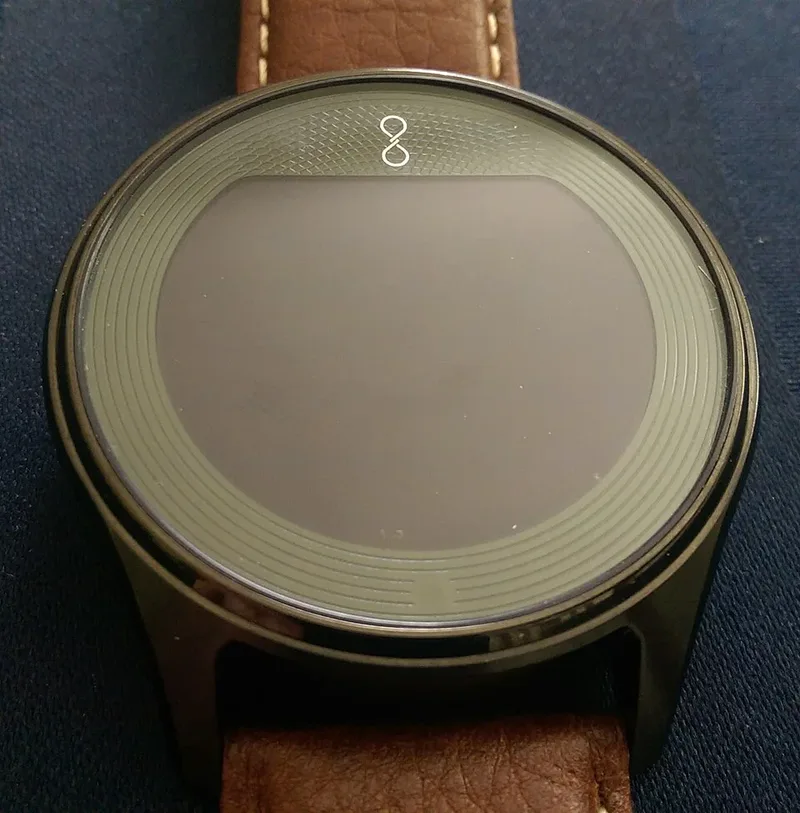
If your Pixel Watch 2 keeps locking on wrist, it is usually failing to detect steady skin contact, so it behaves as though you took it off. A loose fit, a dirty rear sensor, or a band that lets the watch shift can interrupt that contact.
The watch uses its rear sensors to tell when it is being worn. When contact is lost, the screen lock can engage to protect your data. A PIN prompt by itself does not prove the sensor is faulty: first check whether the watch is moving or whether the sensor area is obstructed.
| Possible cause | Typical symptom | Quick test |
|---|---|---|
| Loose fit | Locking during movement | Wear it snugly and observe during a walk |
| Dirty sensor | Unreliable detection after exercise | Clean and dry the watch back |
| Tattoo or skin contact issue | Repeated locking at one wrist position | Try the other wrist temporarily |
| Software or lock behavior | Locking continues with stable contact | Restart, then review Screen lock settings |
Move the watch slightly higher on your wrist, away from the wrist bone, and tighten the band until the watch stays in place without pinching. The sensor should rest flat against your skin. Wear it this way for a short walk or normal activity; if it stops locking when the watch no longer shifts, fit was likely the cause. Avoid wearing it so tightly that it causes discomfort or leaves persistent marks.
Take the watch off and wipe its back and sensor area with a soft, lint-free cloth. If needed, slightly dampen the cloth with clean water, then dry the watch before putting it back on. Do not use abrasive cleaners or scrape the sensor. If locking stops after cleaning, residue or moisture was likely interrupting contact.
Wear the watch on the opposite wrist for a while, with the same snug fit. This is a useful check if the sensor sits over a tattoo, irritated skin, or an area where the watch does not lie flat. If it stays unlocked on the other wrist, placement or skin contact is more likely than a general software problem.
Press and hold the crown, then follow the on-screen power controls to restart. If the screen is unresponsive, use the watch’s restart procedure in Google’s current Pixel Watch support guidance; button behavior can vary by software version. After it starts, wear it snugly and see whether the locking returns. A restart can clear a temporary software or sensor-state problem.
On the watch, open Settings and look under Security for Screen lock; menu wording may vary on current versions. Confirm whether a PIN or pattern is enabled and whether the watch is asking for it after detecting removal. Do not remove the lock if you rely on it to protect payment or personal data. If the prompt appears while the watch is firmly in place, continue with the contact checks and support steps.
Open Settings > System > System updates on the watch and install any available update, keeping the watch charged and connected as directed on screen. Check the Play Store on the watch for pending app updates as well. Wear it again after updates finish; improved behavior suggests a software issue was involved.
Remove any third-party case or accessory that presses against the back or prevents the watch from sitting flat. If possible, test with the original band or another compatible band that holds the watch securely. If the locking stops with the accessory removed, that item was likely affecting fit or sensor contact.
The watch may be briefly losing contact with your skin and treating that as removal. Adjust the fit, clean and dry the sensor, and test the other wrist to narrow down the cause.
Tattoos can affect optical sensing for some wearers, depending on placement and skin contact. Try the watch on the other wrist or position it where the sensor rests on untattooed skin.
Start with a snug, comfortable fit and a clean, dry sensor. If your pixel watch 2 keeps locking on wrist after a restart and software update, note when it happens and contact Google support for device-specific troubleshooting.
Most repeated on-wrist locking improves when the rear sensor maintains consistent contact, so check fit and cleanliness before changing security settings. If it continues on both wrists with a clean sensor and updated software, contact Google support and describe when the lock appears.
Photo: United States Federal Communications Commission / Public domain (Wikimedia Commons)
Fix an aquarium co2 regulator bubble counter that stays still, empties, or bubbles unevenly. Check assembly, leaks, pressure, tubing, and safe CO2 flow.
Fix an aquarium ato float switch stuck by checking buildup, movement, wiring, and controller status, then add safe ATO limits to reduce overflow risk.
Fix reef tank dosing pump calibration with a measured three-point check, tubing inspection, priming, controller steps, and a safe verification run.
Fix apex controller not connecting to wifi by checking AquaBus communication, network compatibility, signal, and Fusion status with practical steps you can try today.
Fix tractive not charging red light issues by checking the charger, contacts, power source, and battery condition, with practical tests to identify the cause.
Fix a tractive tracker not connected to network issue by checking coverage, charging, SIM status, and LTE compatibility before contacting Tractive support.
Fix a petlibro feeder not dispensing by checking food flow, portion settings, the motor, and app connection, with safe steps to confirm the cause.
Fix a Petlibro feeder camera icon that keeps flashing: check Wi-Fi, power, app status, and setup steps to bring the camera back online today.
Petlibro feeder won t connect to wifi? Check your model’s Wi-Fi band, router settings, app permissions, and pairing mode with these practical fixes.
Fix the litter robot 4 pinch detect error by checking the waste drawer, cleaning pinch contacts, reseating the bonnet, and safely testing the cycle.








