CO2 Regulator Bubble Counter Not Working: Setup

Fix an aquarium co2 regulator bubble counter that stays still, empties, or bubbles unevenly. Check assembly, leaks, pressure, tubing, and safe CO2 flow.
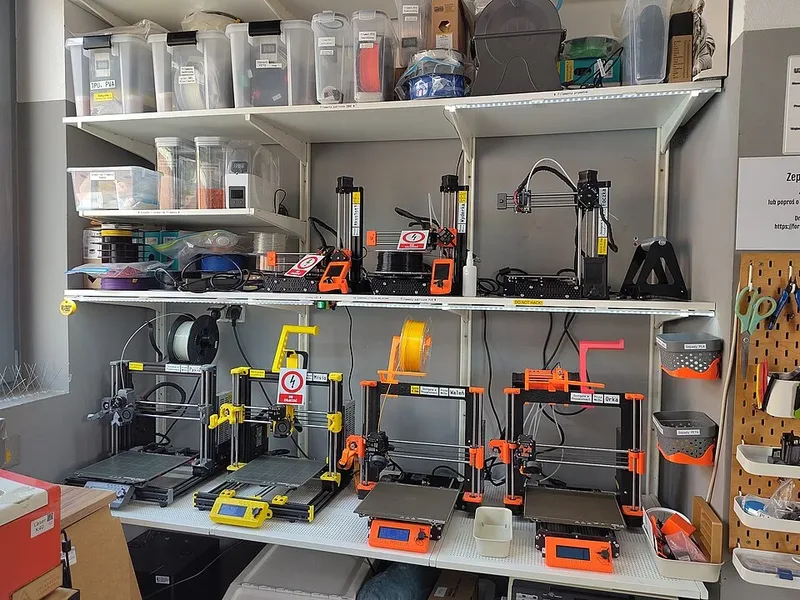
If your Prusa MK4 does not show files from a USB drive, the most common cause is an unsupported file system: the drive needs to be formatted as FAT32. When you see “prusa mk4 not reading usb,” first check the format, then test the drive and port before changing firmware.
The MK4 must recognize the drive before it can list a print file or use a firmware file. Recognition can fail because of the drive’s format, a damaged or incompatible drive, a poor connection, or a file the printer cannot use.
| Possible cause | What you see | Quick test |
|---|---|---|
| Unsupported format | Drive is not listed, or the printer reports an unknown file system | Check that the drive is FAT32-formatted |
| Drive or connection fault | Drive works intermittently or is not detected | Try a different known-good drive |
| Wrong or incomplete file | Drive appears, but the print is missing or fails to load | Copy a fresh MK4 G-code file to the drive |
| Firmware file issue | Update process does not find firmware | Confirm the correct firmware files are on the drive |
Back up anything you need first: formatting erases the drive. On Windows, open File Explorer, right-click the USB drive, choose Format, and select FAT32 if it is offered. On macOS, use Disk Utility, select the physical drive, choose Erase, and select a FAT-compatible format if available. Menu options vary by operating system; verify the resulting format in the drive’s properties or Disk Utility. Reinsert it into the printer. If the drive appears or the printer no longer reports an unsupported file system, the format was the problem.
Use a second USB drive that you can erase and format as FAT32. Insert it fully into the printer’s USB port, then check the printer’s file browser. If the second drive is detected, the first drive may be faulty or incompatible, even if a computer can read it. If neither is detected, continue with the connection and firmware checks.
Power the printer off before inspecting the USB port. Look for visible debris, damage, or a loose fit; do not force the plug or insert tools into the port. Restart the printer, insert the drive firmly, and check whether it appears. If the drive only works when held at an angle, or several known-good FAT32 drives fail in that port, stop using the loose connection and contact Prusa support about the port or its connection.
If the printer recognizes the drive but does not list the print, copy a fresh G-code file sliced for the Original Prusa MK4 to the drive’s top-level folder. In PrusaSlicer, select the MK4 printer profile, click Slice now, then export the G-code to the USB drive. Safely eject the drive from your computer before removing it. Reinsert it and look for the new file in the printer’s file browser. A visible file that starts normally confirms the issue was the file, its location, or an incomplete copy.
If the drive appears sometimes but disappears or fails while browsing, copy off any needed files and reformat it as FAT32. Then copy only one known-good print file and test again. If the problem repeats, try another drive rather than trusting a drive that is failing during reads. For firmware updates, a drive that prints successfully may still fail during flashing, so test with another FAT32 drive if the update is not detected.
If your goal is a firmware update, use the firmware download for your exact printer model from Prusa’s official download page. Follow the included update instructions and place the required firmware file or files in the specified location on the drive; do not rename them or use firmware intended for another model. Safely eject the drive, insert it, and follow the on-screen update steps. If the printer reports that firmware is missing, check the download and file placement first, then retry with a different FAT32 drive.
Restart the printer and test a newly formatted, known-good FAT32 drive with a single valid MK4 G-code file. If the printer still cannot detect that drive, while it is confirmed readable on a computer, the fault may be in the printer’s port or electronics. Note whether the drive is never detected or only fails during firmware flashing, and share that detail with Prusa support along with the troubleshooting steps already tried.
Use FAT32 for the USB drive. Formatting erases its contents, so back up files before changing the format. If FAT32 is not offered by your computer’s formatting tool, try another suitable drive or formatting utility.
The file may be in a folder you are not browsing, may not have copied completely, or may not be a valid G-code file for the MK4. Copy a freshly sliced MK4 file to the drive’s top-level folder and safely eject it before testing again.
The drive may not be FAT32-formatted, or the correct firmware file may be missing or placed incorrectly. Download firmware for the exact model and follow its update instructions. If the printer still does not detect it, test a different FAT32 drive.
Most cases are resolved by using a FAT32-formatted drive and copying a valid MK4 file to it. If multiple known-good drives remain undetected, contact Prusa support with the printer’s behavior and the tests you performed.
Photo: Majabojarska / CC BY 4.0 (Wikimedia Commons)
Fix an aquarium co2 regulator bubble counter that stays still, empties, or bubbles unevenly. Check assembly, leaks, pressure, tubing, and safe CO2 flow.
Fix an aquarium ato float switch stuck by checking buildup, movement, wiring, and controller status, then add safe ATO limits to reduce overflow risk.
Fix reef tank dosing pump calibration with a measured three-point check, tubing inspection, priming, controller steps, and a safe verification run.
Fix apex controller not connecting to wifi by checking AquaBus communication, network compatibility, signal, and Fusion status with practical steps you can try today.
Fix tractive not charging red light issues by checking the charger, contacts, power source, and battery condition, with practical tests to identify the cause.
Fix a tractive tracker not connected to network issue by checking coverage, charging, SIM status, and LTE compatibility before contacting Tractive support.
Fix a petlibro feeder not dispensing by checking food flow, portion settings, the motor, and app connection, with safe steps to confirm the cause.
Fix a Petlibro feeder camera icon that keeps flashing: check Wi-Fi, power, app status, and setup steps to bring the camera back online today.
Petlibro feeder won t connect to wifi? Check your model’s Wi-Fi band, router settings, app permissions, and pairing mode with these practical fixes.
Fix the litter robot 4 pinch detect error by checking the waste drawer, cleaning pinch contacts, reseating the bonnet, and safely testing the cycle.








