CO2 Regulator Bubble Counter Not Working: Setup

Fix an aquarium co2 regulator bubble counter that stays still, empties, or bubbles unevenly. Check assembly, leaks, pressure, tubing, and safe CO2 flow.
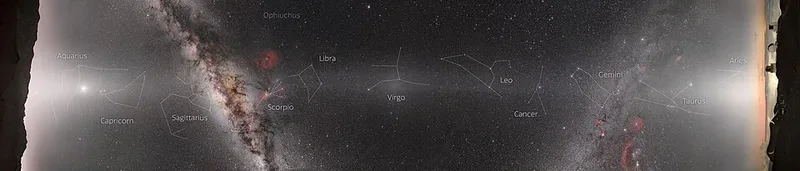
If Stellarium shows your mount connected but the telescope does not move, the usual cause is an ASCOM connection mismatch: Stellarium is pointed at the wrong driver, or another app already owns the driver connection. The search “stellarium telescope not slewing” often leads to this setup problem, so check the driver and connection before changing mount settings.
Stellarium sends a slew request through its telescope-control interface to an ASCOM driver, which then tells the mount to move. A connection can appear configured while the chain is broken at the driver, port, or mount level. Common mechanisms include:
In Stellarium, open Configuration (the wrench icon or press F2), select Plugins, then Telescope Control. Enable the plugin and restart Stellarium if prompted. Open the telescope-control window, edit the telescope entry, and choose the ASCOM telescope option and the driver that matches your mount. Select Configure to open the driver’s own setup dialog. The fix is confirmed when the correct mount name and its connection settings appear there.
Close Stellarium, then use the driver’s configuration or connection utility, if supplied, to connect and issue a small manual movement using the mount’s own controls. Some drivers provide a test connection button but no movement controls; in that case, use the mount manufacturer’s supported control software. If the driver cannot connect outside Stellarium, resolve its setup first. A successful connection and movement outside Stellarium confirm the driver and mount can communicate.
In the ASCOM driver’s setup, verify the selected connection method and port against the mount’s current connection. For a serial connection, check Windows Device Manager under Ports (COM & LPT) and select the port assigned to the mount’s USB adapter. For a network connection, confirm the mount and computer are on the expected network and use the address and port specified by the mount or driver documentation. Reconnect; a successful driver connection confirms the path is working.
Disconnect other programs that may control the mount, including planetarium software, mount utilities, and imaging suites such as N.I.N.A. or ASIAIR-related control software. Close them fully, then connect from Stellarium’s telescope-control window. Some drivers support shared connections, but do not assume yours does. If Stellarium can now connect and slew, another app had held the connection.
Use the mount’s hand controller or supported control application to complete its required startup, time and location setup, and alignment procedure. Check that the mount is not in a park state, and that tracking or motion is enabled as required by its operating mode. Try a nearby, visible target from Stellarium. If the mount accepts that slew, its readiness and alignment were likely the issue; follow the mount manual for any model-specific initialization.
Choose a bright, currently visible object well above the horizon rather than a target near the horizon or behind the mount. Confirm Stellarium’s location and time match the observing site, then inspect the mount’s horizon, meridian, and slew limits in its controller or driver settings. Do not disable safety limits to force a movement. If the safe target slews but the original does not, the original target or a limit is the likely cause.
In Configuration > Plugins > Telescope Control, remove the nonworking entry and add it again with the intended ASCOM driver. Save, restart Stellarium if requested, and connect once. Observe whether the entry reports connected and whether the mount responds to a safe target. If it still fails, note the exact driver message and check the ASCOM driver’s log or the mount’s own status display; those details identify which part of the chain is rejecting the command.
| Cause | Symptom | Quick test |
|---|---|---|
| Wrong ASCOM driver | Stellarium cannot connect or controls the wrong device | Open the driver chooser and verify the mount entry |
| Port or network mismatch | Driver connection fails outside Stellarium too | Check the selected port or documented network settings |
| Another app owns the mount | Connection works after other software closes | Close mount-control and imaging apps, then retry |
| Target rejected by readiness or limits | Connection succeeds but a particular slew does not | Try a visible target well above the horizon |
A connection indicator only confirms that a software link was made; the mount can still reject a movement because it is parked, unaligned, or constrained by limits. Test a safe, visible target and check the mount’s own status.
Stellarium’s telescope-control options depend on its platform and the mount’s supported interface. On Windows, ASCOM is a common route; check the telescope-control plugin and your mount or driver documentation for supported alternatives.
Verify that the correct driver is installed and selected, then check its connection settings with Stellarium closed. Also close other control programs, since some drivers allow only one client at a time.
Work through the driver, connection, and target checks in order; each successful test narrows down where the slew request stops. If nothing worked, record the mount model, driver name, connection method, and exact driver message, then consult the mount or driver support documentation.
Photo: NOIRLab/NSF/AURA/ P. Horálek (Institute of Physics in Opava), T. Slovinský / CC BY 4.0 (Wikimedia Commons)
Fix an aquarium co2 regulator bubble counter that stays still, empties, or bubbles unevenly. Check assembly, leaks, pressure, tubing, and safe CO2 flow.
Fix an aquarium ato float switch stuck by checking buildup, movement, wiring, and controller status, then add safe ATO limits to reduce overflow risk.
Fix reef tank dosing pump calibration with a measured three-point check, tubing inspection, priming, controller steps, and a safe verification run.
Fix apex controller not connecting to wifi by checking AquaBus communication, network compatibility, signal, and Fusion status with practical steps you can try today.
Fix tractive not charging red light issues by checking the charger, contacts, power source, and battery condition, with practical tests to identify the cause.
Fix a tractive tracker not connected to network issue by checking coverage, charging, SIM status, and LTE compatibility before contacting Tractive support.
Fix a petlibro feeder not dispensing by checking food flow, portion settings, the motor, and app connection, with safe steps to confirm the cause.
Fix a Petlibro feeder camera icon that keeps flashing: check Wi-Fi, power, app status, and setup steps to bring the camera back online today.
Petlibro feeder won t connect to wifi? Check your model’s Wi-Fi band, router settings, app permissions, and pairing mode with these practical fixes.
Fix the litter robot 4 pinch detect error by checking the waste drawer, cleaning pinch contacts, reseating the bonnet, and safely testing the cycle.








